
You are here:
Define Capacity-Based Resources
Typically, contractors in field service can work a specified amount in a given time period. Define a service resource’s capacity so they aren’t overbooked during schedule optimization.
Required Editions
| Available in: both Salesforce Classic (not available in all orgs) and Lightning Experience |
| The Agentforce Field Service and Operations core features, managed package, and mobile app are available in Enterprise, Unlimited, and Developer Editions. |
| User Permissions Needed | |
|---|---|
| To create, update, or delete resource capacities: | Edit on service resources |
- To indicate that a service resource is capacity-based, select Capacity-Based on the resource record and save your change.
- In the Capacities related list, click New.
- Enter the capacity start and end dates. If the Time Period is set to Day, enter the same start and end dates. If the time period is Week, the end date can be up to 1 week. If the time period is Month, the end date can be until the end of the month.
-
Specify how much the resource can work.
- For Time Period, select the time period that the capacity is based on.
For example, if the resource can work 8 hours a day, select
Day.
With Enhanced Scheduling and Optimization, you must select Day. The Week and Month options aren’t supported.
- For Hours per Time Period, base the resource’s capacity on the number of hours worked. For example, if the resource can work 8 hours a day, enter 8.
- For Work Items per Time Period, base the resource’s capacity on the number of service appointments assigned to them. For example, if the resource can complete 5 appointments a day, enter 5.
- For Time Period, select the time period that the capacity is based on.
For example, if the resource can work 8 hours a day, select
Day.
-
Save your changes. You can create multiple capacities for a resource as long as
the start and end dates don’t overlap.
On the Gantt, you can see the percentage of booked capacity. You can also click the banner to see more details.

Note To create a capacity for a date range, add the VF078_CapacityCalendar
Visualforce component to the Service Resource layout to display a Capacity Calendar.
To create a capacity for only one criterion (Hours per Time Period or Work Items per
Time Period), make sure to delete the default value of 0.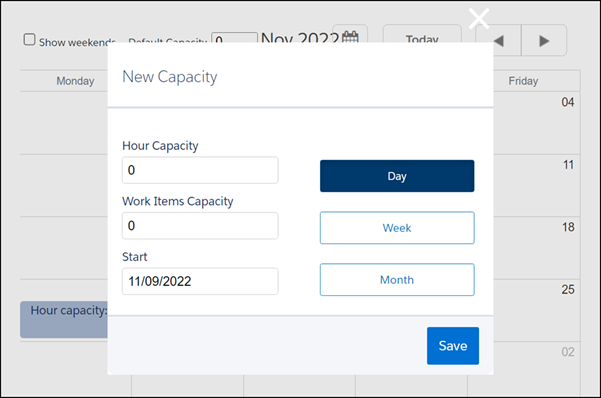
Pay attention to these considerations if you’re using Enhanced Scheduling and Optimization.
- The Fix Overlaps feature isn’t supported for capacity-based service resources.
- Resource absence isn't supported for capacity-based service resources.
- Resource efficiency isn't supported for capacity-based service resources.
- Schedule optimization supports daily capacity, but not weekly or monthly.
- Resource schedule optimization—the optimization of an individual service resource’s schedule—isn’t supported for capacity-based service resources.
- If a service resource is capacity-based with a defined capacity, their utilization percentage isn’t shown in the Gantt.
- Capacity-based resources can’t be assigned to appointments that have a scheduling dependency.
- Capacity-based resources can’t be relocated.
- If Hours per Time Period or Work Items per Time Period are set to 0, the result of the performed action considers it a capacity of 0. However, on the Gantt, this value is considered empty.
- If you deselect Capacity-Based Resource, make sure you also remove the resource’s defined capacities. Otherwise, the capacity still shows on the Gantt.
- Capacity-Based Resources doesn’t support complex work.
- Up to 5,000 objects (service appointments and service resources) are supported overall in any optimization or scheduling actions.
- Day is the only time period supported. The Week and Month options aren’t supported.
- The capacity banner on the Gantt doesn’t show the capacity percentage. Additionally, if you click the capacity banner to see more details, the details window isn’t updated accordingly.
- Capacity-based resources can’t use the Count work rule.
- You can’t schedule appointments for capacity-based resources that aren’t assigned to a shift. This behavior is the same for regular resources.
- If you manually change the status of a service appointment to None, or clear the Scheduled Start and Scheduled End fields, the capacity consumption isn’t updated.
- You can assign any service appointment to a capacity-based resource, as long as they’re available. For appointments that span over multiple days (crossing midnight), the duration is split over each day the service appointment spans. By considering the hours set for each day separately, Field Service ensures accurate capacity tracking and optimal scheduling.
Pay attention to these considerations if you aren’t using Enhanced Scheduling and Optimization.
- The Fix Overlaps feature isn’t supported for capacity-based service resources.
- Resource schedule optimization—the optimization of an individual service resource’s schedule—isn’t supported for capacity-based service resources.
- If a service resource is capacity-based with a defined capacity, their utilization percentage isn’t shown in the Gantt.
- Capacity-based resources can’t be assigned to appointments that have a scheduling dependency.
- Capacity-based resources can’t be relocated or assigned to a secondary service territory.
- If Hours per Time Period or Work Items per Time Period are set to 0, the result of the performed action considers it a capacity of 0. However, on the Gantt, this value is considered empty.
- If you deselect Capacity-Based Resource, make sure you also remove the resource’s defined capacities. Otherwise, the capacity still shows on the Gantt.
- You can’t assign capacity-based resources to appointments that are part of an appointment dependency group. Dispatchers can manually drag service appointments to capacity-based resources, but Scheduling and Optimization doesn’t schedule those appointments. You can manually schedule the appointments.
- You can’t schedule appointments for capacity-based resources that aren’t assigned to a shift. This behavior is the same for regular resources.
- If you manually change the status of a service appointment to None, or clear the Scheduled Start and Scheduled End fields, the capacity consumption isn’t updated.
Did this article solve your issue?
Let us know so we can improve!
