
You are here:
Enable Field Service
Enable Field Service to start using Field Service features.
Required Editions
| Available in: both Salesforce Classic (not available in all orgs) and Lightning Experience |
| The Field Service core features, managed package, and mobile app are available in Enterprise, Unlimited, and Developer Editions. |
| User Permissions Needed | |
|---|---|
| To enable Field Service: | Customize Application |
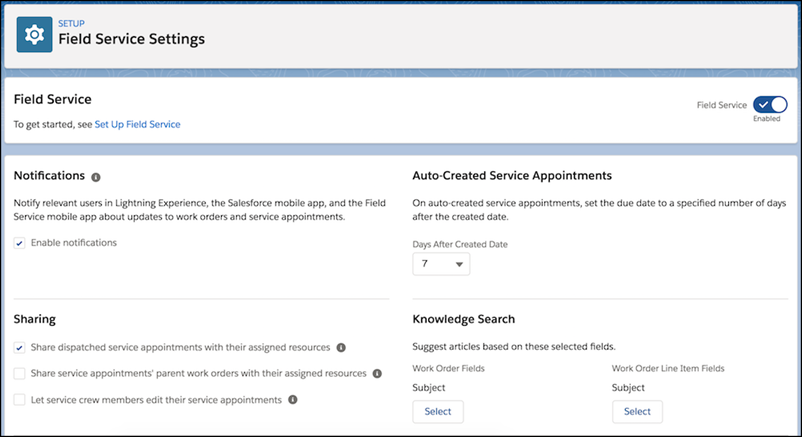
- From Setup, enter Field Service Settings in the Quick Find box, then select Field Service Settings.
-
Enable Field Service, and click Save to display more settings.
If you don’t have a Field Service add-on license, an option to enable work orders is on by default. If Field Service was enabled, but the license was removed or has expired, that option is off by default.
-
Optionally, turn on in-app notifications for Salesforce app and Lightning Experience users
when any of the following actions occurs on a work order or work order line item that they own
or follow:
- A text or file post is added
- A tracked field is updated
- The record owner changes
- The resource assignments change on a related service appointment
If the option to track all related objects is selected in your feed tracking settings for work orders, users are also notified when child records of work orders—such as service appointments—are created or deleted. - Optionally, update the sharing settings. See Limit Access to Field Service Records.
- When you set up work types, which are templates for work orders, you can opt to automatically add a service appointment to new work orders or work order line items associated with a work type. Configure the number of days between the created date and due date on auto-created service appointments.
- If you want to use your knowledge base in field service, select the fields that the search engine scans to suggest articles on work orders or work order line items.
- Save your changes.
See Also
Did this article solve your issue?
Let us know so we can improve!
