
You are here:
Guidelines for Working with Maintenance Work Rules
With maintenance work rules you set up multiple recurring maintenance schedules for maintenance assets. Learn how maintenance work rule settings affect work order generation.
Number of Maintenance Work Rules Per Maintenance Plan
We recommend that there are no more than the equivalent of 2,000 maintenance work rules per maintenance plan. The number of maintenance work rules on a maintenance plan is the sum of:
- the number of maintenance work rules on maintenance assets.
- the equivalent number of maintenance work rules on maintenance assets derived from the maintenance plan for maintenance assets without maintenance work rules.

- Maintenance work rules on maintenance assets: 1 + 2 = 3
- Maintenance work rules derived from the maintenance plan: 8 (maintenance assets without maintenance work rules) * 3 = 24
This configuration gives an equivalent work rule count of 27.
We recommend no more than 5 maintenance work rules per maintenance plan and no more than 5 maintenance work rules per maintenance asset.
Understanding Work Order Generation
You can generate work orders from information on the maintenance plan alone. Or you can generate work orders from information on the maintenance plan and the maintenance work rules associated with the maintenance plan or its assets. The following table illustrates the differences in how these two approaches generate work orders automatically and manually.
| Recurrence scenario | Maintenance plan without maintenance work rules | Maintenance plan without maintenance work rules | Maintenance plan with maintenance work rules | Maintenance plan with maintenance work rules |
|---|---|---|---|---|
| Generation mode | Rolling | Batch | Rolling | Batch |
| Date range that determines eligible for work order generation | Date of first work order in the next batch in the range of today minus Generation Time Frame to the first of today plus Generation Horizon or maintenance plan End Date. | Date of first work order in the next batch is before maintenance plan End Date. | Date of first work order in the next batch in the range of today minus Generation Time Frame to today plus Generation Horizon plus Generation Time Frame, as long as this range is before the maintenance plan End Date | Date of first work order in the next batch is before maintenance plan End Date. |
| Last possible suggested maintenance date that work orders are generated for | The earliest of Date of first work order in the next batch plus Generation Time Frame or maintenance plan End Date. | The earliest of Date of first work order in the next batch plus Generation Time Frame or maintenance plan End Date. | Today plus Generation Horizon plus Generation Time Frame. | The earliest of Date of first work order in the next batch plus Generation Time Frame or maintenance plan End Date. |
| Last day in the generation window | Work orders generated can include the last day. | Work orders generated can include the last day. | Work orders generated exclude the last day. | Work orders generated exclude the last day. |
| Generation approach, see Batch Versus Rolling Generation | Batch window | Batch window | Rolling window | Batch window |
| Automatic generation upon work order completion | Yes | N/A | Yes | N/A |
| Respects sort order | N/A | N/A | If Generate new batch upon completion isn’t selected, then Sort Order is respected. If Generate new batch upon completion is selected, then maintenance work rules associated with the last incomplete work orders or work order line items aren’t considered when evaluating sort order. See also, Automatic generation example in Sort Order and the Generate New Batch Upon Completion Setting. |
Yes. except when the Date of first work order in the next batch values are offset. See also, Manual generation example in Sort Order and the Generate New Batch Upon Completion Setting. |
| Work Order Generation Limit Enforcement | Generates up to 2,600 work orders and advises of limit enforcement in a Chatter message. | Show an online error message and doesn’t generate any work orders. | Sends a Chatter notification and doesn’t generate any work orders. | Sends a Chatter notification and doesn’t generate any work orders. |
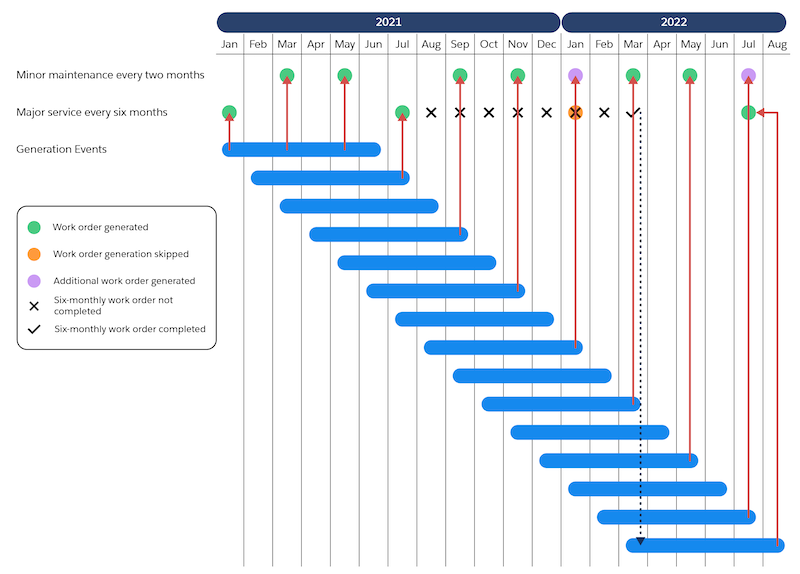
The following diagram shows the generation of work orders for an asset that has Generate new batch upon completion set, Generation Timeframe set to 6 months and maintenance work rules for:
- Major maintenance to be performed every six months
- Minor maintenance to be performed every two months, but skipped when major maintenance is performed
When the major maintenance for July 2021 is then delayed by 7 months, the work order for the major maintenance in January 2022 isn’t generated. Instead the work order for the minor maintenance is created. Before the major maintenance for July 2021 is completed, the generation window opens for July 2022 and generates work orders for the minor maintenance. When the major maintenance is completed, its maintenance work rule becomes eligible in the next generation window and the work order for the major maintenance in July 2022 is generated. After this, assuming work orders are completed on time, the schedule generates as expected.
Take a maintenance work rule recurring monthly for 12 months. The first maintenance work rule starts on 7/1 and has a sort order of 1 and the second maintenance work rule starts on 8/1 with a sort order of 2. From 7/1/2020 to 6/1/2021 only the first maintenance work rule, because of its lower sort order number, generates work orders. But on 7/1/2021, the second maintenance work rule generates work orders when the first maintenance work rule is no longer attempting to generate work orders.
Batch Versus Rolling Generation
In batch generation, work orders are generated for the asset’s generation timeframe and then not considered for generation again until the generation timeframe has passed. The Generation Horizon and Generation Upon Completion features aren’t available for batch generation.
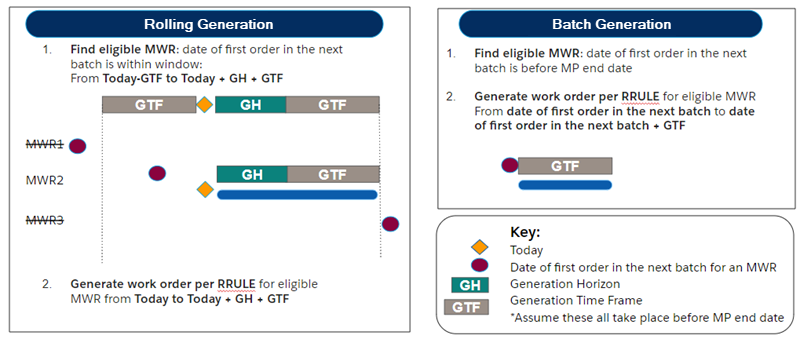
In rolling window generation, when work order generation runs it creates work orders according to the recurrence pattern for eligible maintenance work rules from the current date to the current date plus the generation horizon plus the generation timeframe.
By default, manual and automatic work order generation use a rolling window for calendar-based preventive maintenance. You can still opt to use a batch window to create work orders manually for calendar-based maintenance plans. However, that option doesn’t support advanced features such as Generation Horizon and Generation Upon Completion. To generate work orders using a batch window, go to Field Service Settings and select Use batch generation to create work orders manually.
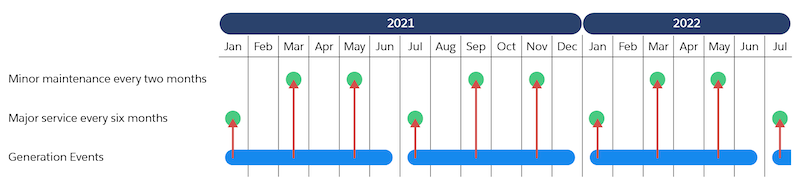
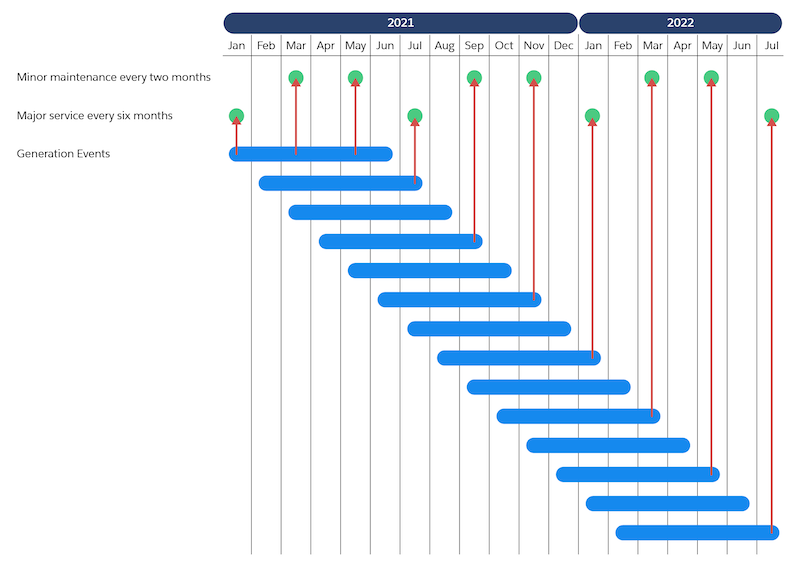
In the following diagram, the generation timeframe is 6 months and the generation horizon is 0 days. The blue bar represents the batch generation window. The start of the blue bar is when auto generation runs. Not all generation events are shown, automatic generation runs 3 times daily.
Eligible Maintenance Work Rules
Eligible maintenance work rules are rules whose date of first work order in the next batch is between:
- the current date minus the generation time frame and
- the current date plus the generation time frame plus the generation horizon.
If an eligible maintenance work rule's date of first work order in the next batch is earlier than the current date, generation doesn’t create work orders for the period between the date of the first work order in the next batch and the current date.
Maintenance work rules whose date of first work order in the next batch is earlier then the current date minus the generation time frame will start generating work orders when the date of first work order in the next batch is updated to fall into the eligible date range.
For example, take the case where today is 1/8 and a maintenance work rule has a generation time frame of 10 days and generation horizon of 8 days:
- If the date of first work order in the next batch is 1/11, the maintenance work rule is eligible for generation and work orders following the recurrence pattern are generated from 1/11 to 1/26.
- If the date of first work order in the next batch is 1/1, the maintenance work rule is eligible for generation and work orders following the recurrence pattern are generated from 1/8 to 1/26.
- If the date of first work order in the next batch is 12/15, then no work orders are generated because 12/15 is before today's date minus the generation timeframe that is 1/8 minus 10 days giving 12/29.
Understanding Work Order Recurrence
A recurrence pattern determines how often maintenance visits are scheduled based on the maintenance plan. To create a maintenance schedule, you can use a maintenance work rule on the maintenance asset or maintenance plan, or you can use the frequency fields on the maintenance plan. Additionally, if you need more flexibility to meet your work order generation needs, define RRULE in the API to create a highly customized schedule.

When a work order is scheduled, the recurrence frequency is determined in this order:
Maintenance asset maintenance work rules > Maintenance plan maintenance work rules > Maintenance plan frequency fields
Maintenance work rules on the maintenance asset override any recurrence defined on the maintenance plan. If there are no maintenance work rules defined for the maintenance asset, the maintenance work rules on the maintenance plan are used to set the recurrence. If there are no maintenance work rules defined on the maintenance asset or maintenance plan, then the frequency fields on the maintenance plans are used to define the recurrence pattern.
- The maintenance plan has MWR1
- MA1 has no MWR
- MA2 has MWR2
Using MONTHDAY
The RRULE property MONTHDAY allows you to schedule an event that occurs monthly on a specific date. For example, you can use the MONTHDAY property to generate work orders on the first of every month:
“FREQ=MONTHLY;INTERVAL=1;BYMONTHDAY=1;”While generating work orders on the first of every month is straightforward, generating work orders on the 31st of every month requires you to specify additional RRULE properties. To generate work orders on the 31st of every month, you could use this RRULE:
“FREQ=MONTHLY;INTERVAL=1;BYMONTHDAY=31;”However in Salesforce, that RRULE generates work orders on the last day of every month: Jan 31, Feb 28, Mar 31, April 30, May 31, June 30, July 31, Aug 31, Sep 30, Oct 31, Nov 30, Dec 31. In the API, you can specify additional properties in your RRULE to produce work orders only for months with 31 days:
FREQ=MONTHLY;COUNT=30;INTERVAL=1;WKST=MO;BYMONTH=1,3,5,7,8,10,12;BYMONTHDAY=31 This RRULE ensures that work orders are only generated on Jan 31, Mar 31, May 31, Jul 31, Aug 31, Oct 31, Dec 31.
Date of the First Work Order in the Next Batch and Maintenance Work Rule Alignment
If the entered Date of first work order in the next batch doesn’t match the RRULE pattern, the system uses the earliest date in the current month or later that matches the RRULE and is within the generation time frame. It’s possible that a date matching the RRULE in the current month isn’t within the generation time frame, as shown in most of the following examples.
For example, if the RRULE is set to generate work orders on the first day of every other month, with a generation time frame of 2 months, and today is 8/19/2020 the following occurs:
| Entered Date of first work order in the next batch | Earliest date in the current month according to the RRULE | Suggested maintenance date of work orders or work order line items generated |
|---|---|---|
| 8/19, meaning today | 8/1, but it’s in the past | 10/1 |
| 8/4, or any date in the past in the current month | 8/1, but it’s in the past | 10/1 |
| 8/29, a date in the future in the current month | 8/1, but it’s in the past | 10/1 |
| 7/30, a date in the past in a past month | 7/1, but it’s in the past | 9/1 |
| 9/20, a date in the future in a future month | 9/1, it’s in the future, but the generation time frame is 9/20 to 11/20 | 11/1 |
| 9/1, the earliest date matching the RRULE after the current date | 9/1 | 9/1 |
Using Sort Order
Sort order determines how work orders are generated for a maintenance asset when that maintenance asset has two or more maintenance work rules attempting to generate a work order for the same date. Sort order works as follows:
- When maintenance work rules for generation have different sort orders, only work orders for the rules with the lowest sort order value are generated.
- When maintenance work rules for generation have the same sort order, all the work orders are generated.
After consideration for generation, maintenance work rules have their Date of first work order in the next batch advanced as though all their work orders were generated, as shown in the Multiple Rules with Multiple Sort Orders example.
Albert, the service manager at Red Brick Building Services, receives details of a new contract to maintain an air conditioning system. The contract provides for minor maintenance every 3 months and a major service once a year. On February 10, Albert sets up maintenance work rules as follows:
- Annual maintenance starting on February 1 of the following year with a sort order of 1
- Minor maintenance starting on May 1 with a sort order of 2.
These work orders are generated:
| Minor maintenance rule | Annual maintenance rule | |
|---|---|---|
| May 1 | Work orders generated | NA |
| August 1 | Work orders generated | NA |
| November 1 | Work orders generated | NA |
| February 1 | No work orders generated, but Date of first work order in the next batch advanced to May 1 | Work orders generated |
Georgia, the pool hygiene manager for Crystal Clear Pools, receives details for a cleaning contract for a new pool installation. This contract includes a monthly pool clean and the application of a chemical treatment every 3 months.
After Georgia adds the customer details and creates a maintenance plan and the pool asset, she sets up two maintenance work rules:
- A rule for the monthly service to take place on the 10th of each month, with a sort order of 1.
- A rule for the 3-month chemical treatment to take place on the 10th of every third month, with a sort order of 1. But because the initial treatment was applied when the pool was installed, Georgia sets the Date of first work order in the next batch 3 months in the future.
These work orders are generated:
| Monthly service rule | Three-month chemical treatment rule | |
|---|---|---|
| First month | Work orders generated | NA |
| Second month | Work orders generated | NA |
| Third month | Work orders generated | Work orders generated |
Edge Cases in Sort Order and the Generate New Batch Upon Completion Setting
When the Generate new batch upon completion option is selected and a maintenance work rule with the lowest sort order value is eligible for a generation but its last work order is incomplete, the maintenance work rule’s work order isn’t generated. The rule’s Date of first work order in the next batch is advanced as though it was generated. Then:
- If there are other maintenance work rules with the lowest sort order value eligible for generation, work orders corresponding to these rules are generated else,
- If there are maintenance work rules with a higher sort order value eligible for generation, work orders corresponding to these rules are generated.
When the maintenance work rule's last work order is marked as complete, the rule will be considered for generation in the next generation cycle.
Understanding the Work Order Generation Limit
The maximum number of work orders that can be generated per maintenance plan is 2,600. As a result, there’s a practical limit of 2,600 maintenance assets per maintenance plan.
The 2600 limit refers to the number of work orders generated per plan per each round of work order generation. It doesn't count the work orders already generated in the previous round of generation. This limit depends on the number of maintenance assets, the eligible maintenance work rules, their recurrence pattern, and the generation timeframe of the maintenance plan.
The limit is further reduced when:
- using maintenance work rules, there are multiple maintenance work rules on the maintenance plan or its maintenance assets, or
- using maintenance plans alone (without maintenance work rules), Inclusive of Last Day of Generation Window is in effect, and more work orders could be generated for the last day.
- If the generation timeframe is 1 year, then each generation at a maximum generates 5 (MA) x 365 = 1825 work orders. So within the 2600 limit.
- However, if the generation timeframe is 2 years, then each generation at a maximum generates 5 (MA) x 365 x 2 = 3650 work order. That exceeds the 2600 limit.
What Happens if Work Order Generation Tries to Create More Than 2,600 Work Orders?
When work order generation tries to create more than 2,600 work orders:
- If maintenance work rules are used, for either automatic or manual generation: doesn’t generate work orders and provides an error message. This behavior occurs because, unlike work orders based on maintenance frequency specified in the maintenance plan, the presence of multiple work rules whose generation is determined by sort order could result in partial creation of the required work orders when the 2,600 limit is reached. To rectify, reduce the maintenance plan generation timeframe.
- If manual generation for maintenance plan with frequencies is used: doesn’t generate work orders and provides an error message. To rectify, reduce the maintenance plan generation timeframe.
- If automatic generation for maintenance plans with frequencies is used: generates 2,600 work orders and posts a message on chatter advising that the limit was reached. No further action is needed.
What Happens When the Option to Generate One Asset to One Work Order Line Item is Selected?
When the option to Generate One Asset to One Work Order Line Item is selected:
- If maintenance work rules are used, the system puts the limit on the count of work order line items if generating work order line items and on the count of work orders if there are only work orders generated. Take the case where a plan has 2,600 assets each with 3 maintenance work rules for generation. Because of the limit, we report an exception when there are more than 2,600 work order line items generated.
- If maintenance plans with frequencies are used, 2,600 work order line items are generated. If all the maintenance assets have the same next suggested maintenance date, one work order is generated. If the maintenance assets have different next suggested maintenance dates, then work order is generated for each of the next suggested maintenance dates.
Working with COUNT and UNTIL
Where you have an asset with several maintenance work rules, each with different sort orders, that you want to start and end together, we recommend you use UNTIL rather than COUNT. COUNT only counts work orders generated from the maintenance work rule. So maintenance work rules with higher sort order value don’t always generate work orders on the intended end date, resulting in these work order rules ending later than those rules with lower sort values.
For example, you want a monthly recurrence that ends in 2 years and set COUNT =24. If any of the 24 work orders weren’t generated because another rule had a higher sort order, then work order generation would continue after the 2-year end date, until the count reached 24.
User Access
To generate work orders, a user needs access to maintenance plans, work orders, and service appointments. The user is either the one who generates work orders manually, or is the owner of the maintenance plan for auto generation. We recommend you set up a generic user to eliminate potential problems that can result from changes in personnel.
Field Inheritance
When a work order is created, information is pulled from the maintenance work rules, maintenance asset, and maintenance plan. A maintenance plan can have assets with maintenance work rules defined on the maintenance asset and maintenance plan. However, specific information comes from each entity.
| Entity | Information |
|---|---|
| Maintenance work rule | Date of first work order in the next batch Work Type |
| Maintenance asset | Account Contact Date of first work order in the next batch* Location Work Type* *If not defined in the maintenance work rule |
| Maintenance plan | Owner Service Contract Work Type* Date of first work order in the next batch* *If not defined in the maintenance work rule or maintenance asset |
Field Inheritance—Date of First Work Order in the Next Batch
When a maintenance work rule is created and you don’t enter a value for the Date of first work order in the next batch (NextSuggestedMaintenanceDate):
- If the Date of first work order in the next batch is defined on the maintenance asset, the maintenance work rule’s Date of first work order in the next batch is set to the asset’s Date of first work order in the next batch.
- If the maintenance asset has no Date of first work order in the next batch, the maintenance work rule’s Date of first work order in the next batch is set to the maintenance plan’s Date of first work order in the next batch.
Later, a maintenance work rule’s Date of first work order in the next batch can be set to a new date or cleared. If the rule’s Date of first work order in the next batch is empty when the work order generation is triggered, Date of first work order in the next batch is determined using the same logic as setting the value on creation.
Field Inheritance—Work Type
The work type on a maintenance plan serves as the default for its related records. When work orders or work order line items (WOLIs) are created, the work type is determined based on an inheritance order.
| Priority | Source | Behavior | Best used when |
|---|---|---|---|
| 1st | Maintenance Work Rule | If a work type is defined here, the search stops immediately. | The work type depends on the interval ( monthly service vs. annual overhaul). |
| 2nd | Maintenance Plan | If the MWR is blank, the MP is searched. If the work type is found, the asset is ignored. | Most of your assets require the same work type. |
| 3rd | Maintenance Asset | Only checked if both the MWR and the MP have blank work type fields. | You need different assets within the same MP to have different work types (pump inspection vs. a filter change). |
Maintenance assets initially inherit the work type when created, but they can be manually updated to a different value. If you want specific maintenance assets to dictate the work type, you must ensure the Work Type field on both the maintenance work rule and the maintenance plan is left blank.
Rolling Up Work Order Line Items
If the option to generate one work order line item per asset is selected, the system puts one or more work order line items that share a suggested maintenance date into a work order.
Take a maintenance plan where one asset to one work order line item is set with:
- A turbine with weekly on Monday and monthly on the first Monday of the month recurring maintenance work rules with the same sort order (see Using Sort Order for more details.
- A chiller with monthly recurrence on the first Monday of the month.
The weekly turbine maintenance requires work on 6/22, 6/29, 7/6, and 7/13. The monthly turbine and chiller maintenance requires work on 7/6. So on 7/6, there’s one work order with three work order line items for the weekly turbine, monthly turbine, and monthly chiller maintenance. But on 6/22, 6/29, and 7/13, there’s one work order with one work order line item for the weekly turbine maintenance.
Take a maintenance plan with one work order line item per asset selected and four maintenance assets divided into two sets of two, that share a next suggested maintenance date where:
- Each maintenance asset has a maintenance work rule with recurrence every 6 months.
- The first two maintenance work rules have the same next suggested maintenance date of 7/1.
- The last two maintenance work rules are offset by 1 month, to 8/1, from the first group.
In this case, the:
- First two are grouped in one work order (on 1/July) with two work order line item, and one service appointment.
- Last two are grouped in a separate work order (1/August) with two work order line item, and one service appointment.
There’s no rollup of work order line item details into work orders when you select the option for one work order line item to be generated per asset.
Take a maintenance plan with one work order line item per asset selected and two assets. Each asset has a maintenance work rule with different work types. For example, the first asset has a work type for filter replacement that takes 2 hours and the second for battery replacement that takes 5 hours. Each maintenance work has the same frequency and next suggested maintenance date.
If the option for one service appointment per work order line item is selected:
- one parent work order is created
- a work order line item is created for each asset, and
- if the associated work type has auto-create service appointment enabled for work order line items. one service appointment is created for each work order line item. The service appointment duration is populated from the work type, for example 2 hours for a filter replacement and 5 hours for battery replacement.
If one service appointment per work order is selected:
- one parent work order is created
- a work order line item is created for each asset, and
- one service appointment is created for the parent work order, even if the associated work type doesn’t have auto-create service appointment enabled.
- The duration of the service appointment isn’t populated.
If you populate the work type of the work order after it”s generated, the work order inherits the work type’s duration, duration type, and required skills.
Maintenance Work Rule Deletion
When a maintenance work rule is deleted, any association to that maintenance work rule on generated work orders and work order line items is set to NULL. After the maintenance work rule is deleted, it’s not possible to determine whether a maintenance work rule generated the work order or work order line item.
Reparenting
The parent item of a maintenance work rule can be changed. But to ensure data integrity, don’t reparent a maintenance work rule after it has generated work orders.
Field Tracking and Logging
We recommend that you turn on field tracking and debug logging when you expect to make regular changes to maintenance work rules.
