
You are here:
Create Operating Hours for Field Service
Set operating hours to make sure your field service workforce is available for appointments during their working hours. Define customer availability so that appointments are scheduled when customers can receive service, and establish default Appointment Booking and entitlement-based appointment windows to enhance service delivery. This approach ensures efficient scheduling, aligning workforce and customer availability for improved satisfaction.
Required Editions
| Available in: both Salesforce Classic (not available in all orgs) and Lightning Experience |
| The Field Service core features, managed package, and mobile app are available in Enterprise, Unlimited, and Developer Editions. |
| User Permissions Needed | |
|---|---|
| To view operating hours and time slots: | Read on operating hours |
| To create operating hours: | Create on operating hours |
| To assign operating hours to service resources: | Edit on service resources |
| To assign operating hours to service territories: | Edit on service territories |
| To assign operating hours to accounts: | Edit on accounts |
| To update, create, or delete time slots: | Edit on operating hours |
| To assign holidays to operating hours: | Edit on operating hours |
We recommend creating operating hours in Guided Setup—a Field Service managed package feature—to save time and gain visibility into how they’re used. Operating hours are an element of the following Guided Setup steps.
- Create Service Territories
- Create Service Resources
- Customize Appointment Booking
You can also create and manage operating hours from the Operating Hours tab, outside of Guided Setup. By default, only System Administrators can view, create, and assign operating hours. Also, operating hours aren’t available in the Organization-Wide Default Sharing Settings.
Operating hours are composed of time slots, which are managed from the Time Slots related list on an operating hours record. Time slots can vary by day. A day can have multiple time slots, but they must be adjacent for the hours to be respected during optimization. For example, an operating hours record can have the following time slots.
- Monday, 9 AM to 5 PM
- Tuesday, 9 AM to 5 PM
- Wednesday, 6 AM to 12 PM and Wednesday, 12 PM to 6 PM
- Thursday, 9 AM to 5 PM
- Friday, 9 AM to 5 PM
If a resource is unavailable during the day at a specific time slot, you must indicate this using Resource Absence, and not split availability. For example, if a service resource is available on Wednesday, 6 AM to 12 PM, and again from 1 PM to 6 PM, then extend availability from 6 AM to 6 PM and insert a Resource Absence between 12 PM and 1 PM.
Each operating hours record is associated with a time zone, which ensures that scheduling and optimization work properly. For appointment booking hours, Field Service uses the time zone listed on the operating hours of the service appointment’s service territory. This way, one operating hours record can be used to represent appointment booking windows across your customer base.

Assigning Operating Hours to Service Resources
A service resource’s hours can vary depending on the service territory where the resource is working. Service resources therefore have unique operating hours for their primary and secondary territories. Service territory members automatically use their service territory’s operating hours, although the Operating Hours field on the service territory member record appears blank. If a resource needs different operating hours than their territory, assign them separate operating hours on their service territory member record.
To view a service territory member record, click the member number in one of the following related lists.
- Service Territory Members list on the service territory
- Service Territories list on the service resource
Operating hours listed on a secondary territory member record are respected during scheduling only if:
- They’re identical to or contained within the resource’s primary territory membership’s hours if you aren’t using Enhanced Scheduling and Optimization.
- Respect secondary STM operating hours is selected. From the App Launcher, find and select the Field Service Admin app. Go to Field Service Settings | Scheduling | General Logic.
Otherwise, the primary service territory operating hours are used.
For example, suppose Shelly has a primary and secondary service territory. Her Monday hours are 12:00 PM to 5:00 PM in the primary territory, but 9:00 AM to 5:00 PM in the secondary territory. When she’s being scheduled to a Monday service appointment in the secondary territory, her primary hours are used because they’re more restrictive.
When you aren’t using Enhanced Scheduling and Optimization, secondary operating hours don’t contribute to resource availability because they’re always fully contained in the primary operating hours. When you’re using Enhanced Scheduling and Optimization, because secondary operating hours don’t need to be fully contained, operating hours on secondary service territories adds resource availability. You can increase resource utilization and reduce response time by enabling your resources to service multiple time zones in one shift. Set operating hours on secondary service territories in various time zones to maximize resource availability. For example, a mobile worker can service adjacent cities in different time zones. Or, a service resource can provide technical assistance from a call center to New York, Tel Aviv, London, and Sydney.
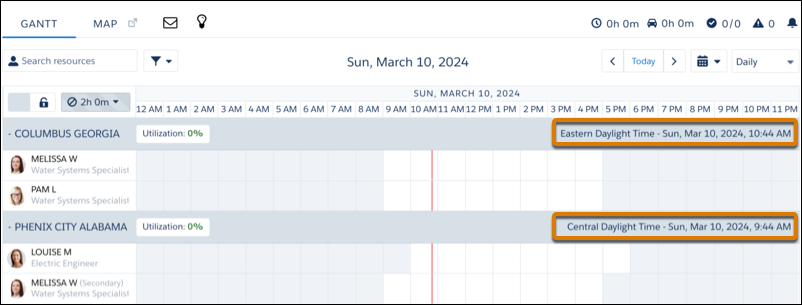
For example, Melissa has Columbus, GA, as her primary service territory with 9:00 AM to 5:00 PM operating hours and has a secondary service territory Phenix City, AL, also with 9:00 AM to 5:00 PM operating hours. Columbus, GA is in a time zone that’s 1 hour ahead of Phenix City, AL. Melissa's availability is calculated from each respective territory's operating hours such that Melissa is available to work for 9 hours overall. During the first hour of her shift, Melissa services only Columbus, GA, while for the next 7 hours, she covers both territories. During the last hour of her day, Melissa services only Phenix City, AL.
Enforcing Operating Hours
If the Field Service managed package isn’t installed, operating hours serve as a suggestion rather than a rule. If the managed package is installed, here’s how operating hours affect scheduling.
- During schedule optimization, service resources are assigned only to appointments that fall within the operating hours listed on their service territory member record or, if none is listed, on the primary service territory record.
- The Field Service - Service Appointment Visiting Hours work rule type ensures that a customer’s appointments fall within their account’s operating hours. Add a work rule of this type to any scheduling policy. When you’re using Enhanced Scheduling and Optimization, visiting hours use the time zone of the operating hours record or the time zone of the service appointment’s service territory, depending on your defined setting. When you’re not using Enhanced Scheduling and Optimization, visiting hours use the time zone of the service territory.
Continuous Resource Availability with Operating Hours for All Service Resources
Need your service resources available around the clock? Whether it’s capacity-based resources, individual resources, or crews, configuring 24-hour availability makes sure your team is ready to handle both standard and on-call tasks.
To enable continuous resource availability via operating hours, start by creating or updating an operating hours record. This setup makes your resources available around the clock without specific start and end times. You can define time slots to reflect standard, extended, or on-call hours, depending on the resource type.
- For capacity-based resources (such as contractors): Define one continuous time slot to ensure uninterrupted coverage for the entire time period.
- For individual resources and crews: Define either one continuous time slot for 24-hour coverage or separate time slots for standard and extended hours. Standard hours represent the usual work schedule, while extended or on-call hours cover periods when work can be assigned for specific scenarios, such as emergencies.
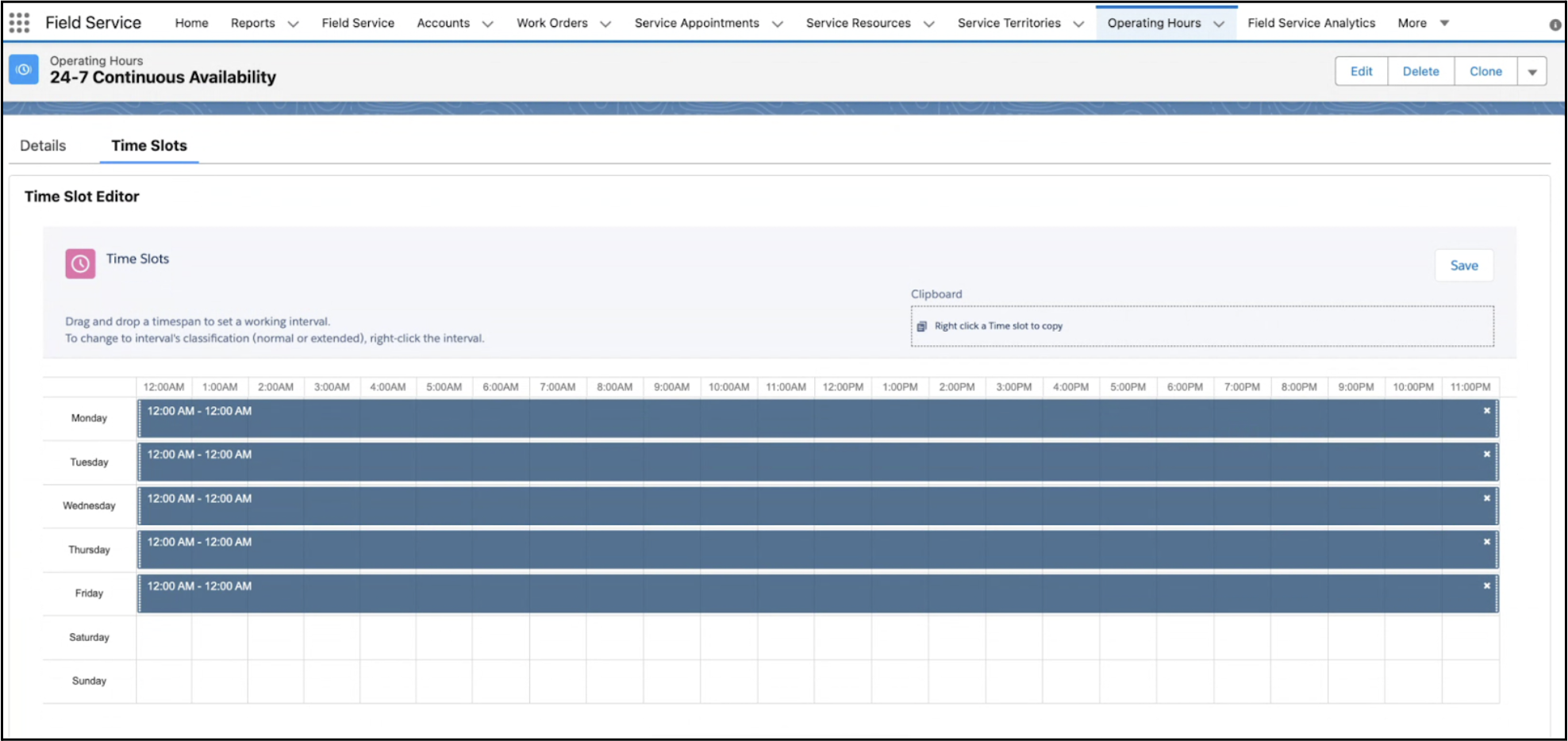
For example, for capacity-based resources, you can define a time slot that spans 12:00 AM to 12:00 AM across all days of the week. Doing so makes sure that resources are consistently available without interruptions or specific start and end times.
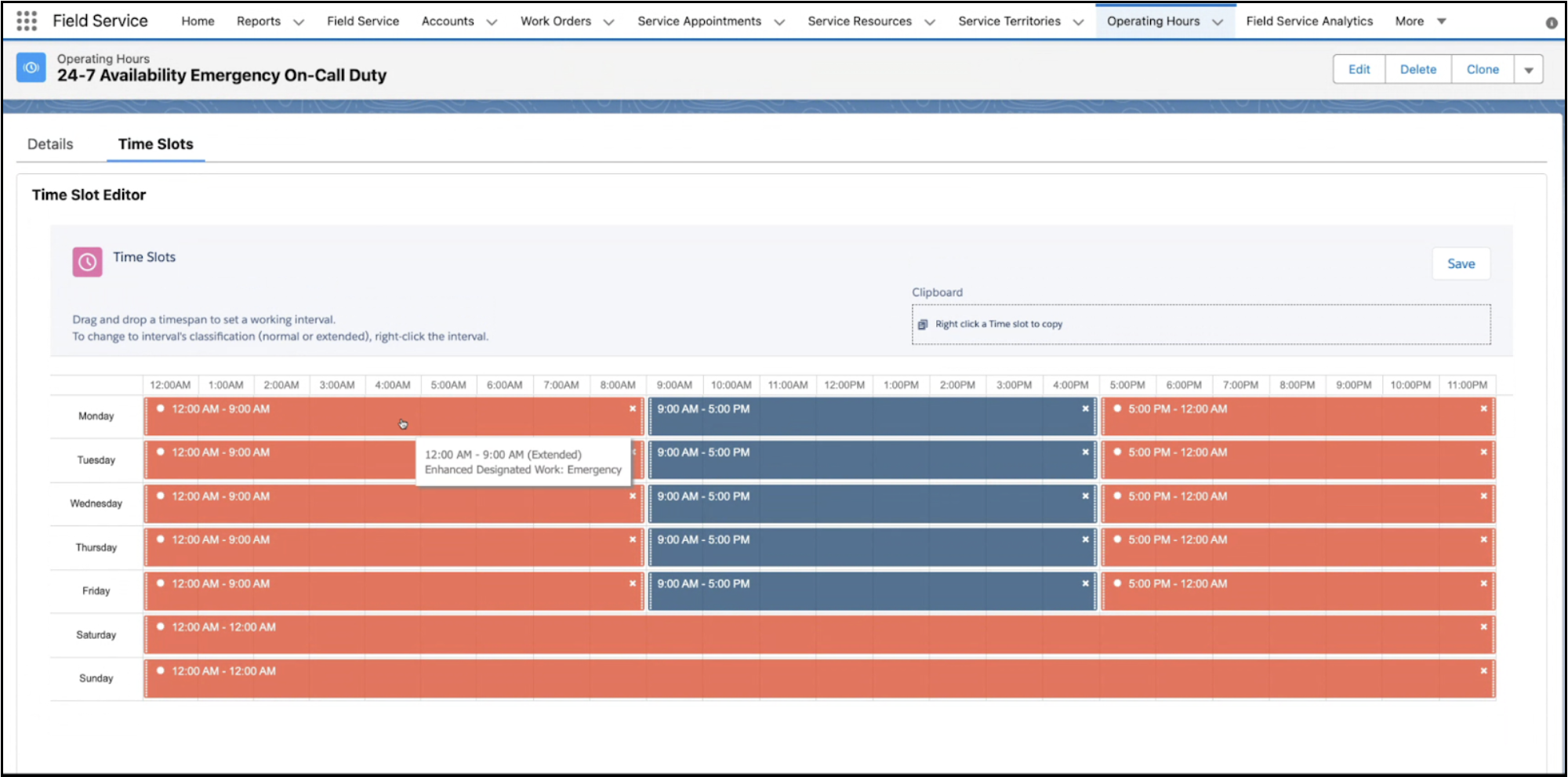
For individual resources and crews, create categorized operating hours that include both standard working hours (for example, 9:00 AM to 5:00 PM) and extended or on-call hours (for example, 12:00 AM to 9:00 AM and 5:00 PM to 12:00 AM). This approach provides flexibility for assigning specific types of work, such as emergency tasks, during extended periods.
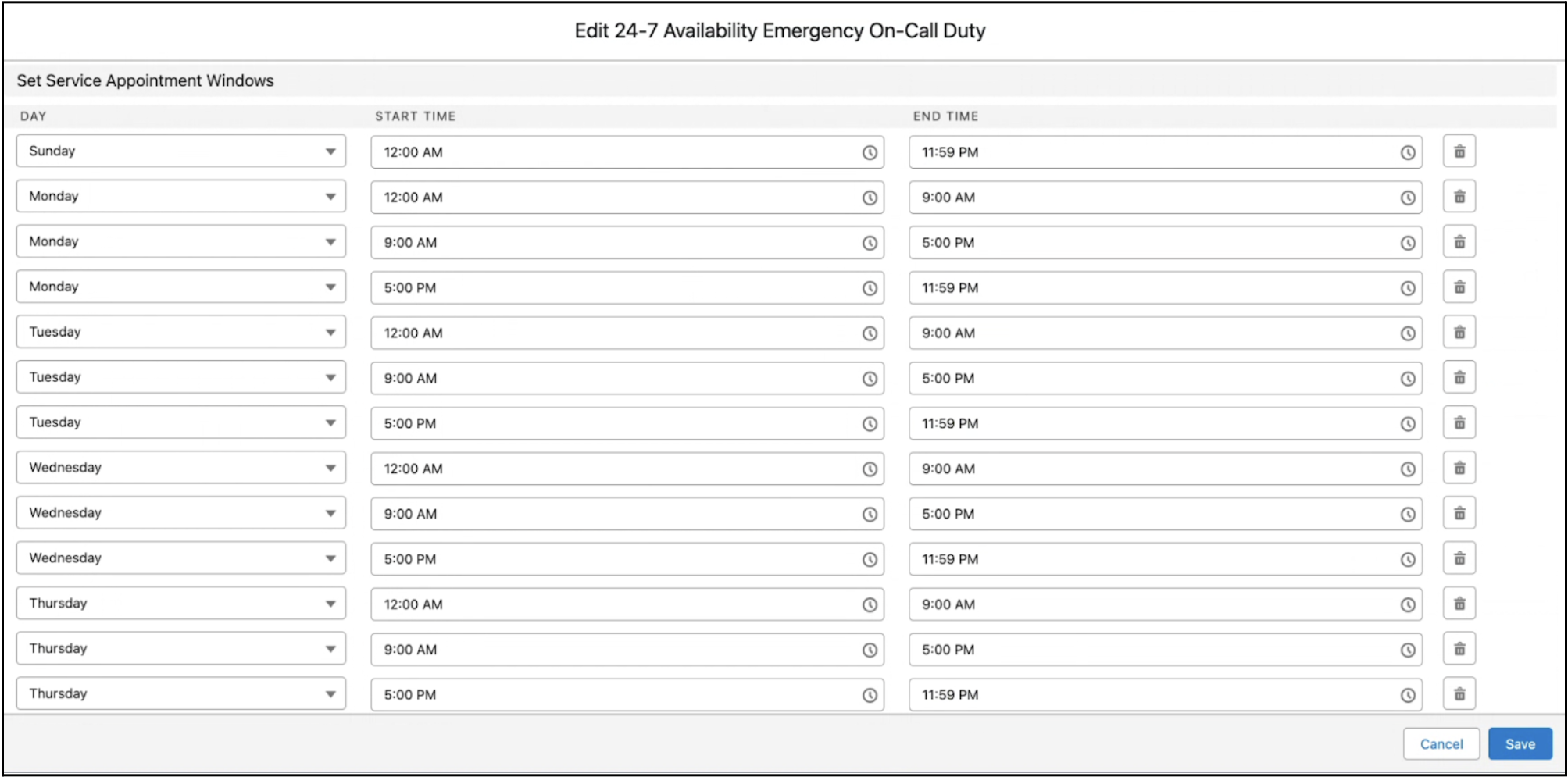
If you’re not using the time slot editor, define a unified time slot logic for 24-hour coverage by creating daily slots from 12:00 AM to 11:59 PM. Doing so ensures seamless availability across days, because the system automatically merges these time slots into one continuous period.
You can alternatively set up continuous availability using shifts. See Create Flexible Work Shifts.
Adding Holidays to Operating Hours
Modify operating hours by adding holidays, which represent closures or important dates. Holidays appear as unavailable time in the dispatcher console, and an icon near the date displays holiday details. The shift schedule view also shows holidays as unavailable time. But you can add availability with a shift marked as a holiday shift. Holiday shifts let you assign mobile workers to holiday dates that would otherwise be blocked off.
You can assign holidays to individual service resources by creating operating hours assigned to the specific service resource. Individualized operating hours let you adjust a worker's availability based on birthdays, religious holidays, or personal schedules.
To apply holiday logic during schedule optimization, make sure Enhanced Scheduling and Optimization is enabled in Field Service Settings. Otherwise, holidays are marked on the calendar but don’t impact scheduling.
When you’re using Enhanced Scheduling and Optimization, you can add holidays that represent the time when customers aren’t available to receive services. These holidays take precedence over the customers’ preferences for operating hours.
For recurring holidays, only the first upcoming holiday is shown on the Gantt and accounted for in scheduling and optimization. Subsequent holidays show on the Gantt after the first holiday passes.
- Guidelines for Creating Operating Hours for Field Service
Operating hours in Field Service can represent the availability of a mobile worker for scheduled work (defined on the Service Territory or Service Territory Member record), appointment booking arrival windows (defined as a default in Field Service Settings, or per Work Order, via Entitlements), and customer availability requirements (Visiting Hours on the Work Order). Learn how to set operating hours for each scenario. - Add Holidays to Operating Hours
Holidays help you manage the schedule when your business is closed. Create holidays, then add the holidays to your operating hours. Scheduling and optimization processes can take your holidays into account so that work isn't scheduled.
