Create an Appointment Bundle Config
Use the default configuration, or edit it to determine the status behavior when bundling and unbundling service appointments. These configuration settings apply to all your bundles.
Required Editions
| Available in: both Salesforce Classic (not available in all orgs) and Lightning Experience |
| The Agentforce Field Service and Operations core features, managed package, and mobile app are available in Enterprise, Unlimited, and Developer Editions. |
| User Permissions Needed | |
|---|---|
| To create items: | Customize Application |

-
From the App Launcher, open Appointment Bundle Configs.
If you don’t see Appointment Bundle Configs in the App Launcher:
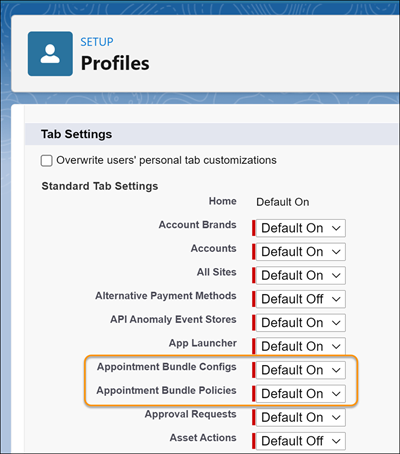
- From Setup, in the Quick Find box, enter Users, and then select Profiles.
- On the Salesforce admin profile, click Edit.
- From Profile Detail, click Edit.
- Under Tab Settings, set the bundle tabs to Default On.
- Save your changes and refresh your browser.
- On the Appointment Bundle Configs page, edit the default bundle configuration.
-
Under General Settings:
- Give the bundle a unique name.
- Select the statuses in which you can add or remove service appointments from a bundle. If you don’t select any statuses, appointments with any status can be added or removed from a bundle. We recommend selecting at least the None and Scheduled statuses.
-
To add travel time between the bundle member service appointments to the bundle’s
duration according to their sort order, select Add travel time to bundle
duration.
Considerations:
- Travel time is added only if the bundle member service appointments include coordinates
and the travel speed is set. To make sure the values are set for travel speed unit and
default travel speed, open Field Service Settings, select
Scheduling, and then select Routing.
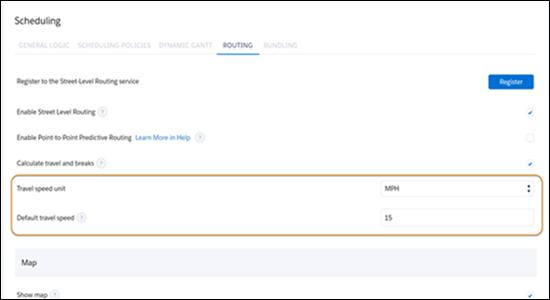
- The entered default travel speed is used for calculating the travel time between bundle member service appointments, even if travel speed is specified for the service resources assigned to the service appointments.
- The distance between the service appointments is based on aerial distance.
- Travel time between the bundle member service appointments is also affected by the
service resource’s efficiency. See Appointment Bundling Limitations.
Example: A service resource is assigned to a bundle that includes two service appointments of two hours each and a travel time between them of one hour. If the service resource doesn’t have a defined efficiency, the duration of the bundle is 2 hr (service appointment A) + 1 hr (travel time) + 2 hr (service appointment B) = 5 hr. If the service resource has a defined efficiency of 0.5, the duration of the bundle is: 1 hr (service appointment A) + 0.5 hr (travel time) + 1 hr (service appointment B) = 2.5 hr.
- Travel time is added only if the bundle member service appointments include coordinates
and the travel speed is set. To make sure the values are set for travel speed unit and
default travel speed, open Field Service Settings, select
Scheduling, and then select Routing.
-
Under Unbundling Settings:
- Select the status of a service appointment after it’s removed from a bundle, and select the statuses you don't want to update.
- To prevent automatic unbundling, leave the Criteria for Automatic Unbundling field blank. Otherwise, enter the recordset filter criteria.
-
If you deselect Delete empty bundle, select a status from
the canceled category in Empty Bundle Status. Empty bundles
aren’t deleted and receive the status that you selected.
To check if this functionality is supported in your org, in Field Service Settings, go to the Dispatch tab and open Scheduled Jobs. If you’ve selected to mention the assigned user when the service appointment is dispatched, and the bundle service appointment is scheduled, this functionality isn’t supported.
- Under Status Transition Settings, select which bundle service appointment statuses to add or not propagate.
- Save your changes.