
You are here:
Create an Appointment Bundle Policy
Use the default policy, or create multiple policies. You can use the policies for manual bundling, automatic bundling, or both.
Required Editions
| Available in: both Salesforce Classic (not available in all orgs) and Lightning Experience |
| The Agentforce Field Service and Operations core features, managed package, and mobile app are available in Enterprise, Unlimited, and Developer Editions. |
| User Permissions Needed | |
|---|---|
| To create items: | Customize Application |
-
If your service appointments have custom fields, make sure to give the fields read
access. See Appointment Bundling Limitations.
- From Setup, in the Quick Find box, enter Users, and then select Permission Sets.
- Click Field Service Integration.
- Click Object Settings.
- Click Service Appointment.
- For each custom field, select Read Access.
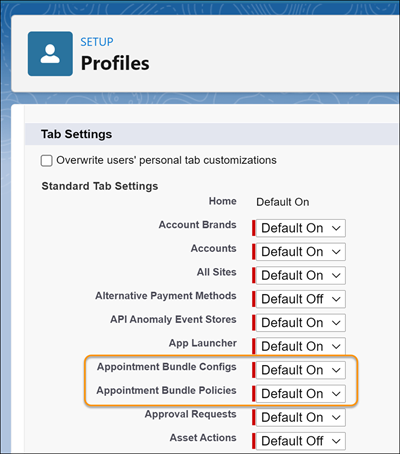
- From the App Launcher, open Appointment Bundle Policies.
- On the Appointment Bundle Policies page, click New.
- Give the policy a unique name.
- To make this policy available when the dispatcher manually bundles service appointments in the Classic Dispatch Console, select Manual Bundling.
-
To make this policy available when automatic bundling is triggered, select
Automatic Bundling and enter the details. Automatic bundling
includes two modes, Automated Bundling and Live Bundling. You can have manual bundling and
automatic bundling enabled at the same time.
- For Priority, enter a unique policy priority number. The priority determines the order that the policies are applied.
- For Limit Amount of Bundle Members, enter the maximum number of bundle members to include, up to 200.
- For Limit Duration of Bundle, enter the maximum duration of a bundle, in minutes. The recommended limit is 240 minutes.
 Note The Limit Amount of Bundle Members and Limit Duration of Bundle fields are relevant only for automatic bundling, not for manual bundling.
 - For Filter Criteria, select an active recordset filter to determine the bundle members. Only the service appointments that meet the criteria are bundled.
-
To make sure that enough time is allocated for the bundle, calculate the difference
between the bundle’s start time and the bundle’s end time. If that amount of time is
shorter than the bundle’s duration, replace the duration with a predefined constant
value.
- Under Duration Calculation, select Time Calculation by Bundle Duration Field.
- For Bundle Start Time Field Name, select the bundle service appointment field used for the bundle’s start time.
- For Bundle End Time Field Name, select the bundle service appointment field used for the bundle’s end time.
- For Constant Time Value, enter the bundle's total time as a constant value, in minutes.
- Save your changes.
- The Allow Scheduling Dependencies in Bundle field isn’t supported.
- Deleting a bundle policy that’s in use isn’t recommended.
Note Don’t create triggers that update fields in any of the Appointment
Bundling policies. If your configuration includes these triggers, you must delete them and
apply a different configuration solution. For example, if you have a trigger that calculates
duration, delete the trigger and create an aggregation duration downscale policy
instead.
- Create an Appointment Bundle Sort Policy
Use the default policy, or create multiple sort policies. For manual bundling, define a policy for sorting the bundle members within a bundle. The sorting is applied when bundling and unbundling service appointments. For automatic bundling, define a policy that determines the order that’s used to examine the bundling candidates. - Create an Appointment Bundle Restriction Policy
Use an appointment bundle restriction policy to define restriction fields so that only service appointments with the same field values can be bundled together. Use the default policy, or create multiple restriction policies. For automatic bundling, you must have at least one restriction policy. - Create an Appointment Bundle Propagation Policy
Create a policy to determine when and how the bundle service appointment updates the fields of the bundle member service appointments. And you can create multiple propagation policies for each bundle policy. Each propagation policy controls how one bundle member service appointment field is populated. - Create an Appointment Bundle Aggregation Policy
Use the default aggregation policies, or create policies to determine when and how bundle member service appointments update the bundle service appointment fields. And you can create multiple aggregation policies for each bundle policy. Each aggregation policy controls how one bundle service appointment field is populated. - Create Appointment Bundle Aggregation Duration Downscales
Account for one-time tasks that are part of a bundle by downscaling the duration of the bundle member service appointments. You can create multiple aggregation duration downscales. - Create Appointment Bundle Policy Service Territories
Define one service territory for each bundle policy. Only service appointments in the defined service territory can be added to the bundle. For automatic bundling, you need at least one Appointment Bundle Policy Service Territory. For manual bundling, Appointment Bundle Policy Service Territories are optional.
Did this article solve your issue?
Let us know so we can improve!
