
Manage Your Shift Schedule in Field Service
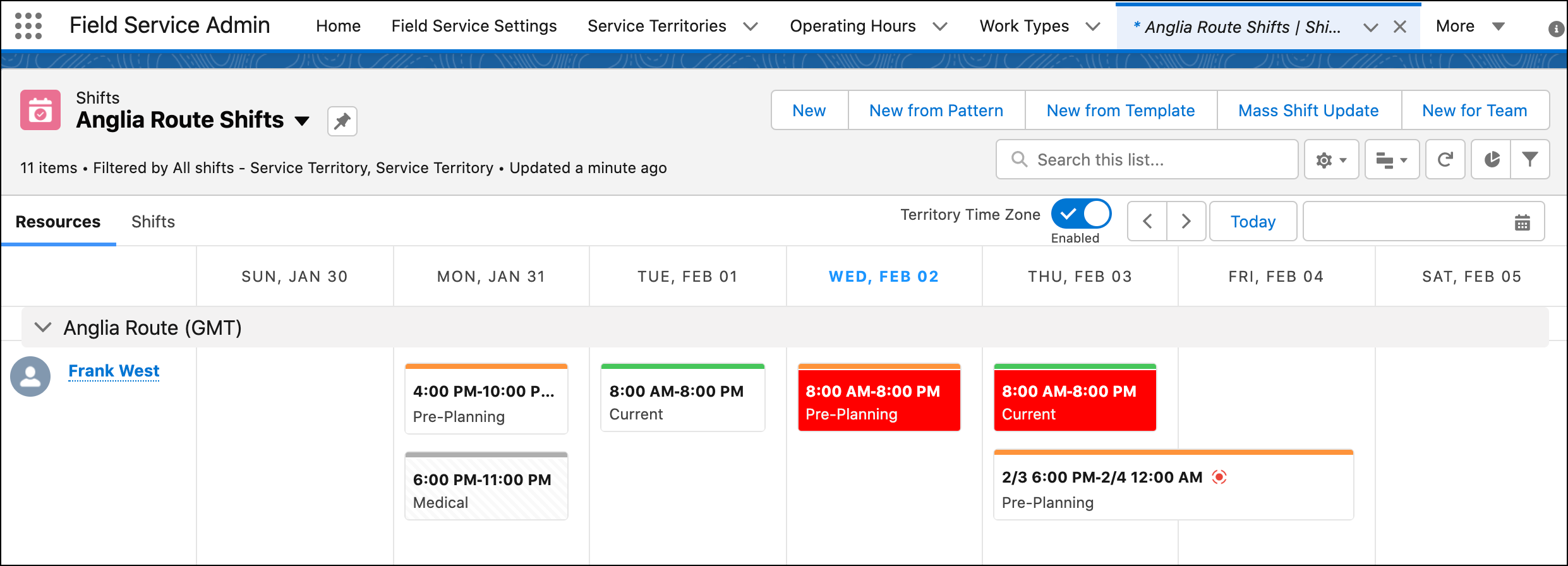
Identify which shifts are covered, and which ones still require a worker to confirm that they’re available. The list view for shifts lets you examine upcoming shifts and their status. Switch to the schedule view to see shifts grouped by service territory or job profile in a calendar.
Required Editions
| Available in: Lightning Experience |
| The Field Service core features, managed package, and mobile app are available in Enterprise, Unlimited, and Developer Editions. |
| User Permissions Needed | |
|---|---|
| To view shifts | Field Service Standard AND View on Shift, Job Profiles, Service Resource, and Service Territory |
- From the App Launcher, click Shifts.
- Navigate to a list view other than the Recently Viewed list view, such as the All Shifts list view or a custom list view. Click the dropdown menu next to the list view name, and select the name of the list view that contains the shifts you want to see.
- Optionally, define filters to change which shifts appear.
-
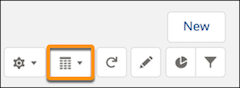
To view upcoming shifts in a calendar, click
 and select
 .
.
- To see a calendar of shifts that are assigned to each job profile, click the Shifts tab.
- To see a calendar of shifts that are assigned to each service resource, click the Resources tab.
Keep these considerations in mind when you work with shifts.
- General
- To create a shift, choose from the New, New from Pattern, and New from Template actions. Or hover in an empty space and select + New Shift.
- In the calendar view, to see shift assignments in the time zone of the resource, turn on the Territory Time Zone toggle. Toggle it off to see the schedule in your time zone.
- If the managed package is installed, availability for confirmed shifts appears on the Gantt.
- Color-coding and icons
- A horizontal color stripe on each shift shows the status. You
can't customize the status color-coding. The colors are:
- Tentative—orange
- Published—blue
- Confirmed—green
- Background colors can identify or highlight shifts of different types. You set the background color on the shift, or the color is inherited from the shift template.
- Resource absences are shown on the shift schedule. Absence cells are color-coded with a gray background.
- Nonstandard shifts are marked with a red icon.
- A horizontal color stripe on each shift shows the status. You
can't customize the status color-coding. The colors are:
- Limitations
- Up to 300 resource absences display in the Shift tab. If a resource belongs to multiple territories, you see an absence for the resource in each service territory.
- On the Shifts tab, you can’t use the quick search box to filter.
- The NOT operator isn’t supported when you define filter logic for
shifts. If your filter logic uses NOT, we recommend adjusting the filter type instead, for
example by using the
does not containoperator. - Bulk actions aren’t visible on the schedule view.
Did this article solve your issue?
Let us know so we can improve!
