
You are here:
Field Service Guidelines for Using Signatures on Service Reports
Field service workers can capture signatures from customers and partners on service reports. On the service report template, you define the number and type of signatures allowed.
Required Editions
| Available in: both Salesforce Classic (not available in all orgs) and Lightning Experience |
| The Agentforce Field Service and Operations core features, managed package, and mobile app are available in Enterprise, Unlimited, and Developer Editions. |
Set Up Signature Types
The Signature Type field specifies the role of the person signing a service report. The type ensures that the right person signs your service reports.
For example, when your company performs preventive maintenance, you want both the customer and the mobile worker to sign the final service report. The signatures confirm that both parties agree on the work that was completed.
Your org comes with one signature type called Default. A service report template can contain only one signature per type. If you want to collect more than one signature on a service report, you can add more signature types. In Setup, edit the Signature Type picklist field on the Digital Signature object. Create at least one value for each role that can sign a service report. For example, Technician, Customer, Supervisor, and Supplier. If you expect multiple people in one role—for example, all mobile workers who are at the appointment—to sign a service report, create numbered types: Technician 1, Technician 2, and so forth.

Add Signature Blocks to Service Report Templates
A signature block on a service report template contains one signature.
To add a signature block to a service report template, navigate to the Service Report Templates page in Setup. Open a service report template and drag the Signature element to the template layout. Modify the signature block’s settings as needed. The Type field is required. Make sure to add the Signature field, which designates the signature space. You can change the title to reflect who is signing, or hide the title and field labels.
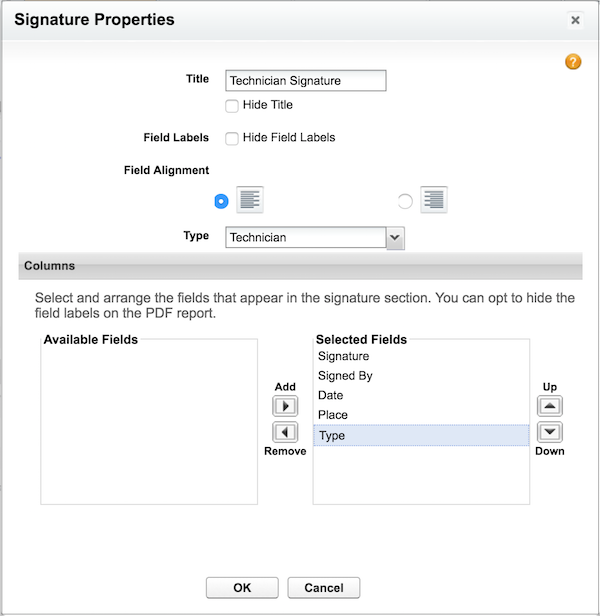
You can add up to 20 signature blocks to a service report template. Because each signature block must use a different signature type, you can’t drag extra signature blocks onto a template until you’ve created corresponding Signature Type values. Double-click a signature block’s title to view its settings.
Capture Signatures for Service Reports
Signatures are captured from the Field Service mobile app. A captured signature isn’t reused in a future version of the report.
For example, a mobile worker generates a service report for an appointment, and the customer signs it. The mobile worker then updates the service notes to add a recommendation. When the mobile worker regenerates the service report, the customer’s signature doesn’t appear on the new report.
If you want to reuse signatures across all service report versions, contact Salesforce.
Find Signed Service Reports
To easily find the service reports that contain signatures, add the Signed checkbox to the Service Reports related list on work orders, work order line items, or service appointments. If a service report contains one or more signatures, this checkbox is automatically selected.
