
You are here:
Template Builder
Build service document templates in Document Builder with the template builder.
| Available in: Lightning Experience. |
| The Field Service core features, managed package, and mobile app are available in Enterprise, Unlimited, and Developer Editions. |
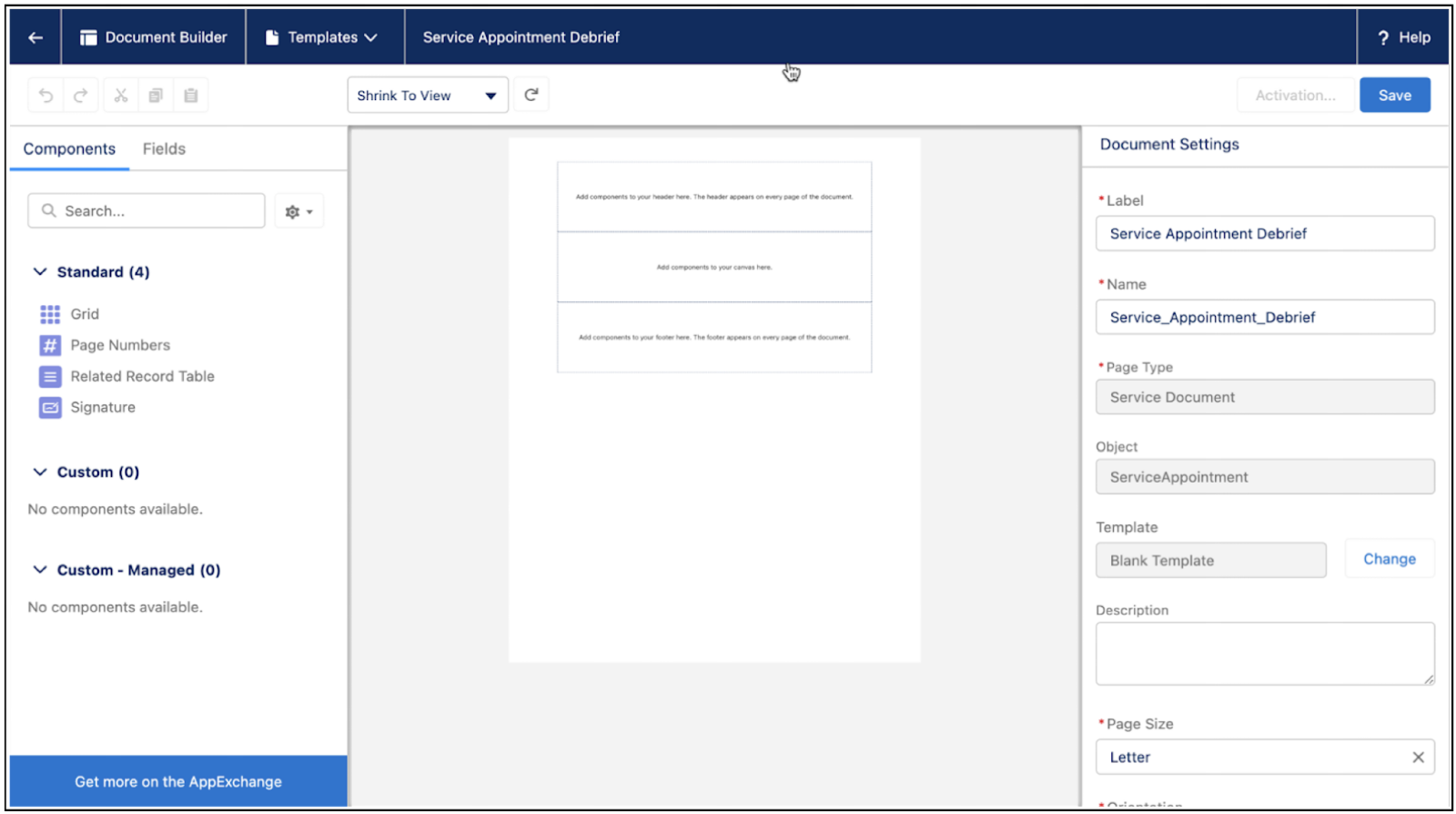
When you first open a template in Document Builder, you see the template builder, which shows the canvas, components and fields panel, and document settings panel.
The Canvas
The canvas represents your service document. To design your service document, drag standard LWCs and custom LWCs onto the canvas. If you add any fields or components to the header or footer, they repeat on every page of your document.
When you’re designing your header and footer, you can get an error message if you add too much content. What qualifies as too much content depends on the formatting and orientation of your document and the size of the components you’re trying to add. If you’re having trouble, check that your headers and footers are sized properly. For example, delete fields and components that make the header or footer longer than a page.
Document Settings
To access the document settings, click outside the header, body, and footer sections of the canvas. Use the document settings panel to add a document description, determine which fields and components are visible, remove headers and footers, and alter the document format.
Components and Fields
Drag components and fields from the left panel onto the canvas to easily build document templates. Standard components for Document Builder include Grid, Page Numbers, Related Record Table, Signature, Image, Image Gallery, and Rich Text.
You can drag two types of fields onto the canvas from the field component on the left panel: fields from the template object and spanning fields from the parent of the template object.
When a field is added to the canvas, use the component settings panel on the right to configure the field visibility. For example, you can choose to show a Related Record Table for a work order and its child work order line item only if the work order’s work type is Break-Fix.
Lookup fields don’t appear on service document templates when dragged onto the canvas. To get the lookup field to show up, search for the lookup field and its associated name. Click in the Search field. Then, drag the Name field onto the canvas.
When you’re done building your template, you’re ready to save and activate it. You can access saved templates from the Document Builder page in Setup.
