
Loading
Salesforce now sends email only from verified domains. Read More
Salesforce Field Service
Table of Contents
Select Filters

          No results
          No results
          Here are some search tips

          Check the spelling of your keywords.
          Use more general search terms.
          Select fewer filters to broaden your search.

          Search all of Salesforce Help
          Create a Work Capacity Limit

          Create a Work Capacity Limit

          Work capacity limits let you control the amount of work scheduled for service resources according to specific values of a service appointment’s attribute (workstream). Work capacity limits are defined per service territory, for a certain time resolution, and over a given open or closed-end date range. Define the work capacity limit for the whole service territory or restrict it to a specific value of a service appointment’s attribute (workstream). Define the limit threshold as the maximum number of hours or what percentage of the available work capacity you can schedule for a service territory or the specific workstream. After you create a work capacity limit, you can edit its description, limitation value, start and end dates, and days of the week. You can edit WCLs only if they're inactive. You can also edit the limit for a specific date by editing the work capacity usage object. Editing the daily limit doesn’t change the limit value in the work capacity limit object.
          Required Editions

          Available in: both Salesforce Classic (not available in all orgs) and Lightning Experience
          The Field Service core features, managed package, and mobile app are available in Enterprise, Unlimited, and Developer Editions.
          User Permissions Needed
          To create, edit, or delete a Work Capacity Limit: Create, Update, or Delete on the Work Capacity Limits object
          1. From the App Launcher, find and select Work Capacity Limits.
          2. From the Work Capacity Limit list view, click New. The Limit Number is added automatically.
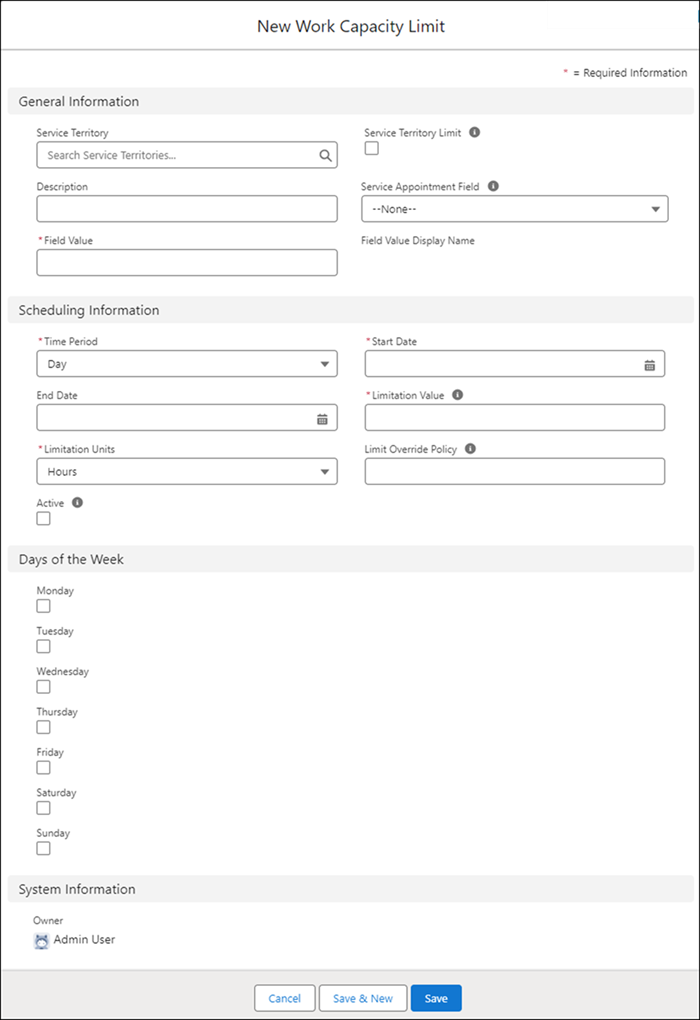
            In the new work capacity limit form enter the limit information
          3. Select the service territory.
          4. To limit the work at the service territory level select Service Territory Limit.
          5. To apply to a specific workstream in the service territory:
            1. Select the field that represents the attribute to use for limiting capacity from the Service Appointment Field.
              The service appointment field is set the first time a work capacity limit is created for your Salesforce org. If you select another service appointment field, you get an error.

              The data types supported for service appointment fields are Number (int, double), Text (string), Checkbox, Picklist, and Lookup. 

            2. In Field Value, enter the value of the service appointment field.
              For example, for the Work Type attribute, enter Maintenance.
          6. Enter the scheduling information:
            • Time period
            • Limitation units: Hours or Percentage
            • Limitation value in whole numbers greater or equal to zero
            • Start date
            • (Optional) End date
            Close-ended time ranges take precedence over overlapping open-ended time ranges when you’re limiting work.
          7. Select the days of the week to which the limitation applies. Select at least one day.
          8. If the limit override policy is set per limit in Field Service Settings define the override policy for this limit..
            • Leave empty for no limit override.
            • Enter 0 for the relaxation to start at midnight on the day of service.
            • Enter a positive integer to set the limit override to start this number of hours after midnight on the day of service (maximum 23 hours).
            • Enter a negative integer to set the limit override to start this number of hours before midnight on the day of service (maximum 336 hours, 14 days).
            If the limit override policy isn’t set per limit in Field Service Settings, this value is ignored.
          9. Save the new work capacity limit.
          10. (Optional) To activate the work capacity limit, on the Work Capacity Limit list view, click Edit, and select Active.
            You can also activate it directly from the Work Capacity Limit list view.
           
          Loading
          Salesforce Help | Article