
Create Work Plan Selection Rules
Add selection rules to automate how work plans are assigned to work orders.
Required Editions
| Available in: Lightning Experience |
| The Field Service core features, managed package, and mobile app are available in Enterprise, Unlimited, and Developer Editions. |
| User Permissions Needed | |
|---|---|
| To create work plan selection rules: | Create and Read on work plan selection rules Read permissions on objects |
| To view work plan selection rules: | Read on work plan selection rules |
| To update work plan selection rules: | Edit and Read on work plan selection rules Read permissions on objects if changed |
| To delete work plan selection rules: | Delete and Read on work plan selection rules |
Work plan selection rules generate point-in-time copies of work plans from templates. For example, when you create a work order with a work type of monthly maintenance, your rule can copy the monthly maintenance work plan template and its steps to the work order.
The criteria in a work plan selection rule is the trigger. It tells Salesforce which plan to copy to the work order or work order line item.

If your Salesforce admin configured the standard New Work Plan Selection Rule screen for you, follow these instructions to create a work plan selection rule.
- In the app launcher, click Work Plan Templates.
- On the work plan template, open the Related tab. On the work plan selection rules related list, click New.
-
Select one or more fields as rule criteria. Values for work types, assets, locations,
service contracts, products, or service territories can be specified in the work plan selection
rule criteria. These fields are matched with the corresponding fields on the work order or work
order line item to determine whether this selection rule is applicable to the work order or
work order line item. If applicable, the corresponding work plan template is copied as a work
plan for the work order or work order line item.
Note The rule generates a work plan when all fields in the rule match corresponding fields in the work order or work order line item. For example, if the rule specifies a work type and an asset as the selection criteria, it adds the work plan only when both fields match on the work order.
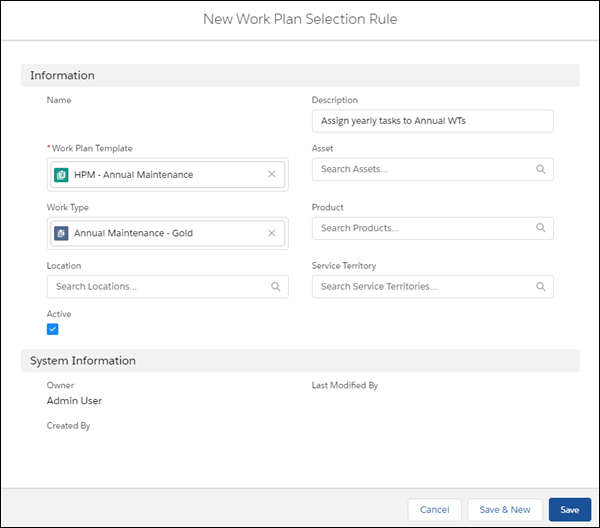
- Enter an optional description for your rule.
- Click Active.
-
To create more rules, click Save & New. If you’re done, click
Save.
Note You can also create work plan selection rules by clicking New in the Work Plan Selection Rules list view.
If your Salesforce admin configured the enhanced New Work Plan Selection Rule screen for you, follow these instructions to create a work plan selection rule.
- In the app launcher, click Work Plan Templates.
- On the work plan template, open the Related tab. On the work plan selection rules related list, click New Rule.
- Enter an optional description for your rule.
- Click Active.
- Select one or more selection rule values as rule criteria. Values for work types, assets,
locations, service contracts, products, or service territories can be specified in the work
plan selection rule criteria. These field values are matched with the corresponding fields on
the work order or work order line item to determine whether this selection rule is applicable
to the work order or work order line item. If applicable, the corresponding work plan template
is copied as a work plan for the work order or work order line item.Note The rule generates a work plan when all fields in the rule match corresponding fields in the work order or work order line item. For example, if the rule specifies a work type and an asset as the selection criteria, it adds the work plan only when both fields match on the work order.
If a rule specifies a product as the selection criteria, the rule doesn’t look for the corresponding field on the work order because no product field exists there. Instead, it looks at the Asset field and finds the matching product on the corresponding asset.
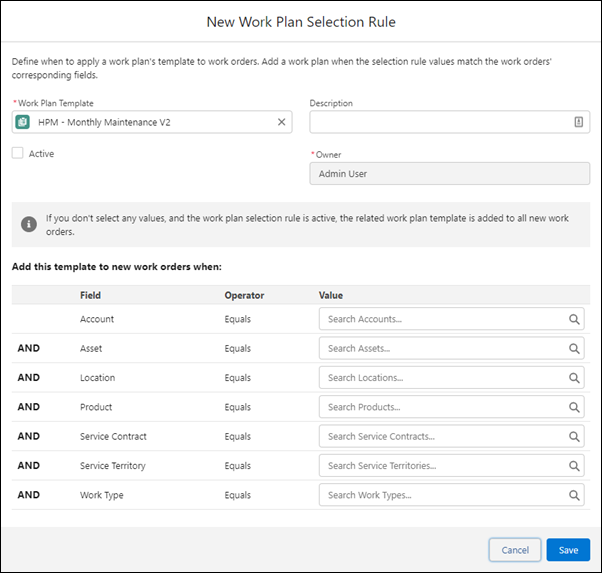 Note If you don't select any values and the work plan selection rule is active, the related work plan template is added to all new work orders or work order line items.
 - Save your work.
