
You are here:
Configure Export Preferences
Configure your export preferences.
» To configure your export preferences:
-
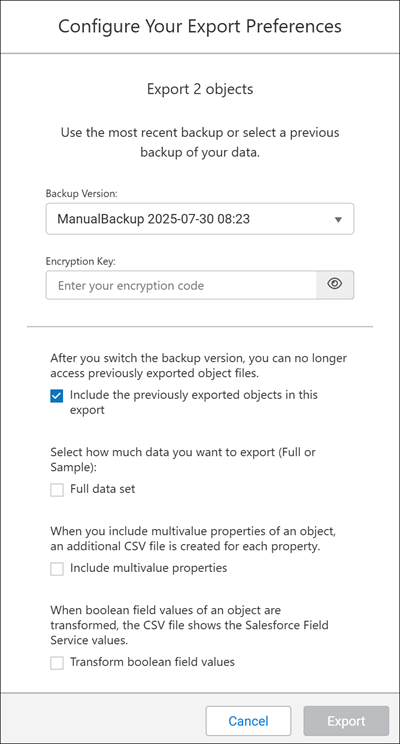
Select the backup file to export from.
Select the backup file you want to use: automatic or manual. The automatic backup file is created daily. The manual one is the most recent backup file that you created.When you select a backup file, it shows up in the Backup Version dropdown menu. For example, if you select a backup file on November 1, you’ll see two backup files on November 2. One will be titled Current-AutoBackup 2024-11-01 and the other will be an automatic backup file created on November 2.
 Note In a Production environment, the Data Exporter tool shows the latest manual backup file in the dropdown menu. In a Sandbox environment, there are only manual backups.You can replace your backup file with a newer version by selecting it from the dropdown menu. The Data Exporter tool asks if you want to keep the previously exported object files or start over from scratch. For example, if you previously selected to export the Task and Assignment object files, but now want to change the backup file, The Data Exporter tool asks if you want to select those objects again so that the new export results include these objects.
 Note The Data Exporter tool doesn’t store previous versions of exported data. However, you can still download and keep those files in your local storage.
 -
Enter an encryption key.
Enter an encryption key to protect your data and to meet data security standards.When you select a manual backup file, enter the encryption key that you used to create a backup of your tenant. The encryption key has to follow the password standards required by the system (see the FSE Administration and Configuration Guide).
-
Select the amount of data to export: full set or sample data.
When you export a sample set of 20 records, you can view your object files quickly without having to export large files. This saves time during the preliminary data assessment stage.
-
Select whether to include Comma Separated Value (CSV) files for multivalue
properties of objects.
When you include multivalue properties, an additional CSV file is created for each property.
-
Select whether to transform boolean field values of an object to Salesforce
Field Service (SFS) values.
When boolean field values are transformed, the CSV file shows the SFS values.
-
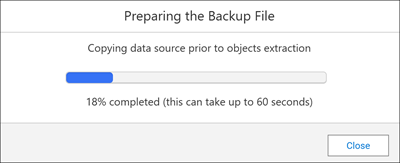
Click Export.
While you wait for the export results, we prepare your backup file. We copy the backup file to an internal workspace and decrypt the data.
Did this article solve your issue?
Let us know so we can improve!
