
You are here:
Set Up Help Center with a Guided Setup Flow
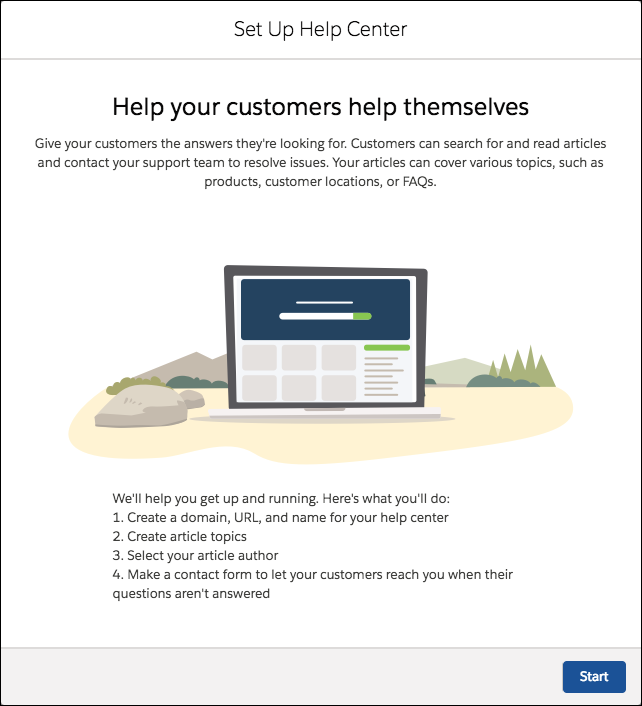
Create a self-service help center in minutes with a quick guided setup flow. Name your help center and give it a URL. Select article topics and article authors. Create a contact form so customers can contact you if their questions aren’t answered.
Required Editions
| View supported editions. |
The Help Center setup flow is the fastest and easiest way to get your help center up and running. In this flow, you build a help center where visitors can search for and view knowledge articles and contact you with a web form.
Where to Access the Setup Flow
This flow is available from the Help Center setup page in Lightning Experience with Essentials Edition.
In other editions, the flow is available from Service Setup in Lightning Experience. You can get to Service Setup by clicking the gear icon and selecting Service Setup. Service Setup isn't available in orgs created in Spring '26 or later.
In Service Setup, you can find recommended setup flows, content, and tips based on what's already set up. If you don’t see the setup flow you’re looking for, you can click View All to see the full list.
Select the tile to open the flow.
What Does This Flow Do?
In this setup flow, we walk you through:
- Creating a domain
- Giving your help center a name and path
- Creating or selecting topics to show in your help center
- Selecting your article authors
- Creating a contact form
If you select Publish my help center in the flow, your help center is published immediately. Otherwise, you can publish from the Experience Builder whenever you’re ready.
We also turn on several things in the background during the setup flow.
- Lightning Knowledge: We turn on Lightning Knowledge. If Lightning Knowledge was already enabled, make sure that you specified “Knowledge” as the name of your knowledge base.
- Knowledge objects: We create some objects in Lightning Knowledge to get you started.
- A Knowledge record type named FAQ
- A page layout named Lightning Knowledge FAQ Layout
- Custom fields Question and Answer
Permission Set with Authors Permissions Assigned to Users
To make sure that your article authors can write and publish articles, we make a permission set for the users you select in the setup flow. We give them the correct permissions for them to view, create, edit, and delete articles and give them the Edit Knowledge user permission.
The permission is called Knowledge LSF Permission Set (with the developer name Knowledge_LSF_Permission_Set).
We also give your authors the Knowledge User license and add data category group visibility to their profiles.
Mapping Topics and Data Categories
When you create topics in the flow, a lot goes on behind the scenes to connect those topics to your help center and knowledge articles, even if you haven’t written them yet.
Your help center uses topics, data categories, and data category groups to make sure that your customers can find your articles. With data categories and data category groups, you can organize your articles so your customer can do less searching. For example, you can have a data category group called US Regions, which includes the data categories West, Midwest, South, and Northeast. So when you write an article that lists the locations and hours of your stores on the West Coast, select the West category.
If you don’t have any active data category groups when you start the flow, you create topics during the flow. We use those topic names to create data categories and put those categories in a data category group called Help Center Setup Flow. Then, we create featured and navigational topics in your help center and map them to the data categories. Your topics appear in your help center, and relevant articles show up when a customer clicks a topic.
If you already have some data categories when you start the flow, we go through a similar process. You select the data categories you want in your help center, and we map them to topics.
We also create a data category group called Help Center Setup Flow.
Community with the Help Center Template
Your help center is powered by Communities, which lets you create branded spaces for your employees, customers, and partners to connect. A help center is a special type of community that gives you just what you need for a self-service page, without advanced features like user logins and collaboration.
With your help center, you get access to Experience Builder and Experience Workspaces, where you can add branding and arrange and manage your topics.
Guest User Profile
Everyone who visits your help center is a guest user. We create a guest user profile that lets them view your data categories and record types, such as your articles. We also give them the right permissions so they can log cases with the web form that you create in the flow.
Web-to-Case and Quick Action Edit Capabilities
When you create a contact form, Web-to-Case and Quick Action edit capabilities are automatically enabled. This means that when you publish your help center, guests can submit cases directly from your help center.
Help Center Setup Flow: What’s Next?
Learn where you can customize and view what you set up during the Help Center setup flow.
After completing the setup flow, you have a budding help center that’s ready to be filled with great articles for your customers.

- Manage Your New Help Center
-
View and manage your help center from the Help Center page in Setup. You can create up to 5 help centers with Essentials Edition.
Enter Help Center in the Quick Find box, then select Help Center.
- Brand Your Help Center
- Set the colors, font, and branding images to give your help center a personal touch. From the Help Center page in Setup, click Edit next to your help center to open the Experience Builder.
- Manage Your Article Topics
-
Make sure that the article topics you created during the flow cover everything that your customers want to know. Your customers use topics to help find articles in your help center. If you didn’t create any during the flow, go ahead and create some.
You can view, add, and edit your topics in the Content Management tile in Experience Workspaces. From the Help Center page in Setup, click Edit next to your help center to open the Experience Builder. Click the icon on the left of the navigation bar and select Experience Workspaces.
- Write and Publish Articles
-
Now that you’ve set up Lightning Knowledge it’s time to start writing and publishing articles. You can have up to 500 articles in one language with Essentials Edition.
You can write and manage articles from Knowledge home in Lightning Experience. From the App Launcher, find and open Knowledge.
- Handle Cases from the Contact Form
- Your contact form creates cases for your team to solve. Create a queue and connect it to your Web-to-Case form using case assignment rules.
- Show it Off
- Add a link to your help center on your website. You can also set up SEO so that your help center shows up in search results when your customers are looking for answers.
