
You are here:
Protect Employee Tasks with a Custom Restriction Rule and Permission
By default, an employee can see other employees’ onboarding tasks, which can include sensitive information. Prevent disclosure of sensitive information by using a custom permission to create a restriction rule. You can deploy this metadata-driven solution from your sandbox to production.
Before you begin, configure employees who are service agents as two separate users.
- Create a custom permission.
- From Setup, in the Quick Find box, enter Custom Permissions, and then select Custom Permissions.
- Select New and name the custom permission, for example EmployeeUser. Save your work.
- From Setup, in the Quick Find box, enter Permission Sets, then select Permission Sets.
- Select Employee Productivity Plus User Data Access.
- Select Custom Permissions, then click Edit.
- Select the custom permission created in step 2, then click Add to move the permission toEnabled Custom Permissions.
- Save your changes.
- Create a restriction rule.
- From Setup, in the Quick Find box, enter Task, then select Task.
- ClickRestriction Rule.
- Click New Rule.
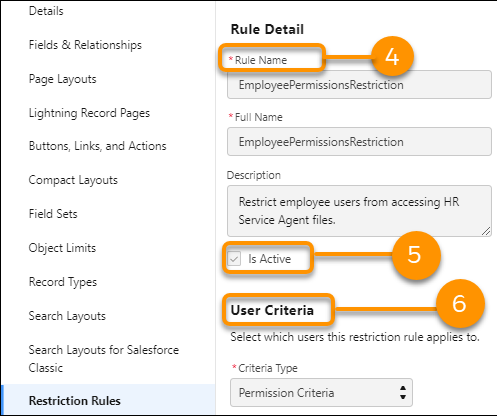
- Enter the Rule Name, for example EmployeePermissionsRestriction, and accept the default Full Name.
- To enable the rule, select Is Active.
- Under Criteria Type, select Permission Criteria from the
dropdown.
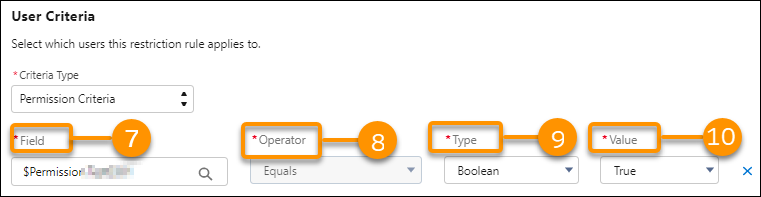
- In Field, search for the custom permission from step one, and select your custom permission.
- For the Operator, select Equals from the dropdown.
- For the Type, select Boolean from the dropdown.
- For the Value, select True from the dropdown.
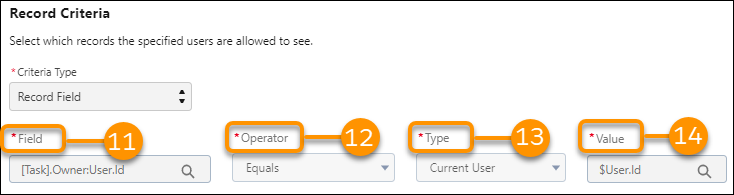
- In the Record Criteria Field dropdown, search for Assigned to ID (User)select Assigned To ID (User), then filter by User ID. Select Choose.
- Under Operator, select Equals from the dropdown.
- Under Type, select Current User from the dropdown.
- Under Field Value, select User ID from the dropdown.
- Save your work.
Did this article solve your issue?
Let us know so we can improve!
