
You are here:
Configure the Transition Plan Page Layout to Support Employee Transitions
Add related list components and quick actions to your Transition Plan page layout.
Required Editions
| Available in: Lightning Edition |
| Available in: Enterprise, Professional, and Unlimited Editions with Service Cloud |
| Employee management solutions require the Employee Management and Employee User add-on licenses. Using employee management solutions in Government Cloud Plus organizations can send data outside the authorization boundary. Contact your Salesforce account executive for more details. |
| User Permissions Needed | |
|---|---|
| To setup Employee Management solutions: | Permissions and licenses associated with the HR Manager or HR agent personas. |
- From the object management settings for Transition Plan, go to Page Layouts.
- From Page Layouts, click Transition Plan Layout.
-
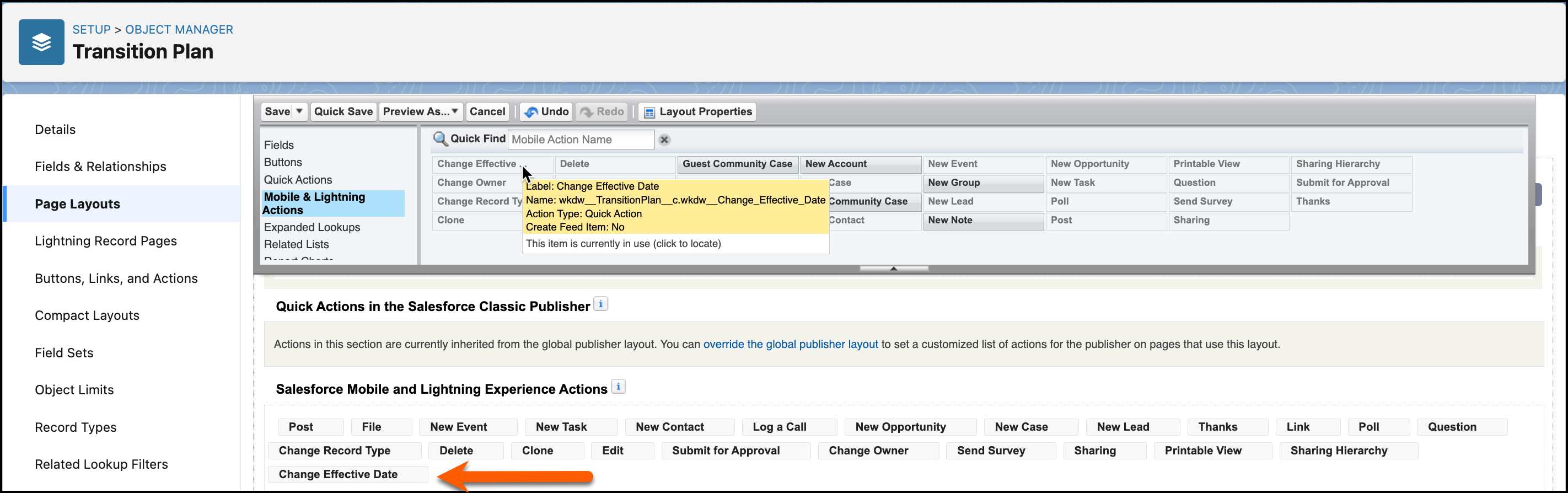
From the Transition Plan Sample heading, under the Salesforce Mobile and Lightning
Experience Actions section, hover over the quick actions panel, and then click
 .
.
- From the quick actions palette, select Mobile and Lightning Actions, and then select Change Effective Date.
-
Place the quick action in the Salesforce Mobile and Lightning Experience Actions
section.
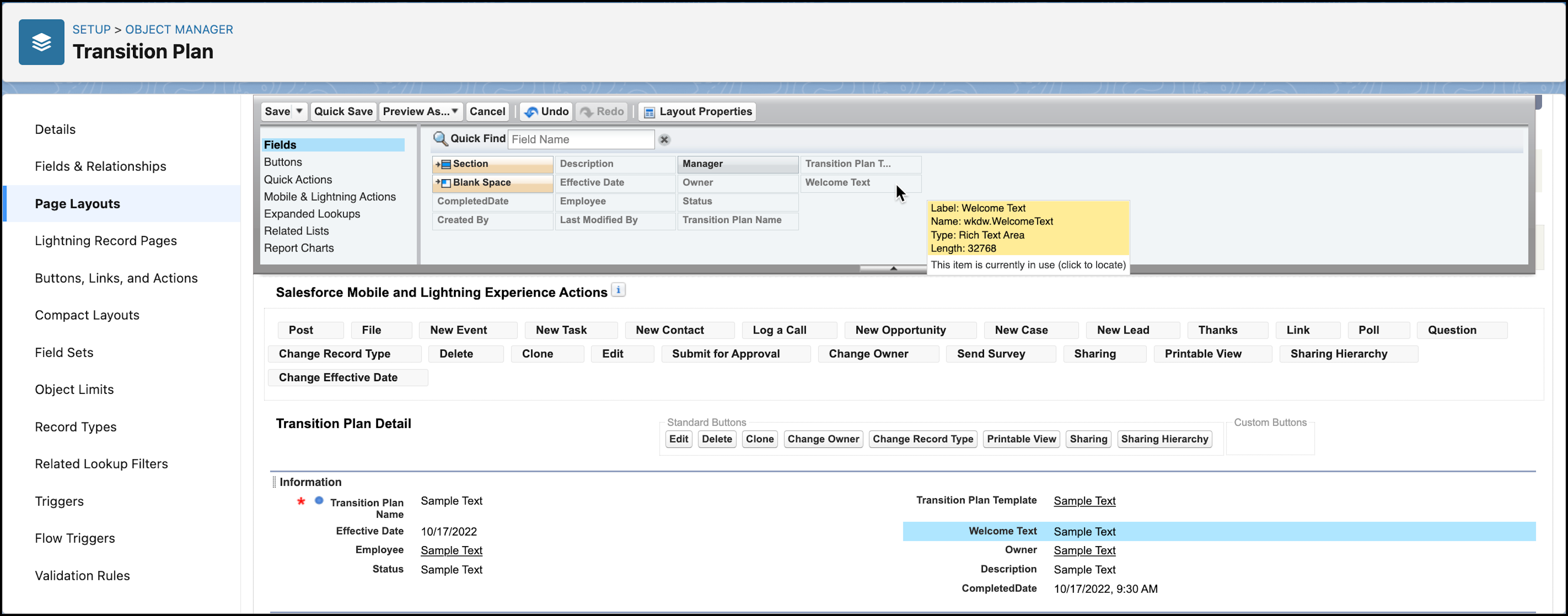
- From the quick actions palette, select Fields, and then select Welcome Text.
-
Place the field in the Transition Plan Detail section under Information, and then confirm
that the Effective Date quick action is shown.
If the Effective Date quick action isn’t shown, select the quick action in Fields palette, and then place it in the section.
-
From the Transition Plan detail section, under Information, click Effective
Date, and then select
 .
.

- From the Field Properties window, select Read-Only.
- Save your work.
Did this article solve your issue?
Let us know so we can improve!
