Visualize Configuration Item Relationships with Service Graph
Use Service graph to view how a Configuration Item (CI) connects to other assets across
your IT landscape. The visual map helps teams assess impact, identify dependencies, and
troubleshoot issues faster. You can also use predefined or custom service graph layouts to focus
on specific perspectives of a service.
Required Editions
Available in: Lightning Experience
Available in: Unlimited, Enterprise, and Performance
Editions with Agentforce IT Service that have CMDB and Service Graph enabled.
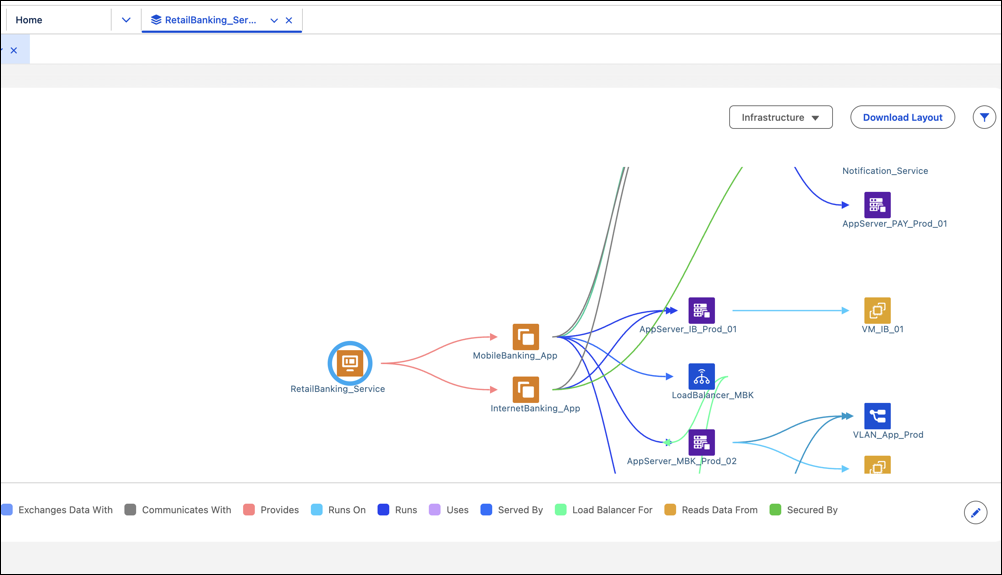
Service graph displays a graphical view of all configuration items (CIs) that connect to the
selected CI through upstream or downstream relationships. Each CI appears as a node, with
arrows showing the direction of the relationship.
You can use service graph to understand how systems and services are structured. Identify
potential points of failure, track affected services, and analyze the impact of changes. The
graph includes a color-coded legend that shows the relationship type between each pair of
CIs.
The Service graph is accessible from each configuration item record. To explore related
assets, select a CI and click Service Graph. Use the level depth slider
to control how many layers of related items appear on the graph.
Note Service graph displays only those relationships that have been defined on the CI record
using the Relationships tab. You can define source or target relationships to visualize asset
connections.
Service graph layouts help you focus on specific perspectives of a service. Instead of
viewing all possible relationships, you can switch layouts to explore only the configuration
items and relationships relevant to your task. For example, you can use different layouts
to:
View infrastructure dependencies
Analyze communication paths
Understand application ownership and impact
Service graph layouts control what configuration items and relationships appear in the graph.
A layout defines:
Which configuration item types are included
Which relationship types connect those items
Whether external configuration items appear in the graph
You can use several predefined service graph layouts that cover common use cases such as
infrastructure, network, and service topology. You can also create custom service graph
layouts to match how your organization models services and dependencies. For more information,
see Create a Custom Service Graph Layout.
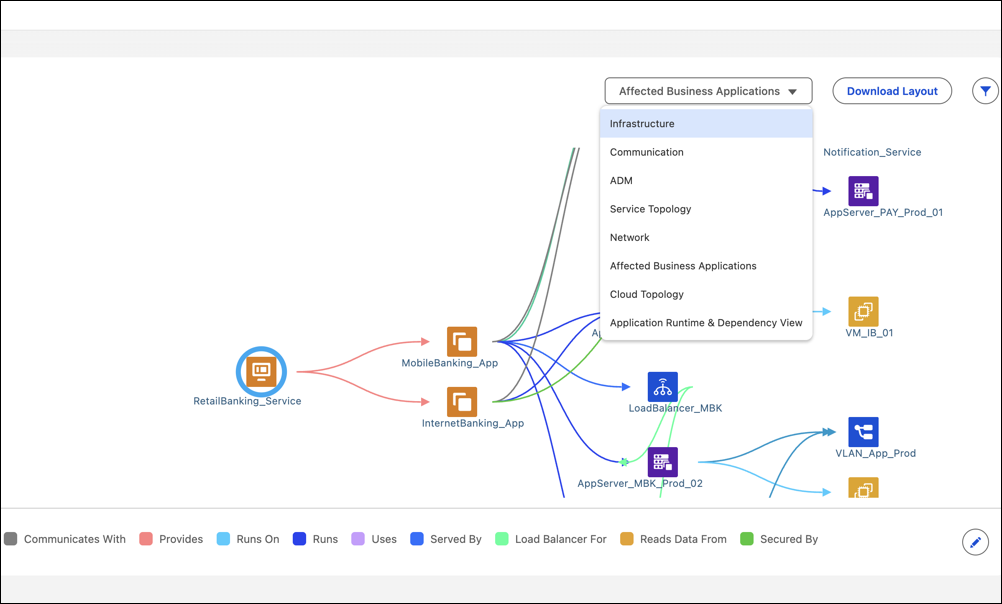
To control how related configuration items appear, you can select a layout from the service
graph view. The layout selector lists both predefined layouts and any custom layouts that you
created. For more information.
You can download a service graph to share or review. Downloaded layouts help you document
dependencies, review architecture, or collaborate with teams. You can download the layout in
either PNG or SVG format.
Create a Custom Service Graph Layout Create custom service graph layouts to control how configuration items and their relationships appear in the service graph. Custom layouts help you focus on the configuration item types and relationship types that matter most for a specific use case, such as infrastructure dependencies, application topology, or impact analysis.
Did this article solve your issue?
Let us know so we can improve!
Loading
Salesforce Help | Article
Cookie Consent Manager
General Information
Required Cookies
Functional Cookies
Advertising Cookies
General Information
We use three kinds of cookies on our websites: required, functional, and advertising. You can choose whether functional and advertising cookies apply. Click on the different cookie categories to find out more about each category and to change the default settings.
Privacy Statement
Required Cookies
Always Active
Required cookies are necessary for basic website functionality. Some examples include: session cookies needed to transmit the website, authentication cookies, and security cookies.
Functional Cookies
Functional cookies enhance functions, performance, and services on the website. Some examples include: cookies used to analyze site traffic, cookies used for market research, and cookies used to display advertising that is not directed to a particular individual.
Advertising Cookies
Advertising cookies track activity across websites in order to understand a viewer’s interests, and direct them specific marketing. Some examples include: cookies used for remarketing, or interest-based advertising.