
You are here:
Articles or Knowledge Tab
Find out which Salesforce Knowledge tab you are using and what you can do on each.
Required Editions
| Available in Salesforce Classic. View supported editions. |

To maintain access to Knowledge, you or your admin must run the Lightning Knowledge Migration Tool before June 1, 2025. All orgs are required to migrate from Classic Knowledge to Lightning Knowledge.
There are two tabs for searching Salesforce Knowledge articles: the Knowledge tab or the Articles tab. The one you use depends on when your organization started using Salesforce Knowledge or if it adopted the Knowledge tab.
The Knowledge Tab
If the search bar is at the top of the main frame of the page you are using the Knowledge One on the Knowledge tab.
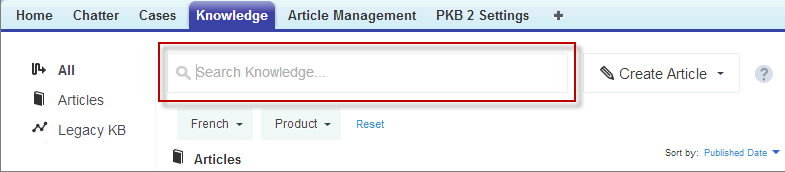
The Knowledge tab merges functionality of the old Articles tab and the Article Management tab and uses federated search to search all your resources at once. On the Knowledge tab, you can:
- Search all your Salesforce Knowledge articles and any of your external data sources, such as Microsoft® SharePoint®.
- Filter articles by language and data categories.
- Sort articles by published date, rating, most viewed, and title.
- Use the Create Article drop-down to select an article type and create an article.
- Use the dropdown by each article to follow or unfollow, edit, publish, and
delete an article, depending on your permissions.
 Note For information on article permissions see Classic Knowledge User Access.
Also, when you use case feed, the Knowledge tab layout is applied to the article sidebar.
To switch to the Knowledge One and the Knowledge tab, have your administrator add the Knowledge One permission to your profile or permission set.
The Articles Tag
If the search bar is in the left-side panel of the page you are using the Articles tab.
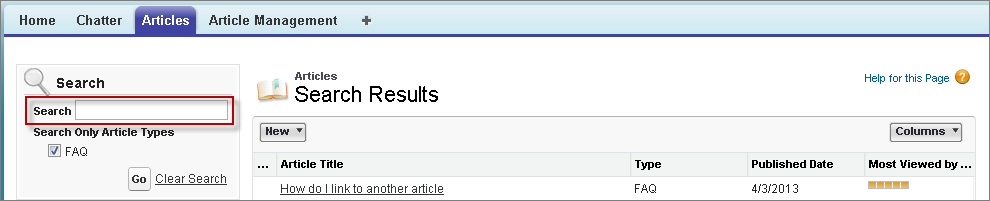
The Articles tab presents a list of your Salesforce Knowledge published articles. On the Articles tab, you can:
- Search for published articles
- View published articles
- Create an article
- Customize how the article information is displayed
