
You are here:
Add Logic to Macros in Lightning Experience
To control the execution of macro instructions in Lightning Experience, add logic with the Macro Builder. Create expressions with one or more conditions, and add instructions that execute when the expression is true.
Required Editions
| View supported editions. |
| User Permissions Needed | |
|---|---|
| To view macros: | Read on macros |
| To create and edit macros: | Create AND Edit on macros |
| To create and run irreversible macros: | Manage Macros That Users Can’t Undo |

Tip Before you add expressions to your macro, sketch out the logic. You
can build conditional expressions using IF, ELSEIF, and ELSE blocks. You can group and nest
conditions within blocks and add multiple expressions.
-
On a record page in a Lightning app, click Macros in the utility
bar.
 Note If you see the message “This page doesn’t support macros,” check that you’re on the record page for a supported object. You can’t run macros on list views.
 - Click + or Create Macro.
- Enter a name, description, folder, and select the object that the macro applies to. Click Save.
-
Click Edit Instructions, which opens the Macro Builder.
The first instruction is added based on the object that you selected in the Apply To field.
- Click Add Logic.
-
For each IF or ELSE IF block, configure conditions and instructions. Optionally, add an
ELSE block with instructions for when the IF and ELSE IF conditions aren’t met.
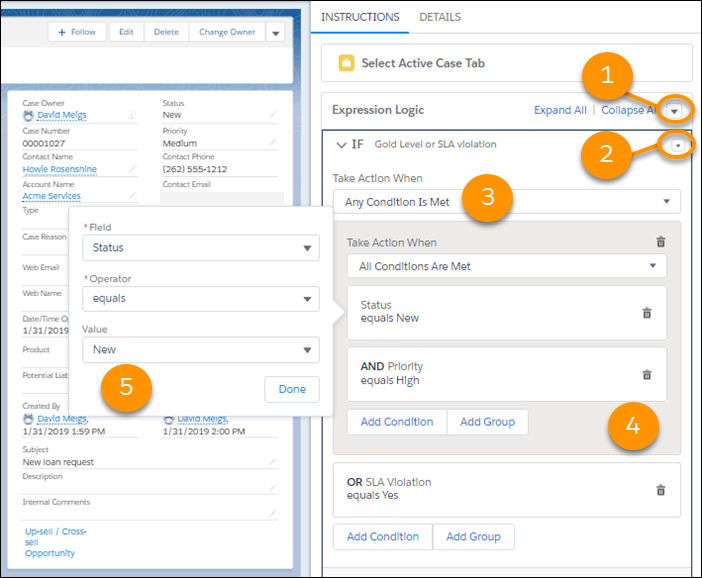
- To add a description that helps support reps understand the expression, use the dropdown menu near the block title (2).
-
Select when to take action (3).
If your expression uses AND between conditions, select All Conditions Are Met. For example, take action when condition A is true AND condition B is true. If your expression uses OR, select Any Conditions Are Met.
-
To add a condition, click Add Condition. To add a group of
conditions, click Add Group.
You can add up to 30 conditions or groups in your expression. When you add a group of conditions, a gray block (4) outlines the grouping. For each group, select when to take action.
-
Define each condition using a field, an operator, and an optional comparison value
(5).
To compare a field to a value, use the operator EQUALS, DOES NOT EQUAL, CONTAINS, or DOES NOT CONTAIN. For example, Status EQUALS New is a condition for the case object.Note The Macro Builder shows you the fields that you can use in a condition. Not all fields on every object are available.
-
Continue to add conditions, condition groups, blocks, and expressions as necessary.
You can nest conditions too.Tip If you nest conditions, we recommend that you limit nesting to three levels. Otherwise, the logic can be hard to understand when viewing or editing the macro. In addition, the more complex your logic, the longer it takes to evaluate conditions when you run your macro.
- In each block, click Add Instruction, and add the instructions that execute when the conditions are met.
-
When you’re done with your macro, click Save. To return to the app,
close the Macro Builder tab.
Tip After you create a macro with logic, run it to make sure that it works the way you want. Open the Macro utility, and test the macro in different conditions.

Example
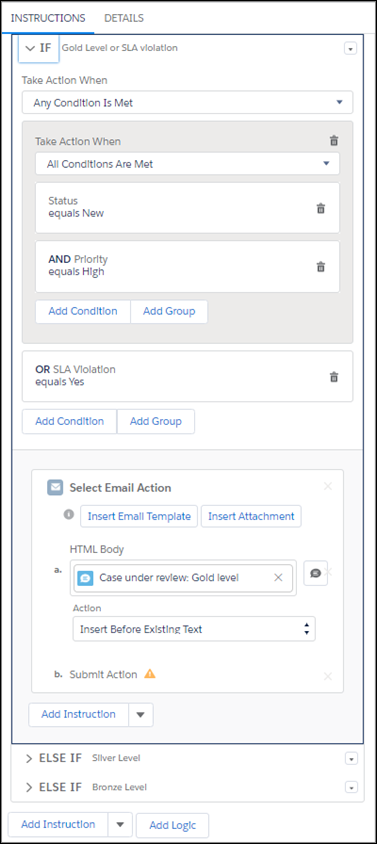
You want to create a macro so that support reps can easily send an email when they open a new case. The email content varies according to the case priority, which matches the service response type: Gold, Silver, or Bronze. Regardless of the case status or priority, if the case is an SLA violation, the Gold level email is sent.
Here’s example logic for this macro.
IF [(Status equals New AND Priority equals High) OR (SLA Violation equals Yes)]
   {Send email with 'Case under Review: Gold' content}
ELSE IF (Status equals New AND Priority equals Medium)
   {Send email with 'Case under Review: Silver' content}
ELSE IF (Status equals New AND Priority equals Low)
   {Send email with 'Case under Review: Bronze' content}
In the IF block, a condition group defines the order in which multiple conditions are evaluated.
Did this article solve your issue?
Let us know so we can improve!
