
You are here:
Block Sensitive Data in Messaging Sessions and Voice Call Transcripts
Create sensitive data rules to block specific patterns, such as credit card numbers or profanity, in Enhanced Messaging sessions, Enhanced Chat, and voice call transcripts. You can remove the text or replace it with your preferred characters. This method, also known as data masking, helps protect your customers’ data.
Required Editions
| View supported editions for Voice. | |
| View supported editions for Messaging. | |
 This article applies to: This article applies to: |
Voice, Enhanced In-App Chat, Enhanced Web Chat, Enhanced WhatsApp, Enhanced Facebook Messenger, Enhanced SMS, Enhanced Apple Messages for Business, Enhanced LINE, and Bring Your Own Channel |
| User Permissions Needed | |
|---|---|
| To create sensitive data rules: | Customize Application AND System Administrator |
Sensitive data rules apply to all plain text sent in a messaging session or spoken on a voice call, including quick text. They don’t apply to whispered messages, messaging components, text in attached files, the service rep name, or any other standard text that’s visible in the messaging window.
- In Setup, enter Sensitive Data in the Quick Find box.
- To create rules for Enhanced Messaging channels, Enhanced Chat, and Voice transcripts, select the page named Sensitive Data Rules for Enhanced Channels.
- Click New or New Sensitive Data Rule.
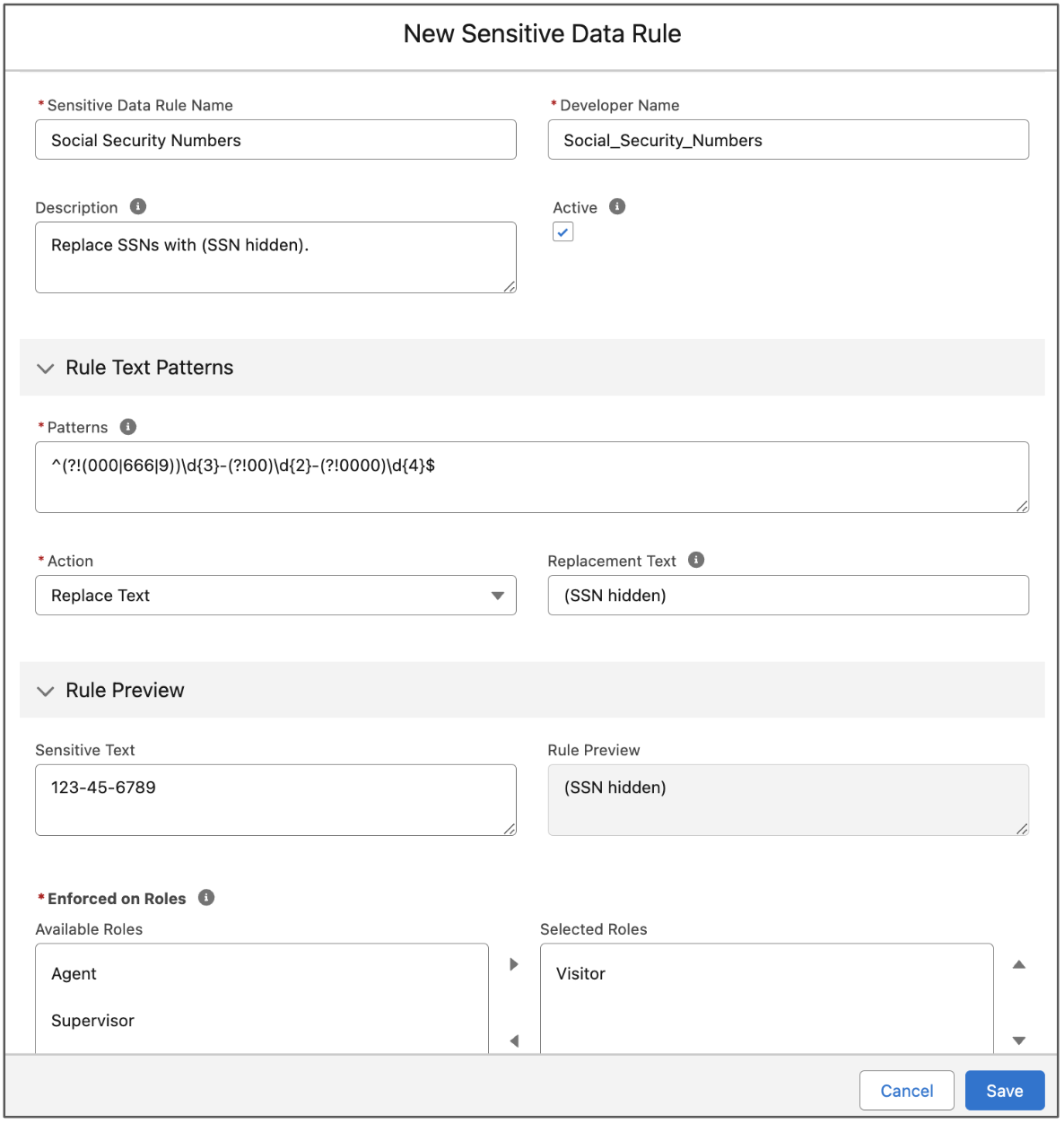
- Enter a name and description, and select Active to start enforcing your rule when you save it.
- Enter the text pattern or patterns that you want to hide. Write each pattern as a JavaScript regular expression (regex), and select your preferred settings. The regex is case-sensitive.
- Select whether to remove or replace the text pattern when it’s detected. If you choose to replace it, enter your replacement text.
-
Expand the preview section to test your rule.
- Enter text in the format of the data that you want to hide, such as 123-45-6789 for a Social Security number.
- Verify that the text is removed or replaced in the preview.
- Move one or more roles to the selected column to enforce the rule on messages sent or words spoken by that role. For example, to hide data with these patterns in messages sent by customers, move Visitors to the Selected Roles column.
- Assign a priority to the rule, such as 0 or 1. Rules with lower numbers are enforced first.
-
Save your rule.
-
When you’re ready to start enforcing your active rules, turn on the Sensitive Data
Rules setting at the top of the page.
When this setting is on, all active data rules shown on the Sensitive Data Rules for Enhanced Messaging page are enforced. When this setting is off, they aren’t enforced, but you can still create and activate rules on that page.
When sensitive data is detected in a messaging session or voice transcript, one or more of these conversation transcript events is logged:
- Sensitive data blocked (Agent)—Sensitive text sent by the service rep or a bot was hidden.
- Sensitive data blocked (Supervisor)—Sensitive text sent by the supervisor was hidden.
- Sensitive data blocked (Visitor)—Sensitive text sent by the customer was hidden.
After a rule is activated, it’s automatically enforced on the selected roles in all future voice calls, Enhanced Messaging sessions, and Enhanced Chat sessions. It’s not possible to enforce it selectively—for example, to enforce it for Voice only. You can have up to 10 active sensitive data rules at a time.
Rules are enforced in real time, and sensitive text is hidden both for reps and in the transcripts stored in the database. If you create or update a sensitive data rule, your changes take effect within 1 hour. Sensitive data isn’t redacted in Voice recordings; only in transcripts.
