
You are here:
Customize the Messaging Opt-In and Opt-Out Experience
With the help of consent keywords, your customers tell you when and whether you can message them on a particular Messaging channel in Service Cloud.
Required Editions
| View supported editions. | |
 This article applies to:
|
Enhanced In-App Chat, Enhanced Web Chat v1, Enhanced Web Chat v2, Enhanced WhatsApp, Standard and Enhanced Facebook Messenger, Standard and Enhanced SMS, Enhanced Apple Messages for Business, Enhanced LINE, and Bring Your Own Channel |
Customer Consent Preferences
In most messaging channels, customers who start a conversation by sending a message to your company are deemed to consent to communication. There are a few exceptions to this rule: in short code channels, customers must send one or more keywords to explicitly opt into receiving messages. And in enhanced Messaging channels, you can choose to require customers to explicitly opt in.
Customers’ consent levels for a channel range from Opted Out—meaning no messages are allowed—to Double Opted In—meaning the customer verified twice that your company can message them on that channel.
In Salesforce, each customer’s communication preference is tracked on their messaging user record for a particular channel. A customer can have different consent statuses across different channels. For example, they can explicitly opt into communication on your WhatsApp channel and opt out on your SMS channel.
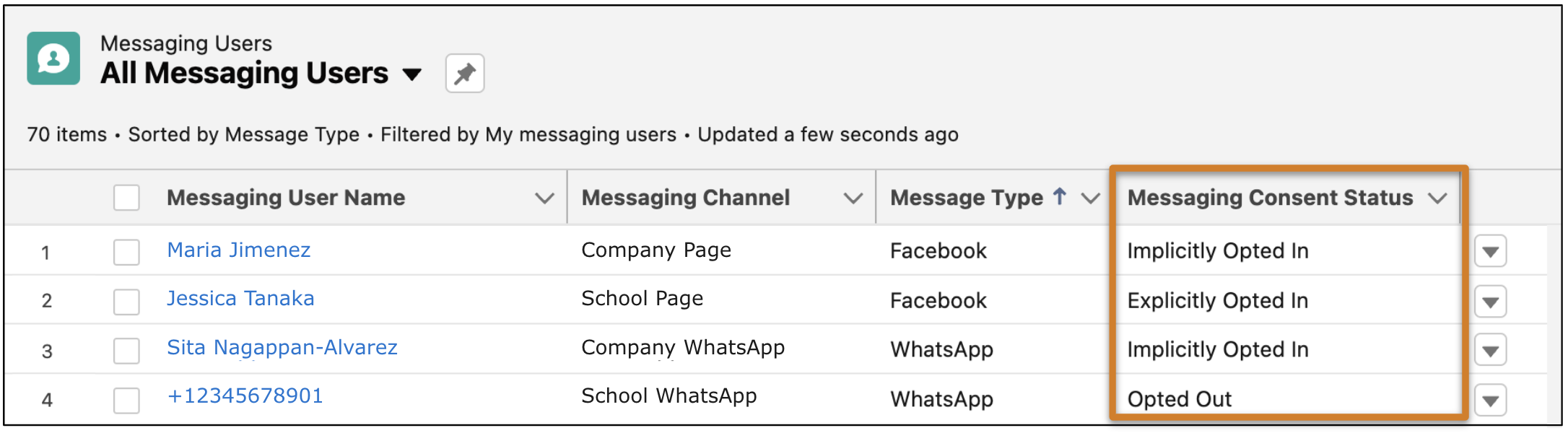
Consent Requirements for Messaging Channels
Just as customers have their own consent level for a channel, you choose a required consent level for each channel that you create. When a customer’s consent level for a channel meets the required consent level, they can receive messages on the channel.
Review these consent levels.
| Consent Level | Description |
|---|---|
| Implicit Opt-In | By sending your company a message, the customer indicates that they consent to receive messages on this channel. In enhanced channels and Enhanced Chat, customers don’t receive an automatic opt-in message when they’re implicitly opted in to receive messages. |
| Explicit Opt-In | The customer explicitly consents to receive messages from your company. Here’s what that might look like:
|
| Double Opt-In | The customer explicitly consents to receive messages from your company, and then confirms their consent. Here’s what that might look like:
|
| Opt-Out | The customer sends an opt-out keyword, such as STOP. When a customer opts out, they receive an opt-out confirmation message. They then stop receiving messages, and all of their open chats are closed. In addition to using opt-out keywords, customers can opt out from receiving messages in Apple Messages by swiping left on a chat in Apple Messages to delete it, and then replying Yes to the confirmation prompt. In toll-free long code SMS channels, the opt-out process is controlled at the network level and can't be customized or turned off in Salesforce. If a customer blocks your company on Facebook Messenger, service reps can’t contact that customer again. If a customer deletes the Facebook Messenger message thread, reps can’t contact that customer again until the customer resumes the conversation. In any channel, if a customer opts out of messages and then sends a new message, they’re considered to have opted back into receiving messages. If the channel’s consent type is Explicit Opt-In or Double-Opt-In, they’re then prompted for an opt-in keyword. |
Configure Consent Settings for an Enhanced Channel
Set the consent settings for each enhanced Messaging channel. You can use different settings for each language.
- From Setup in Lightning Experience, enter Messaging in the Quick Find box, and then select Messaging Settings.
- Find your channel in the list. Click the channel name.
-
In the Consent Type field of the Messaging Consent Settings section, select the level of
required consent for your company to send messages on this channel to customers. This option is
available for enhanced Messaging channels only.
- Implicit Opt-In. This option is the default. By sending your company a message, the customer consents to receive messages.
- Explicit Opt-In. The customer must send an opt-in keyword to receive messages.
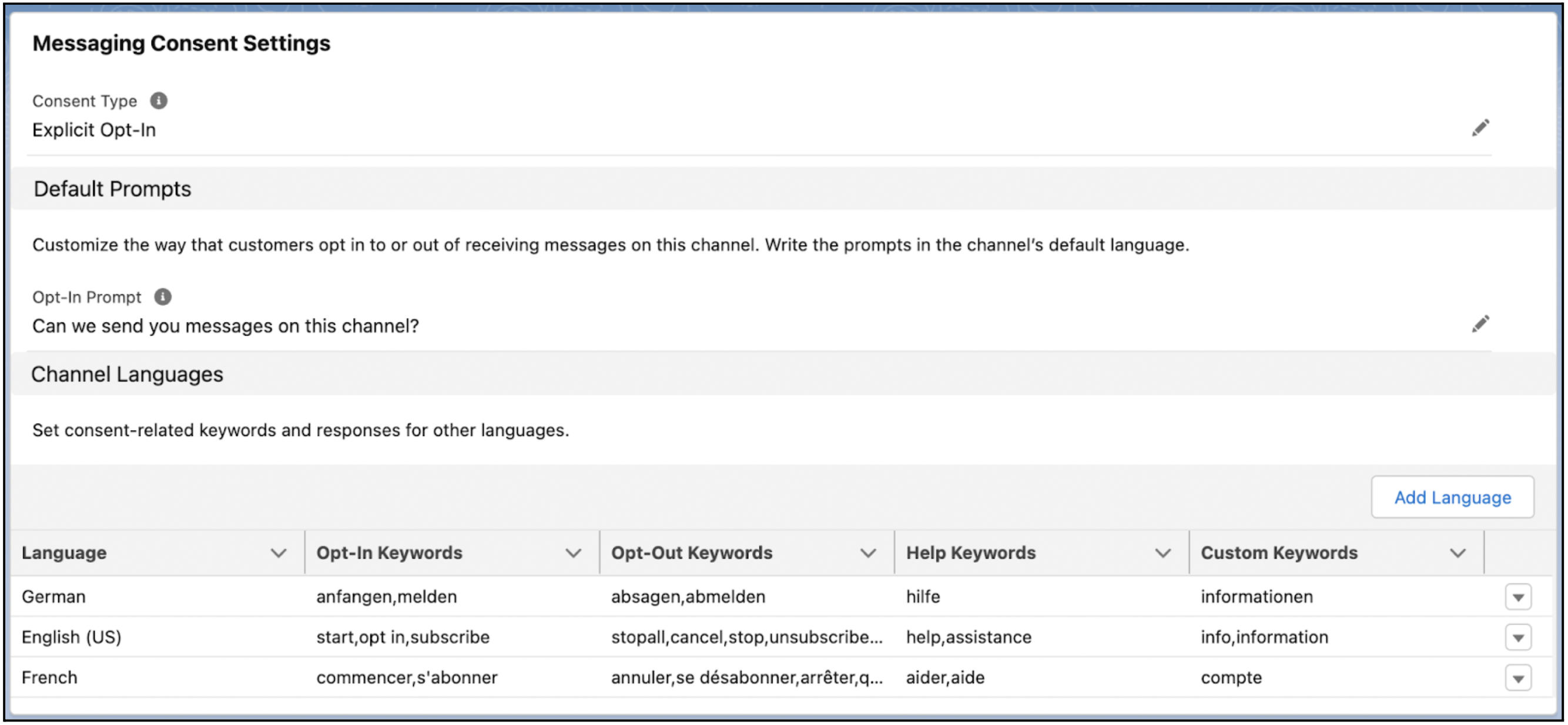
- To set the consent settings for a new language, click Add Language and select the language.
- To change the consent settings for an existing language, click Edit in the dropdown next to an existing language.
-
Enter the consent settings, help keywords, and custom keywords.
Field Description Example Required? Opt-In Keywords (Not available in Enhanced Chat) Keywords your customers can send to agree to receive messages on this channel. You can add opt-in keywords for every language you support. START, OPT IN Short codes only Opt-In Confirmation (Not available in Enhanced Chat) The message sent after a customer sends an opt-in keyword. The confirmation acknowledges that the customer consents to receiving messages from your company on this channel.
In enhanced Messaging channels, customers don’t receive an opt-in confirmation when they’re implicitly opted in to receive messages.
By default, the opt-in message is “Thanks for opting in and allowing us to send you messages.” SMS and short codes only Opt-Out Keywords Keywords your customers can send to opt out of receiving messages on this channel. When a customer sends an opt-out keyword, they receive an opt-out confirmation, and then stop receiving messages. You can add opt-out keywords for every language you support. The default keywords are:
- Stop
- Stopall
- Unsubscribe
- Cancel
- End
- Quit
- Revoke (not visible in channel settings)
- Opt out (not visible in channel settings)
STOP Yes Opt-Out Confirmation The message sent after a customer sends an opt-out keyword. You can customize this for every language you support. American and European privacy regulations require opt-out confirmation. By default, the opt-out message is “You’ve opted out of receiving messages from us, so we won’t contact you again.” Yes Double Opt-In Prompt (Not available in Enhanced Chat) Asks customers to confirm that they agree to receive messages on this channel. This message is sent in channels that require double consent. To opt in, customers can reply with a double opt-in keyword. To confirm your subscription to [Campaign Name] [Description] Alerts, reply YES. Reply HELP for help. Reply STOP to cancel at any time. Msg&data rates may apply. Short codes only Double Opt-In Keywords (Not available in Enhanced Chat) Keywords your customers can send to doubly agree to receive messages on this channel. You can add double opt-in keywords for every language you support. Your opt-in keywords and double opt-in keywords should be different. CONFIRM, YES, Y Help Keywords Keywords your customers can send to request help during a conversation. You can add help keywords for every language you support. HELP, AIDE Short codes only Help Response The response sent to customers when they send a help keyword. You can customize this for every language you support. [Campaign Name] [Description] Alerts: Help at [source of help] or [toll free number]. Msg&data rates may apply. [Message frequency]. Text STOP to cancel. Short codes only Custom Keywords Keywords your customers can send to receive a custom response. For example, use custom keywords to automate the sharing of company-specific information, or to comply with country-specific regulations. You can add custom keywords for every language you support. INFO Short codes only Custom Response The response sent to customers when they send a custom keyword. You can customize this for every language you support. [Campaign Name] [Description] Alerts: Contact us at [web URL] or [email address]. Msg&data rates may apply. [Message frequency]. Text STOP to cancel. Short codes only - Save your changes.
Configure Consent Settings for a Standard Channel
Set the consent settings for a standard Messaging channel
- From Setup in Lightning Experience, enter Messaging in the Quick Find box, and then select Messaging Settings.
-
Click Edit in the channel’s action menu.
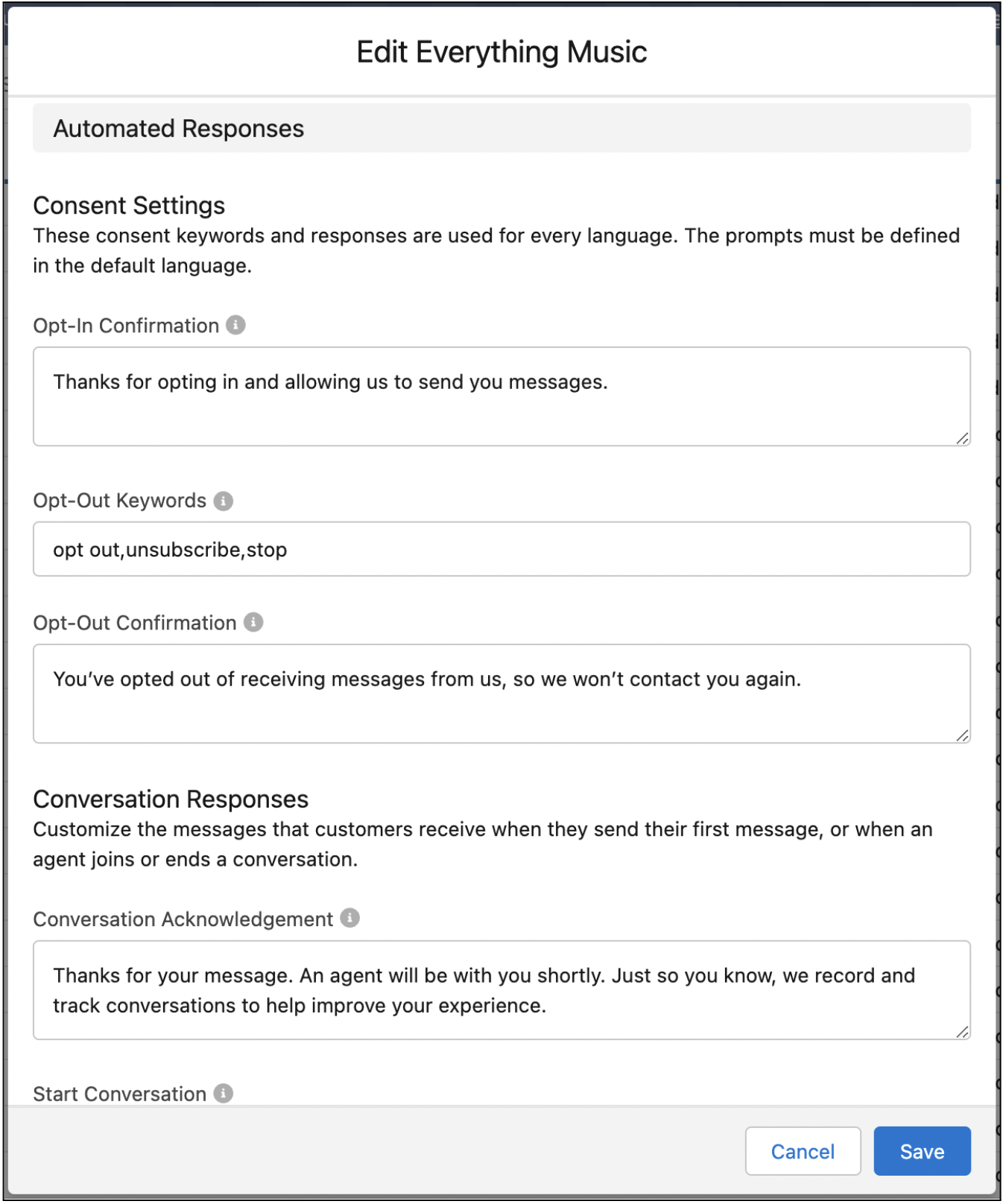
- Make your changes.
- Save your changes.
We get you started with some default opt-in and opt-out keywords, but you can replace these keywords with your own. For help configuring each auto-response, see Customize Auto-Responses in Service Cloud Messaging Channels.
