
You are here:
Use Fallback Message to Help Customers During an Enhanced Chat Downtime
Write a fallback message to send customers in the messaging conversation window in the event of a service downtime.
Required Editions
| View supported editions. | |
 This article applies to:
|
Enhanced In-App Chat and Enhanced Web Chat channels |
 This article doesn’t apply to:
|
Enhanced WhatsApp, Standard and Enhanced Facebook Messenger, Standard and Enhanced SMS, Enhanced Apple Messages for Business, Enhanced LINE, and Bring Your Own Channel |
- In Setup, enter Messaging Settings, and then select Messaging Settings.
- To the right of your messaging channel, click the downward arrow and select Edit.
-
In the Fallback Message section, select Add Fallback Message.
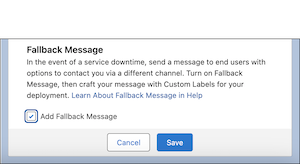
- Save your changes.
- Back in Setup, enter Embedded Service Deployments, and select Embedded Service Deployments.
-
From the Custom Labels card, click Set Custom Labels.
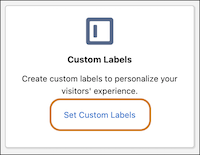
-
Use the dropdown menus to navigate to the Fallback Message editor.
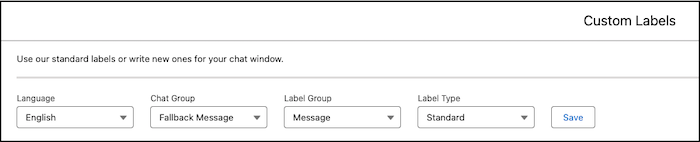
- From the Language dropdown menu, select a language that you’d like to display your pre-chat form in. Repeat these steps for each language that you’d like to translate your Fallback Message into.
- From the Chat Group dropdown menu, select Fallback Message.
- From the Label Group dropdown menu, select Message.
- From the Label Type dropdown menu, select Standard.
-
Create a placeholder and paste it into the Fallback Message field, then craft your fallback
message around it. The placeholder links customers to your fallback support channel, such as a
phone number, email address, or website URL.
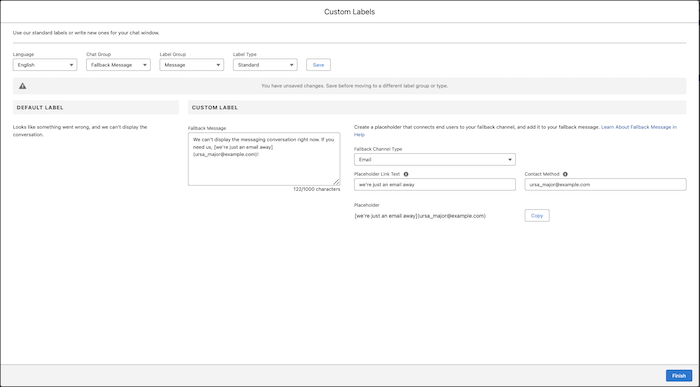
- Select a Fallback Channel Type, such as Email, Phone, or Website.
- In the Placeholder Link Text field, enter the phrase that gets hyperlinked to your communication channel. In this example, we’ve entered “we’re just an email away”.
- In the Contact Method field, enter the contact information for your fallback channel. If you selected Phone, enter a phone number with a country code and an area code, formatted as tel: +x-xxx-xxx-xxxx. If you selected Email, enter an email address, formatted as mailto: example@example.com. If you selected Website, enter a website URL that starts with https://.
- When you see the placeholder appear below these fields, click Copy.
- Paste your placeholder into the Fallback Message field, then write your fallback message around it. In this example, we wrote, “We can’t display the messaging conversation right now. If you need us, [we’re just an email away]{ursa_major@example.com}. Note that Fallback message doesn't currently support multiple paragraphs. All sentences entered into the Fallback Message field will present to the end user as a single paragraph.
Did this article solve your issue?
Let us know so we can improve!
