Create a Flow to Link Individuals to Messaging Sessions
Learn more about the person you’re messaging with. Use a flow template to auto-link
contacts, leads, employees, or person accounts to your messaging session.
Set your flow to auto-launch or let support reps run it from the Actions &
Recommendations component.
If you don’t use Channel-Object Linking, skip to step 3. If you do use it, turn it off
before adding Individual-Object Linking. From Setup, in the Quick Find box, enter
Channel-Object Linking, and then select Channel-Object
Linking.
Turn off Channel-Object Linking.
From Setup, in the Quick Find box, enter Flows, and then select
Flows under Process Automation.
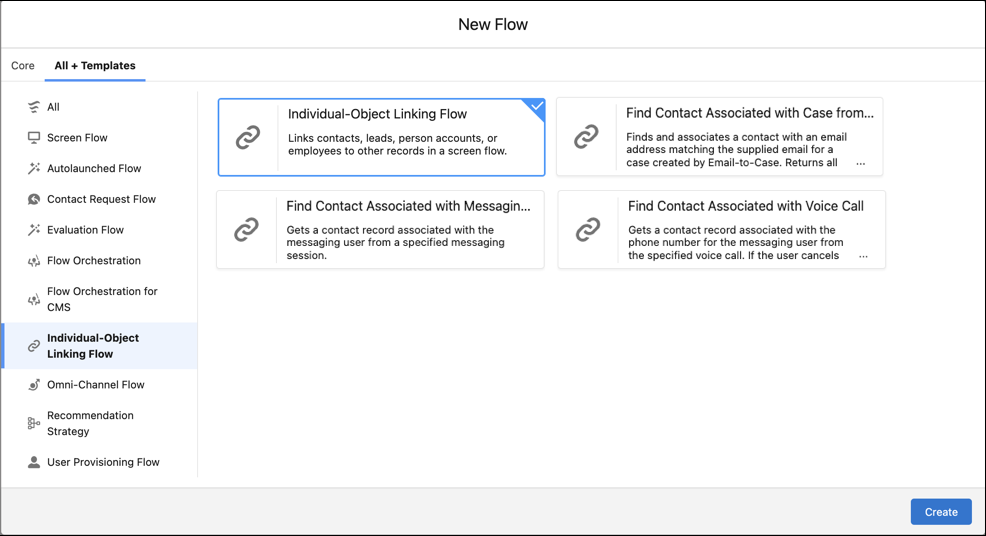
Click New Flow.
Click All + Templates.
Click Individual-Object Linking Flow.
Select the Find Contact Associated with Messaging Session flow
template.
Click Create.
To search for a lead, employee, or person account instead of contacts, click the
Find Matching Contacts Flow flow action, and then select
Edit Action. Make a selection in the Search Object dropdown menu.
To narrow your search to a specific field on the individual record, make your selection
from the Search Fields dropdown menu.
To search for a specific term or variable, replace what’s in the Search Term field.
Click Done.
Click Save.
Test and update the flow, and then activate it.
When a support rep runs the flow, it displays contacts with the same email address as
the case’s Web Email field. To link a contact to the case, the support rep selects a matching
contact.
We use three kinds of cookies on our websites: required, functional, and advertising. You can choose whether functional and advertising cookies apply. Click on the different cookie categories to find out more about each category and to change the default settings.
Privacy Statement
Required Cookies
Always Active
Required cookies are necessary for basic website functionality. Some examples include: session cookies needed to transmit the website, authentication cookies, and security cookies.
Functional Cookies
Functional cookies enhance functions, performance, and services on the website. Some examples include: cookies used to analyze site traffic, cookies used for market research, and cookies used to display advertising that is not directed to a particular individual.
Advertising Cookies
Advertising cookies track activity across websites in order to understand a viewer’s interests, and direct them specific marketing. Some examples include: cookies used for remarketing, or interest-based advertising.