
You are here:
Report on Messaging Activity in Service Cloud
To track your service team’s messaging activity in Messaging channels, create custom report types on Messaging objects.
Required Editions
| View supported editions. | |
 This article applies to:
|
Enhanced In-App Chat, Enhanced Web Chat v1, Enhanced Web Chat v2, Enhanced WhatsApp, Standard and Enhanced Facebook Messenger, Standard and Enhanced SMS, Enhanced Apple Messages for Business, Enhanced LINE, and Bring Your Own Channel |
This article uses “agent” to refer to human service reps, not AI agents.

Identify Objects to Report On
Custom report types that track Messaging KPIs are typically based on these standard objects.
- MessagingSession: Represents a session with a messaging user on a Messaging channel.
- MessagingSessionMetrics: Provides information about a messaging session, such as agent and end user response time.
- MessagingEndUser (Messaging User): Represents one address, such as a phone number or Facebook page, that communicates in one Messaging channel.
- AgentWork: Represents a work assignment that’s been routed to an agent. If the work is transferred to another agent, another AgentWork record is created.
- ConversationEntry: Used only in standard messaging channels. Represents a message or an event in the chat history between an agent and a messaging user.
To learn more, review the Messaging Object Model.
Track Response Time
To track the average and maximum response time of agents and customers, create a custom report type with Messaging Session as the primary object and Messaging Session Metrics as the secondary object. Messaging Session Metrics records are available only for enhanced Messaging and Messaging for In-App and Web sessions created after September 30, 2024.
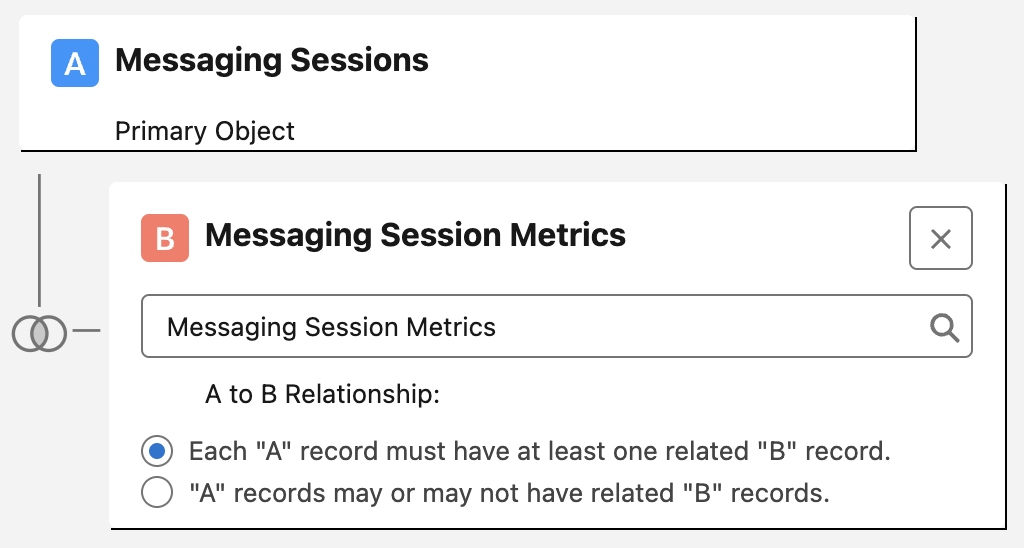
Six Messaging Session Metrics records are generated for each completed messaging session. These records track, respectively:
- Average response time for end users and agents in the session
- Maximum response time for end users and agents in the session
- Message count for end users and agents in the session
Here are example questions that your report can answer. See the object documentation for a full list of fields and descriptions.
| Question | Report Configuration |
|---|---|
| How many messages do agents typically send to resolve inquiries? | Filter messaging sessions with Status = Ended, and then filter messaging session metrics with Messaging Session Metric Type = AgentMessageCount. |
| On average, how many seconds does it take for agents to respond to a message? | Filter messaging sessions by your date range, and then filter messaging session metrics with Messaging Session Metric Type = AverageAgentResponseTime. |
| What’s the longest that end users wait for a response? | Filter messaging sessions by your date range, and then filter messaging session metrics with Messaging Session Metric Type = MaxAgentResponseTime. |
| How many messages do end users typically send before a session ends? | Filter messaging sessions by your date range, and then filter messaging session metrics with Messaging Session Metric Type = EndUserMessageCount. |
Track Handle Time and Resolution
To track handle time and messaging session resolution, create custom report types for the Messaging Session or Agent Work objects. See the object documentation for a full list of fields and descriptions.
Agent Work and Messaging Sessions report type:
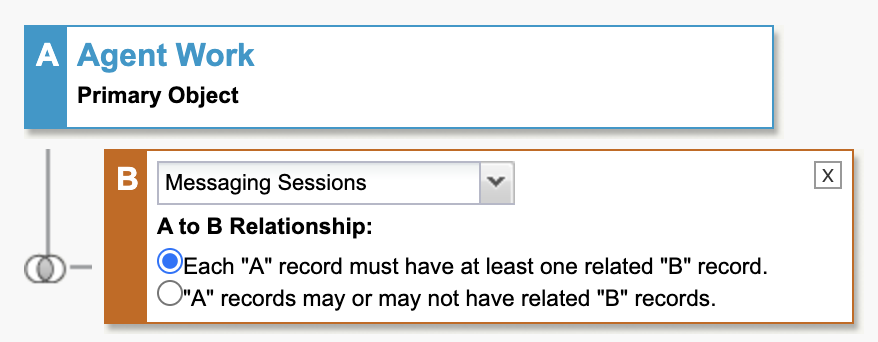
Messaging Sessions report type:

Here are example questions that your reports can answer.
| Question | Report Configuration |
|---|---|
| What proportion of sessions were ended by agents versus by end users? | Create a custom report type with Messaging Session as the primary object. Sort messaging sessions by Ended By Type. |
| What’s the typical length of a messaging session? | Create a custom report type with Agent Work as the primary object and Messaging Session as the secondary object. Sort work by Handle Time, which includes any After Conversation Work time that the agent used. Monitoring handle time is helpful if you’ve configured Messaging to be synchronous. If you have an asynchronous configuration—for example, you rely on the Inactive status during periods of inactivity—focus on other KPIs instead. |
| What proportion of closed sessions were resolved entirely by a bot? | Create a custom report type with Messaging Session as the primary object. Filter messaging sessions with Status = Closed, and then sort by Agent Type, where a value of Bot indicates that no human service reps were involved. |
| How long does it take for agents to accept new sessions? | Create a custom report type with Agent Work as the primary object and Messaging Session as the secondary object. Sort work by Speed to Answer. |
Compare Traffic Across Channels
Create a custom report type with Messaging Session as the primary object. As a start, include these basic fields, but see the object documentation for a full list of fields and descriptions.
- Messaging Channel
- Status
- Start Time
- End Time
- (Lookup field) Messaging Channel: Type
- (Lookup field) Messaging Channel: Channel Name
Here are example questions that your report can answer.
| Question | Report Configuration |
|---|---|
| Which types of channels, such as Enhanced Chat or Facebook Messenger, are generating the most and least traffic? | To view sessions occurring within a specific time frame, filter by Start Time. Then, sort messaging sessions by the Messaging Channel: Type field. |
| If you have multiple channels of each type, such as multiple Facebook Messenger channels, which channels are generating the most and least traffic? | To view sessions occurring within a specific time frame, filter by Start Time. Sort messaging sessions by the Messaging Channel: Channel Name field. |
Compare Messaging Activity Across Accounts
To compare the activity of your accounts with several report configurations, create a custom report type with Messaging User or Messaging Session as the primary object.
Messaging Users and Messaging Sessions report type:
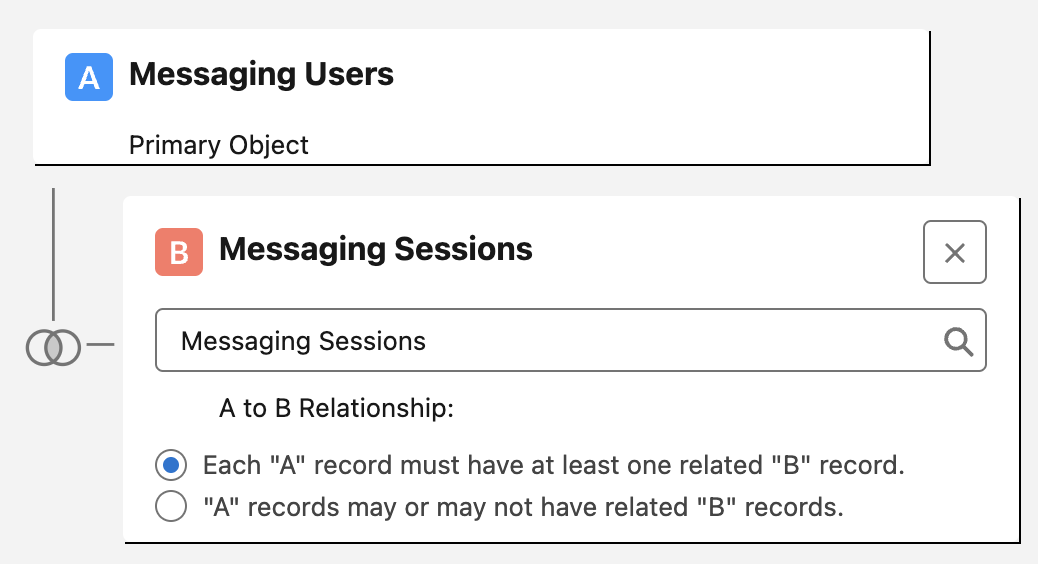
Messaging Sessions report type:
Here are example questions that your report can answer.
| Question | Report Configuration |
|---|---|
| How many messaging sessions did each of our accounts generate this month? | Create a custom report type with Messaging Sessions as the primary object. Filter the messaging sessions to your preferred date range, and then sort by Account. |
| What messaging users do we have for each account? | Create a custom report type with Messaging Users as the primary object, and then sort the messaging users by Account. |
Track Message Delivery Failures (Standard Channels)
To track inbound and outbound messages that weren’t delivered in standard Messaging channels, create a custom report type with Conversation Entry as the primary object. Filter or sort the report based on these fields:
- Actor Type
- Message Status Code
Currently, you can’t track message delivery failures in enhanced channels.
