
Configure Field Service Settings for Real-Time Location
Allow worker tracking and customer messaging in your Field Service settings.
Required Editions
| Available in: both Salesforce Classic (not available in all orgs) and Lightning Experience |
| The Field Service core features, managed package, and mobile app are available in Enterprise, Unlimited, and Developer Editions. |
| The Field Service Appointment Assistant permission set license must be assigned to mobile workers. |
| User Permissions Needed | |
|---|---|
| To configure Appointment Assistant settings: | Field Service Appointment Assistant |
- From Setup, in the Quick Find box, enter Field Service, and then select Field Service Settings.
- Scroll to the Appointment Assistant section.
-
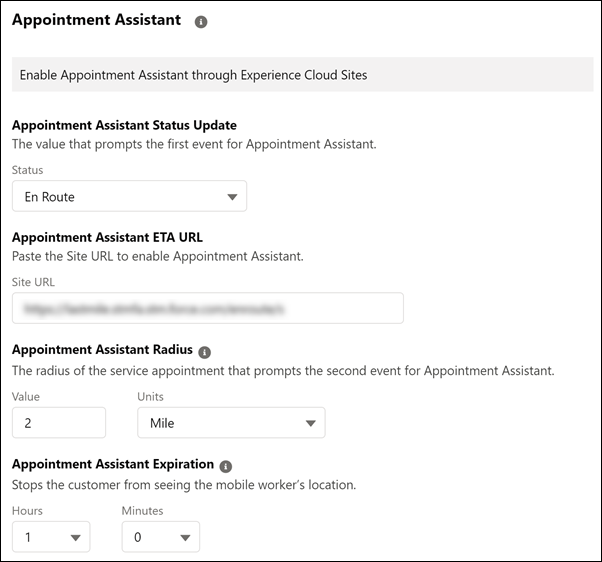
In the Status field, select the service appointment status that generates the first
platform event. For example, if the status is set to En Route, Appointment Assistant Real-Time
Location sends a notification to the customer that the mobile worker is on their way.
 Note The customer can see the mobile worker’s location and information only when the appointment is in this status.If you don’t use an En Route status, you can create it or use an existing status but only if its purpose is to indicate that a worker is en route.To view and edit the Status Picklist Values:
- From Setup, go to the Object Manager tab.
- Click Service Appointment.
-
In Fields & Relationships, click Status.
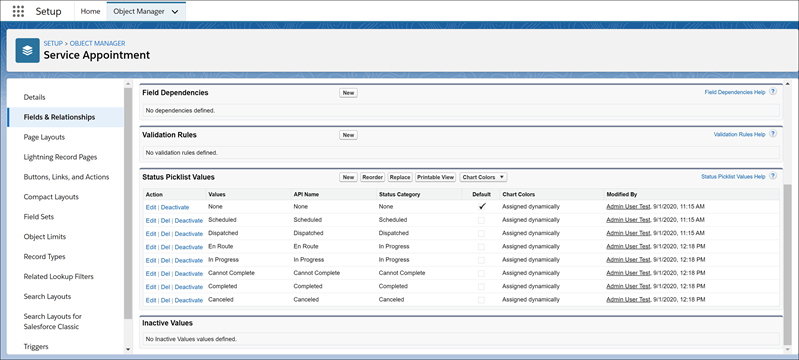
- In the Site URL field, paste the URL of the Experience Builder site that contains the Appointment Assistant Real-Time Location Lightning Web Component.
-
Enter a value for the Appointment Assistant Radius. This value generates the second
platform event. For example, let’s say that the radius is set to 2 miles. When the mobile
worker is within 2 miles of the service appointment, Appointment Assistant Real-Time Location
sends a notification to the customer that the mobile worker is nearing the appointment
location.
Note You can use an online conversion tool to calculate your Radius Field value. For example, you could use the conversion 2,640 feet = 0.5 miles.
-
Enter a value for the Appointment Assistant Expiration. For example, if the expiration is
set to 1 hour, the customer stops seeing the mobile worker’s location and information 1 hour
after the link was generated.
- Fill in the rest of the fields.
Note Create a quick action on the Service Appointment object so that a mobile worker
can easily mark En Route in the Field Service mobile app. For Appointment Assistant Real-Time
Location to work, the change of status must occur on the mobile app and not on the server side.
For example, flows and Lightning web components aren’t supported for this purpose. When the
service appointment status changes to En Route on the mobile app, the location status of the
assigned service resource changes to EnRoute.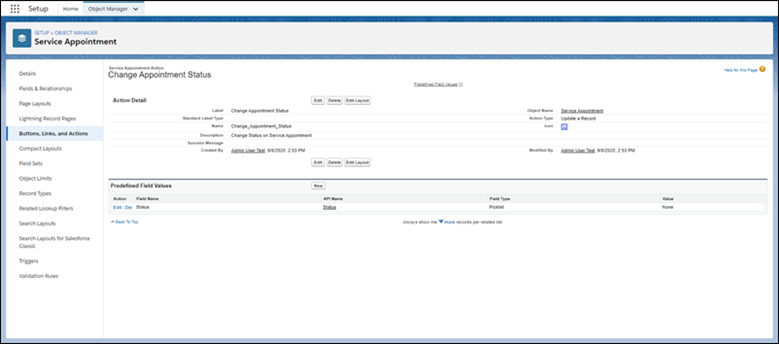
Note If you’re using Appointment Assistant Real-Time Location and Automatic Status Change, it’s
recommended to enter a small radius in the Automatic Status Change settings. A small radius
ensures that Appointment Assistant’s Real-Time Location customers can see the mobile worker’s
location up until the worker’s close to the appointment. See Set Up Automatic Status Change.
Did this article solve your issue?
Let us know so we can improve!
