
Set Up Automatic Status Change
Accurate and on-time status changes are a key part of field operations workflow. With Automatic Status Change, mobile workers can focus on their jobs and work more efficiently while the Field Service mobile app tracks status changes for them. For the back office, accurate status changes give better insight into the activity in the field without creating more work for mobile workers.
Required Editions
| Available in: both Salesforce Classic (not available in all orgs) and Lightning Experience |
| The Field Service core features, managed package, and mobile app are available in Enterprise, Unlimited, and Developer Editions. |
| To access the Field Service mobile app, users need the Field Service Mobile user license. |
| User Permissions Needed | |
|---|---|
| To customize Automatic Status Change settings: | Customize Application |
Automatic Status Change is triggered at three points depending on location and time for today’s appointments.
- When the mobile worker is traveling toward the first appointment of the day or traveling
to their next appointment.
The traveling status change for the first appointment is triggered only if the mobile worker:
- Has traveled 80% of the distance to the service appointment.
- Is traveling within 1 hour before the appointment is scheduled to start.
- When the mobile worker arrives at the location of the appointment.
- When the mobile worker has finished an appointment. If another appointment is on the schedule, the next appointment’s status changes to En Route, regardless of the mobile worker’s distance from the appointment or the time remaining before the appointment starts.
Before you begin:
- Make sure that your mobile workers set the location permission on their device to Always.
- Automatic Status Change only supports the default list view. To show service appointments for one mobile worker in the default list view, in the Owner filter, select My Service Appointments.
- From Setup, in the Quick Find box, enter Field Service Mobile, and then select Field Service Mobile Settings.
- Edit the required settings.
-
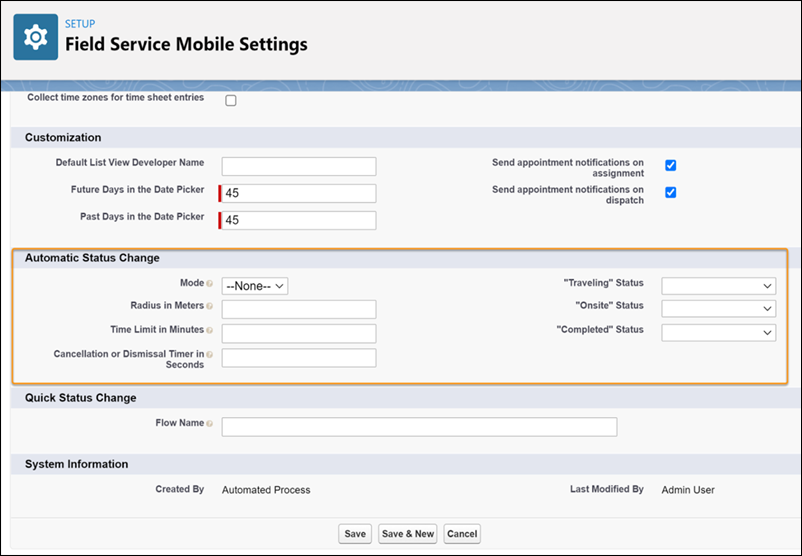
Scroll down to the Automatic Status Change settings.
-
Select a mode.
Manual The mobile worker must cancel or confirm the change. Timed The mobile worker can cancel or confirm the change. If no action is taken, the status changes when the timer ends. Automatic The mobile worker is informed about the change after it happens. - For Radius in Meters, enter the service appointment radius (100–5,000 meters) that can trigger status changes.
- For Time Limit in Minutes, enter the amount of time (1–60 minutes) before an appointment’s scheduled start time or actual end time that can trigger a status change.
- For Cancellation or Dismissal Timer in Seconds, enter the duration (10–600 seconds) that the timer is visible. After this time, the status changes automatically and can’t be canceled. This setting is only for Timed mode.
- For Traveling Status, enter the status that indicates that a mobile worker is traveling to a service appointment.
- For On-Site Status, enter the status that indicates that a mobile worker is at a service appointment.
- For Completed Status, enter the status that indicates that a mobile worker completed a service appointment.
- Save your changes.
Consider these points when you’re setting up Automatic Status Change.
- If you’re using Automatic Status Change and Appointment Assistant Real-Time Location, it’s recommended to enter a small radius in Radius in Meters. A small radius ensures that Appointment Assistant customers can see the mobile worker’s location up until the worker’s close to the appointment.
- If you’re using mobile flows, Automatic Status Change can cause a conflict with these flows. It’s recommended to run status-related flows on the server.
Did this article solve your issue?
Let us know so we can improve!
