
You are here:
Automatic Status Change
Receive in-app updates that notify you of automatic status changes.
Required Editions
| Available in: both Salesforce Classic (not available in all orgs) and Lightning Experience |
| The Field Service core features, managed package, and mobile app are available in Enterprise, Unlimited, and Developer Editions. |
| To access the Field Service mobile app, users need the Field Service Mobile user license. |
| User Permissions Needed | |
|---|---|
| To change statuses: | Field Service Mobile License |
-
When you’re within the time frame and the area of your appointment, update the
appointment’s status according to the mode your company uses for status updates.
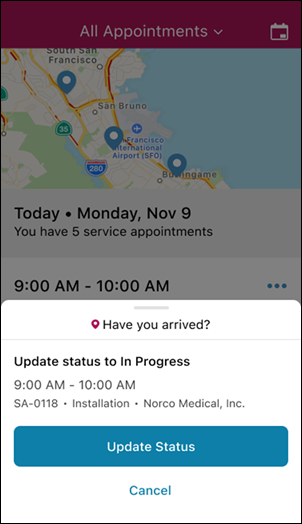
- Manual—A prompt appears to suggest a status update. To accept the suggestion,
click Update Status. To update the status later, click
Cancel.
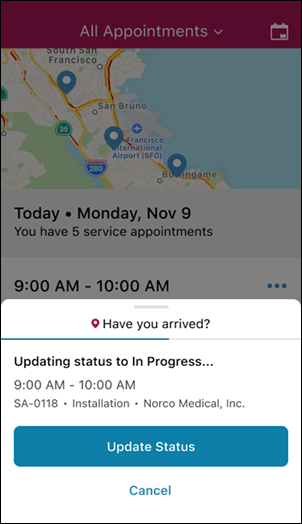
- Timed—A prompt appears to suggest a status update, and the progress bar
indicates the time that remains before the status is updated. To accept the suggestion, click
Update Status. To update the status later, click
Cancel.
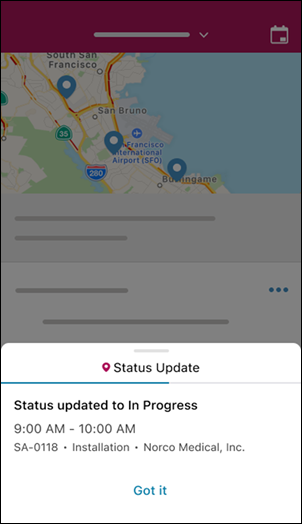
- Automatic—A prompt appears to notify you that the status was updated.
- Manual—A prompt appears to suggest a status update. To accept the suggestion,
click Update Status. To update the status later, click
Cancel.
-
When you leave the area of the service appointment, update the appointment’s status
according to the mode your company uses for status updates.
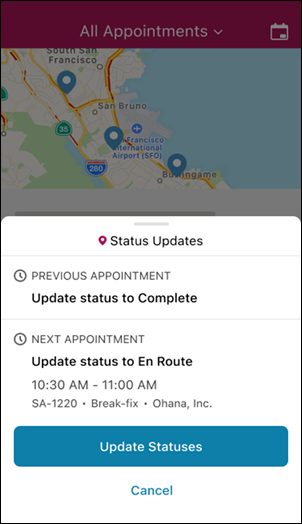
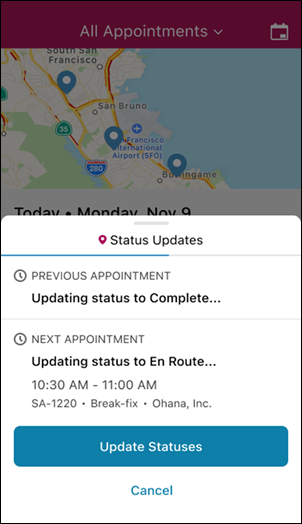
- Manual—A prompt appears to suggest status updates for your previous and next
appointments. To accept the suggestions, click Update Statuses. To
update the statuses later, click Cancel.
- Timed—A prompt appears to suggest status updates for your previous and next
appointments. The progress bar indicates the time that remains before the statuses are
updated. To accept the suggestions, click Update Statuses. To update
the statuses later, click Cancel.
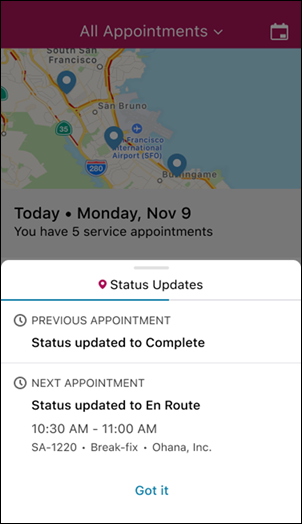
- Automatic—A prompt appears to notify you that the statuses of your previous and
next appointments were updated.
- Manual—A prompt appears to suggest status updates for your previous and next
appointments. To accept the suggestions, click Update Statuses. To
update the statuses later, click Cancel.
- Your service appointment statuses are updated until you finish work for the day.
Consider these points when you’re using Automatic Status Change.
- If you’re on your way to your next service appointment outside of the time frame, you’re prompted to update your status manually.
- If you’re offline when you update a status, the change is synced when you’re back online.
- The prompts appear only if the app is open. When the app is closed, the updates appear as notifications.
See Also
Did this article solve your issue?
Let us know so we can improve!
