
Automate Geolocation-Based Actions
Set up a flow to automate your actions at scale for all your mobile workers.
Required Editions
| Available in: both Salesforce Classic (not available in all orgs) and Lightning Experience |
| The Field Service core features, managed package, and mobile app are available in Enterprise, Unlimited, and Developer Editions. |
| To access the Field Service mobile app, users need the Field Service Mobile user license. |
| User Permissions Needed | |
|---|---|
| To create and edit custom objects: | Customize Application |
| To edit object permissions: | Manage Profiles and Permission Sets |
| To open, edit, or create a flow in Flow Builder: | Manage Flow |
Create the Flow
Create a flow for the geolocation-based actions that your mobile workers can see. Setting up a flow helps you automate the location-based actions so that you don’t need to add the actions to individual service appointments.
- From Setup, in the Quick Find box, enter Process Automation, and then select Flows.
- Click New Flow.
- Select Start From Scratch and click Next.
- Select Record-Triggered Flow and click Create.
-
In the Configure Start window, determine when the flow is triggered.
- For Object, find and select Service Appointment.
- For Trigger the Flow When, select A record is created or updated.
- For Optimize the Flow for, select Actions and Related Records.
- Click Save.
-
Enter a label.
API Name is populated based on the label you entered.
- Save the flow.
Create the Resources for the Flow
- Open the Toolbox.
-
Create a resource for the assigned resource record.
- For Resource Type, select Variable.
- Enter an API name, for example AssignedResourceRecord.
- For Data Type, select Record.
- For Object, find and select Assigned Resource.
- Select Available for Input and Available for Output.
-
Create a resource for the geolocation-based action that’s triggered when the mobile
worker enters the geofence.
- For Resource Type, select Variable.
- Enter an API name, for example, EnterGeolocationAction.
- For Data Type, select Record.
- For Object, find and select Geolocation Based Action.
- Select Available for Input and Available for Output.
-
Create a resource for the geolocation-based action that’s triggered when the mobile
worker exits the geofence.
- For Resource Type, select Variable.
- Enter an API name, for example, ExitGeolocationAction.
- For Data Type, select Record.
- For Object, find and select Geolocation Based Action.
- Select Available for Input and Available for Output.
-
Create a resource for the collection of geolocation-based actions.
- For Resource Type, select Variable.
- Enter an API name, for example, GeolocationActions.
- For Data Type, select Record.
- For Object, find and select Geolocation Based Action.
- Select Available for Input and Available for Output.
- Select Allow multiple values (collection).
Add Elements to the Flow
You can add only one geolocation-based action that’s triggered before a service appointment and one that’s triggered after.
-
Add a Get Records element for the assigned resources.
- Enter a label, for example, Get Assigned Resource.
- Enter an API Name, for example, GetAssignedResource.
- For Object, find and select Assigned Resource.
- For Condition Requirements, select All Conditions Are Met (AND).
- For Field, find and select ServiceAppointmentId.
- For Operator, select Equals.
-
For Value, find and select the service appointment record, and then find and select
Service Appointment Id.
The value looks like this when you click it: {!$Record.Id}.
- For How Many Records to Store, select Only the first record.
- For How to Store Record Data, select Choose fields and assign variables (advanced).
- For Where to Store Field Values, select Together in a record variable.
- For Record, find and select the variable that you created for the assigned resource record. In our example, that’s the AssignedResourceRecord variable.
- For Select Assigned Resource Fields to Store in Variable, add the ServiceResourceId field.
-
Add a Decision element that checks whether an assigned service resource exists.
- Enter a label, for example, Is Service Resource Assigned?.
- Enter an API Name, for example, IsServiceResourceAssigned.
- Set up the decision so that the flow ends if no resource is assigned and continues if a resource is assigned. To determine whether an assigned resource exists, for Resource, find and select the variable that you created for the assigned resource record. In our example, that’s the AssignedResourceRecord variable. For Operator, select Is Null, and for Value, find and select False.
-
Add a Get Records element for the geolocation-based actions.
- Enter a label, for example, Get Geolocation-Based Actions.
- Enter an API Name, for example, GetGeolocationBasedActions.
- For Object, find and select Geolocation Based Action.
- For Condition Requirements, select All Conditions Are Met (AND).
- For Field, find and select ReferenceRecordId.
- For Operator, select Equals.
-
For Value, find and select the service appointment record, and then find and select
Service Appointment Id.
The value looks like this when you click it: {!$Record.Id}.
- For How Many Records to Store, select All records.
- For How to Store Record Data, select Choose fields and assign variables (advanced).
- For Record Collection, find and select the variable that you created for the collection of geolocation-based actions. In our example, that’s the GeolocationActions variable.
- For Select Geolocation Based Action Fields to Store in Variable, add the ActionType, Name, and TriggerType fields.
- Select When no records are returned, set specified variables to null.
-
Add a Decision element that checks whether there are any geolocation-based actions that
are associated with this service resource.
- Enter a label, for example, Has Geolocation-Based Actions?.
- Enter an API Name, for example, HasGeolocationBasedActions.
- Set up the decision so that the flow ends if actions exist and continues if none exist. To determine whether an action exists, for Resource, find and select the variable that you created for the collection of geolocation-based actions. In our example, that’s the GeolocationActions variable. For Operator, select Is Null, and for Value, find and select True.
-
Add a Create Records element for the actions that are triggered when the mobile worker
enters a geofence.
- Enter a label, for example, Create Enter Action.
- Enter an API Name, for example, CreateEnterAction.
- For How to set record field values, select Manually.
- For Object, find and select Geolocation Based Action.
-
For ActionData:
If this flow is triggered by a platform alert, don’t fill in the ActionData.If this flow opens a record, enter the ID of the record in JSON format. For example, {"viewRecord": "1WLxx000000003FGAQ"}.If this flow launches a quick action, enter the API name of the quick action in JSON format as it’s shown in the page layout. For example, {"quickAction": "Global.LogACall"}. Quick actions must be of type Flow, Lightning Web Component, or Create and Update Record.
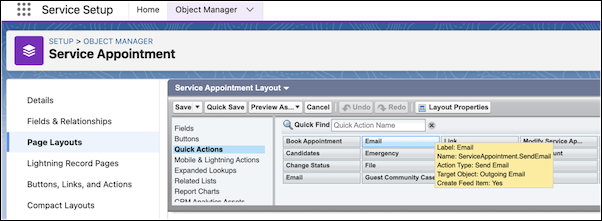
To find the API name of a quick action in Object Manager, open the Service Appointment object and click Page Layouts. Open the mobile worker’s page layout and hover over the required quick action. The API name is shown as the Name of the action in the tooltip. In this example, the API name is ServiceAppointment.SendEmail.
- For the value of ActionType, find and select Platform Alert, Quick Action, or View Record.
- Enter a name.
- For the value of Radius, enter the number of meters from a service appointment that triggers the action. The minimum radius is 100 meters.
- For the value of TriggerType, find and select Enter.
-
Add the ReferenceRecordId field. For Value, find and select the service appointment
record, and then find and select Service Appointment Id.
The value looks like this when you click it: {!$Record.Id}.
- Select Manually assign variables.
-
For Variable, find and select the variable that you created for the geolocation-based
action that’s triggered when the mobile worker enters the geofence. In our example, that’s
the EnterGeolocationAction variable. Then find and select the ID of the geolocation-based
action.
The value looks like this example when you click it: {!EnterGeolocationAction.Id}.
-
Add a Create Records element for sharing the actions that are triggered when the mobile
worker enters a geofence.
- Enter a label, for example, Create Enter Action Share.
- Enter an API Name, for example, CreateEnterActionShare.
- For How to set record field values, select Manually.
- For Object, find and select Geolocation Based Action Share.
- For AccessLevel, find and select Read/Write.
-
Add the ParentId field. For Value, find and select the variable that you created for the
geolocation-based action that’s triggered when the mobile worker enters the geofence. In our
example, that’s the EnterGeolocationAction variable. Then find and select the ID of the
geolocation-based action.
The value looks like this example when you click it: {!EnterGeolocationAction.Id}.
- Add the RowCause field. For Value, find and select Manual Sharing.
-
Add the UserOrGroupId field. For Value, find and select the variable that you created
for the assigned resource record. In our example, that’s the AssignedResourceRecord
variable. Then add ServiceResource, RelatedRecord, and User Id.
The value looks like this example when you click it: {!AssignedResourceRecord.ServiceResource.RelatedRecord.Id}.
-
Add a Create Records element for the actions that are triggered when the mobile worker
exits a geofence.
- Enter a label, for example, Create Exit Action.
- Enter an API Name, for example, CreateExitAction.
- For How to set record field values, select Manually.
- For Object, find and select Geolocation Based Action.
-
For ActionData:
If this flow is triggered by a platform alert, don’t fill in the ActionData.If this flow opens a record, enter the ID of the record in JSON format. For example, {"viewRecord": "1WLxx000000003FGAQ"}.If this flow launches a quick action, enter the API name of the quick action in JSON format as it’s shown in the page layout. For example, {"quickAction": "Global.LogACall"}. Quick actions must be of type Flow, Lightning Web Component, or Create and Update Record.
- For the value of ActionType, find and select Platform Alert, Quick Action, or View Record.
- Enter a name.
- For the value of Radius, enter the number of meters from a service appointment that triggers the action. The minimum radius is 100 meters.
- For the value of TriggerType, find and select Exit.
-
Add the ReferenceRecordId field. For Value, find and select the service appointment
record, and then find and select Service Appointment Id.
The value looks like this when you click it: {!$Record.Id}.
- Select Manually assign variables.
-
For Variable, find and select the variable that you created for the geolocation-based
action that’s triggered when the mobile worker exits the geofence. In our example, that’s
the ExitGeolocationAction variable. Then find and select the ID of the geolocation-based
action.
The value looks like this example when you click it: {!ExitGeolocationAction.Id}.
-
Add a Create Records element for sharing the actions that are triggered when the mobile
worker exits a geofence.
- Enter a label, for example, Create Exit Action Share.
- Enter an API Name, for example, CreateExitActionShare.
- For How to set record field values, select Manually.
- For Object, find and select Geolocation Based Action Share.
- Add the RowCause and UserOrGroupId fields. For the values of AccessLevel, RowCause, and UserOrGroupId, enter the same values that you entered in the Create Exit Action element.
-
Add the ParentId field. For Value, find and select the variable that you created for the
geolocation-based action that’s triggered when the mobile worker enters the geofence. In our
example, that’s the EnterGeolocationAction variable. Then find and select the ID of the
geolocation-based action.
The value looks like this example when you click it: {!ExitGeolocationAction.Id}.
- Save and activate the flow.
- Run the flow to verify that it works.
The flow created in this example runs every time a new service appointment is created or updated.
When the service resource arrives or leaves the area of a service appointment, the flow creates two associated records for the Geolocation Based Actions object: Create Enter Action and Create Exit Action. The flow prompts the assigned service resource with the defined action. These records are associated with the Service Appointment object and are shared with the service resource.
