
You are here:
Set Up Geolocation-Based Actions for Field Service Mobile Workers
Automate actions based on the location of your mobile workers. Prompt your mobile workers to complete the actions before or after their service appointments and also at other locations like dispatch centers (service territory or service territory members).
Required Editions
| Available in: both Salesforce Classic (not available in all orgs) and Lightning Experience |
| The Field Service core features, managed package, and mobile app are available in Enterprise, Unlimited, and Developer Editions. |
| To access the Field Service mobile app, users need the Field Service Mobile user license. |
| User Permissions Needed | |
|---|---|
| To create and edit custom objects: | Customize Application |
| To edit object permissions: | Manage Profiles and Permission Sets |

Geolocation-based actions are currently not supported for service resources of type crew. in the Field Service mobile app. For more information, contact Salesforce customer support.
Give Mobile Workers Permissions
- From Setup, in the Quick Find box, enter Users, and then select Profiles.
- Edit the required profile.
- From the General User Permissions section, select Run Flows.
- From the Standard Object Permissions section, give Read and Edit permissions for the Geolocation Based Actions object.
Add the Related List
- From the object management settings for service appointments, go to Page Layouts.
- Open the mobile worker’s page layout.
- Drag Geolocation Based Actions into the Related Lists section.
- For validation purposes, repeat steps 1 to 3 for the Salesforce admin’s page layout.
- In the mobile app and in the desktop application, open a service appointment record and verify that you can see the related list.
Create a Geolocation-Based Action
You can manually create a specific action for a mobile worker.
To set up an automation that lets you create actions at scale for all of your mobile workers, see Automate Geolocation-Based Actions.
If you manually create a geolocation-based action for a specific service appointment instead of using a flow, make sure you set the owner as the assigned service resource’s user.
Geolocation-based action supports service territory and service territory members. You can assign geolocation-based action objects to service territory members linked to the service resource. You can also directly assign the objects to service territories associated with those members. In either case, the location-based actions will function just as they do for service appointments.
- From the App Launcher, find and select Service Resources.
- Select the required service resource.
- In the Geolocation-Based Actions related list, click New.
- Enter a name and a description.
-
For Action Type, select one of these options.
- Platform Alerts: Silently logs a timestamp based on the mobile worker’s location when they arrive or leave a job site.
- View Records: When the mobile worker arrives or leaves a jobsite, a record opens.
- Quick Actions: When the mobile worker arrives or leaves a jobsite, a quick action pops up.
-
For Action Data, provide the JSON format according to the selected action type.
- For the Platform Alert action type, if you leave this field empty the invocation timestamp is updated or you can enter the JSON format of the API name of the quick action, for example, {"quickAction": "quick_action_name"}. Your mobile screen flow runs automatically when you open the app, based on your input.
- For the View Record action type, enter the JSON format of the ID of the record. For example, {"viewRecord": "1WLxx000000003FGAQ"}.
- For the Quick Action action type, enter the JSON format of the API name of the
quick action as it’s shown in the page layout. For example, {"quickAction":
"Global.LogACall"}.
Quick actions must be of type Flow, Lightning Web Component, or Create and Update Record.
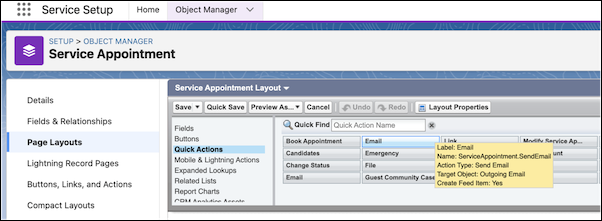
To find the API name of a quick action in Object Manager, open the Service Appointment object and click Page Layouts. Open the mobile worker’s page layout and hover over the required quick action. The API name is shown as the Name of the action in the tooltip. In this example, the API name is ServiceAppointment.SendEmail.
- For Radius, enter the distance in meters from the location of the associated object that triggers the action. The minimum radius is 100 meters.
- To determine whether this action is triggered when the mobile worker arrives or leaves the jobsite, for Trigger Type, select Enter or Exit.
-
To see the Geolocation Based Actions records, from the App Launcher, find and select
Geolocation Based Actions.
If you can’t see Geolocation Based Actions in the App Launcher, review the tab settings.
- From Setup, in the Quick Find box, enter Users, and then select Profiles.
- Edit the required profile.
-
Click Object Settings.
If you can’t see this option, follow the instructions in Enable the Enhanced Profile User Interface.
- Set the Tab Settings of Geolocation Based Actions to Default On.
Now that you understand how geolocation-based actions work, you can set up a flow to automate your actions at scale for all of your mobile workers.
