
You are here:
Set Up Inventory Access for Mobile Workers
Customize your page layouts and user permissions so that your team can take care of inventory management tasks. For example, give mobile workers the ability to log product consumption, create product requests, and keep their service vehicle inventory current. Inventory management is supported on both Android and iOS.
Required Editions
| Available in: both Salesforce Classic (not available in all orgs) and Lightning Experience |
| The Field Service core features, managed package, and mobile app are available in Enterprise, Unlimited, and Developer Editions. |
| To access the Field Service mobile app, users need the Field Service Mobile user license. |
| User Permissions Needed | |
|---|---|
| To update page layouts: | Customize Application |
| To update connected apps: | Customize Application AND either Modify All Data OR Manage Connected Apps |
Before getting started, get to know Salesforce inventory management terms and processes.
Show the Inventory Tab (Android and iOS)
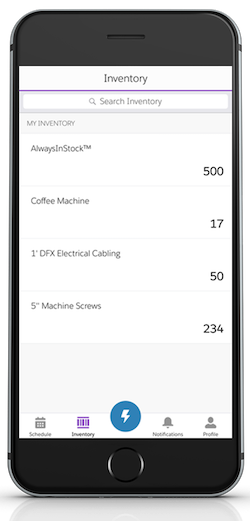
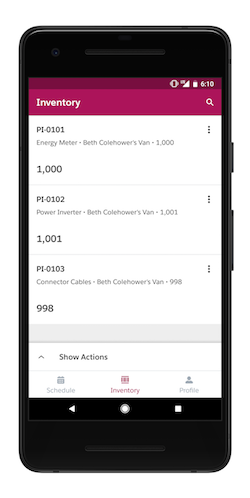
Let users view and update their inventory, log inventory consumption, and request parts from the Inventory tab. To see the Inventory tab, app users must be active service resources who are associated with a mobile inventory location. They must have at least Read access to product items or product requests. The Inventory tab isn’t available offline.
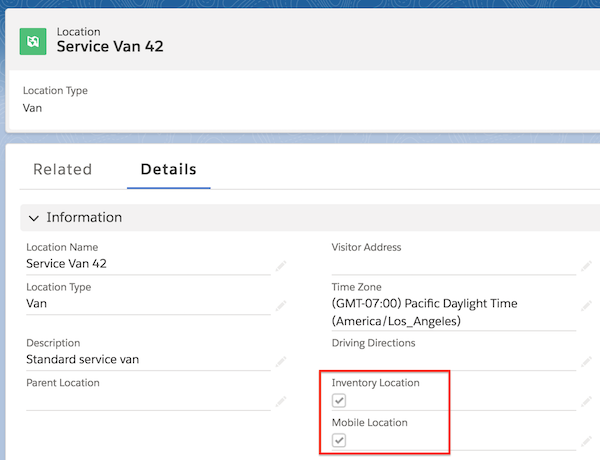
A location represents a physical area where products are stored. Because field service workers typically bring products with them in their vehicle, you can create a field location type to represent their inventory, such as a vehicle or toolbox.
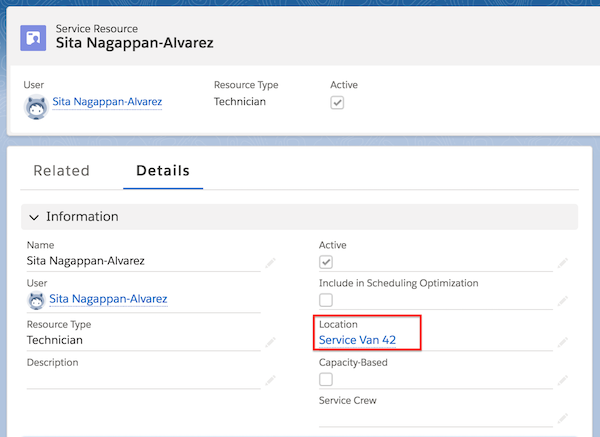
- From the full Salesforce site, click the Service Resources tab.
- On a service resource, click Edit.
- In the Location lookup field, enter a location that has both Inventory
Location and Mobile Location selected.
 Note If you don’t see the Location field, add it to your service resource page layout.
Because this service resource is associated with the location, the user sees the Inventory tab in the app.
Manage Inventory in the Field (Android and iOS)
To let service resources who are associated with a mobile inventory location manage their inventory, you create product items that represent the stock. Each product item is linked to a location, such as a van or warehouse, and to a specific inventory product. When you create product items, you can track inventory usage and restock when necessary.
- On the Product Items tab in the full Salesforce site, create product items for the mobile inventory location associated with the service resource. For example, if Service Van 42 contains 30 batteries, create a product item associated with the Service Van 42 location and the Battery product.
- To let your team create or update the product items representing their inventory, assign the object permissions listed in Create Product Items to Represent Inventory.
Log Product Consumption (Android and iOS)
You can let users who are associated with a mobile inventory location create product consumed records from the field service app.
- Add the Products Consumed related list to the work order page layout to make it visible in the Products and Related tabs of the work order carousel.
- Assign the user the object permissions listed in Track Inventory Consumption in Field Service.
Let Users Add Required Products (Android and iOS)
If a particular product is required to complete a work order or work order line item, add it as a required product. You can let your team create product-required records.
- Add the Products Required related list to work order and work order line item page layouts.
- Assign the user the object permissions listed in Track Required Inventory in Field Service.
Hide the Inventory Tab (Android and iOS)
If your mobile workers no longer require access to the Inventory tab, you can hide it. After you complete the steps, users must log out and log in to the Field Service mobile app to see the changes.
- From Setup, in the Quick Find box, enter Permission Sets, and then select Field Service Mobile License. Then, go to Object Settings, and remove access for Product Item and Product Requests.
- In the Quick Find box, enter Service Resource Layout. Remove the Location field from the Field Service layout.
- To clear the cache metadata in the mobile app, go to Settings in the Profile. Select Advanced Settings, and then select Clear Cached Metadata.
