
Set Up the Schedule Tab in the Field Service Mobile App
The Schedule tab in the Field Service mobile app shows service appointments that are assigned to the user. The Schedule tab layout is based on a list view specified in Setup. If no list view is specified, it uses the service appointment search layout.
Required Editions
| Available in: both Salesforce Classic (not available in all orgs) and Lightning Experience |
| The Field Service core features, managed package, and mobile app are available in Enterprise, Unlimited, and Developer Editions. |
| To access the Field Service mobile app, users need the Field Service Mobile user license. |
| User Permissions Needed | |
|---|---|
| To modify search layouts: | Customize Application |
| To create custom list views: | Read on the type of record included in the list AND Create and Customize List Views |
| To create, edit, or delete public list views: | Manage Public List Views |
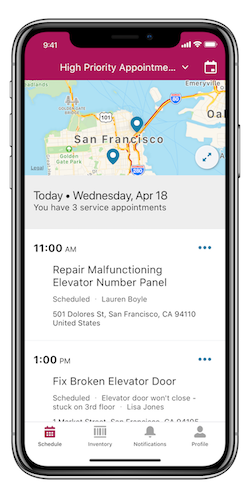
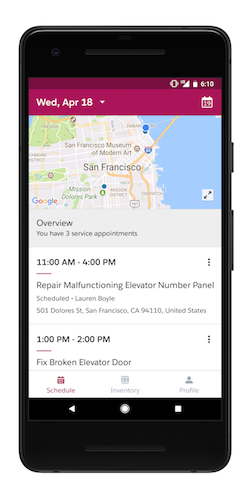
You can base the Schedule tab on a list view. Using a list view allows you to set criteria to filter the records that appear to app users.
- Create a service appointment list view with up to four fields. Set filter criteria to filter the records according to your use case. Note the API name of the list view.
- From Setup, in the Quick Find box, enter Field Service Mobile, and then select Field Service Mobile Settings.
- Click the arrow next to the mobile settings you want to define the list view for and select Show Details.
-
Under Customization, edit the Default List View Developer Name and enter the API name of
the list view you want to use.
 Note The Default List View Developer Name is the name of the list view that shows when the mobile Service Appointment page is first opened. If the Default List View Developer Name isn’t defined, mobile users see their service appointments within the date picker range. This list and the list defined are available offline. However, there isn’t an option to change to another list view on the mobile device unless the Default List View Developer Name is defined.
 - Save your changes.
If no list view is specified in Setup, users viewing service appointments from the Schedule tab see the following fields:
- Scheduled Start
- Scheduled End
- Address
- The top two fields in the Service Appointment search layout.
Considerations for Customizing the Schedule Tab
- The service appointment calendar view appears differently on Android and iOS devices. On Android, the calendar uses a month view. On iOS, the calendar uses a week view.
- If the Schedule tab is based on a list view, including the Scheduled Start field in your list view filter lets app users see a date picker with a range of 45 days before and after the current date. If the list view doesn’t include this field, users see a single Schedule tab of the user’s appointments based on your filter criteria, as it would appear on the desktop site.
- While list views can be set for a range of ±45 days, this may affect performance. We recommend configuring list views for a range of ±15 days to maintain optimal performance.
- Each list view displays a maximum of 1000 service appointments for a 90-day window. For example, if your 90-day window contains 1100 service appointments, only 1000 of those appointments are displayed.
- The app prominently displays the top two fields of the service appointment search layout, so consider which fields your mobile workers want to see on the Schedule tab. Many users, for example, prefer to see Subject instead of the service appointment ID. Scheduled Start and Address are displayed in the same location regardless of the list view or search layout settings
- Service appointments in the schedule list are shown in chronological order. This order can’t be changed.
- Custom lookup fields aren’t supported and don’t appear on the Schedule tab.
- Formulas aren't supported on the Schedule tab.
- Multi-day appointments appear on the Schedule tab in the following way:
- If a multi-day appointment includes both a Scheduled Start and Scheduled End, the appointment appears on the schedule for every day between those two dates and includes a visual progress bar representing the job’s scheduled completion.
- If a multi-day appointment includes a Scheduled Start but not a Scheduled End, the appointment appears on the schedule every day after the Scheduled Start date until the appointment is complete.
- If a multi-day appointment doesn’t include a Scheduled Start, the appointment doesn’t appear in the Field Service mobile app.
- To add resource absences to the list of Schedule tab items, turn on Display resource absences in the Schedule page on any Field Service mobile settings configuration. Mobile workers get an integrated view of their schedule on calendar-based list views.
- The Recently Viewed list view isn’t supported. When accessed, it doesn’t return records, and an error is returned.
Did this article solve your issue?
Let us know so we can improve!
