
Set Up the Field Service Mobile Widget
Let mobile workers view their next appointment’s details, update the status of appointments from Dispatched to En Route, and navigate to appointments directly from the home screen.
Required Editions
| Available in: both Salesforce Classic (not available in all orgs) and Lightning Experience |
| The Field Service core features, managed package, and mobile app are available in Enterprise, Unlimited, and Developer Editions. |
| To access the Field Service mobile app, users need the Field Service Mobile user license. |
| User Permissions Needed | |
|---|---|
| To edit object permissions: | Manage Profiles and Permission Sets |
Define a default list view that determines which fields are shown for each service appointment in the widget. The three values separated by dots are determined by the order of the fields in the default list view of the Field Service Mobile Settings that are associated with the mobile worker’s profile.
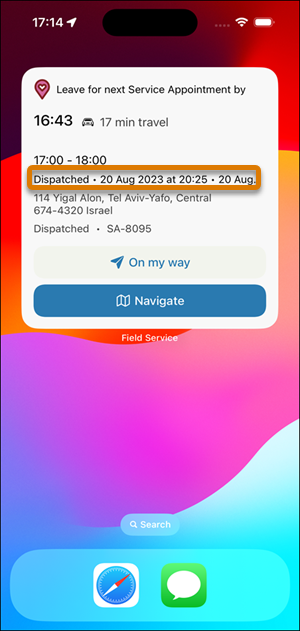
-
Locate a list view that has the fields sorted according to the order that you want to
show in the widget, or create one for this purpose.
- From Field Service, open the Service Appointments tab.
- From List View Controls, click New.
- Enter the details.
- Save the view.
- From List View Controls, click Select Fields to Display.
-
Customize the view so that the second, third, and fourth columns show the fields
that you want to include in the widget. The first column is ignored for this purpose.
In this example, Status is first, Subject is second, and Description is third.
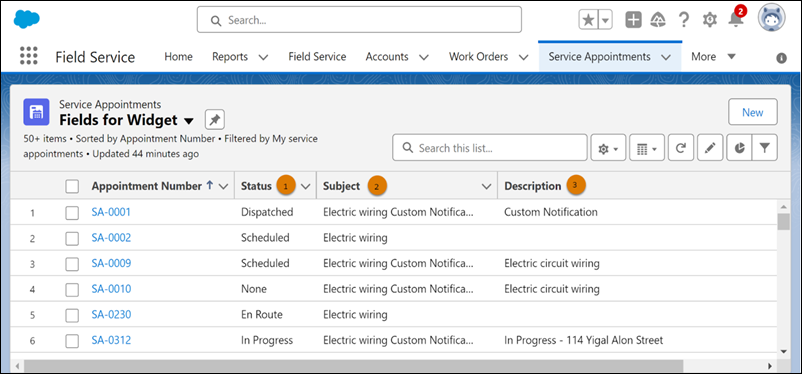
-
Define this list view as the default.
- From Setup, in the Quick Find box, enter Field Service Mobile, and then select Field Service Mobile Settings.
- In the settings that are assigned to your mobile workers, click the arrow and select Show Details.
- Under Service Appointment Priming, in Default List View Developer Name, enter the API name of the list view that you created.
-
Determine which service appointment status indicates that the mobile worker is on the
way.
- From Setup, in the Quick Find box, enter Field Service, and then select Field Service Settings.
- Under the Mobile Widget section, for En Route Status, select the relevant status.

Keep these considerations in mind.
- The Field Service mobile widget doesn’t support the use of custom status update workflows.
- If more service appointments are on today’s schedule but they’re in the Completed, Cannot Complete, or Canceled status categories, the widget shows that nothing else is scheduled for today.
Did this article solve your issue?
Let us know so we can improve!
