
You are here:
Customize the Work Order Overview Screen in the Field Service Mobile App
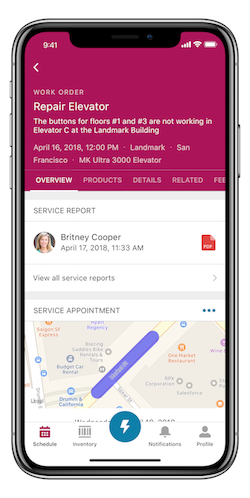
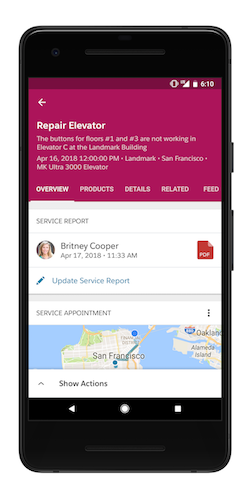
When a user taps a service appointment on the Schedule tab, an overview of the work order is shown. You can customize the highlights and cards shown on the work order overview screen.
Required Editions
| Available in: both Salesforce Classic (not available in all orgs) and Lightning Experience |
| The Field Service core features, managed package, and mobile app are available in Enterprise, Unlimited, and Developer Editions. |
| To access the Field Service mobile app, users need the Field Service Mobile user license. |

- When you modify a page layout, users must log out and log in to the Field Service mobile app to see the changes.
- Not all field types are supported in the Field Service app. Before you configure your layouts, review Supported Data Types in the Field Service Mobile App.
- Formula URL fields aren’t supported in compact layouts.
Change the Screen Layout
A preview of the work order is anchored to the top of the screen. This preview shows the first five fields in the work order compact layout, with the Description field counted as one of the five. The first field in the compact layout appears in bold and is used as the title of the work order overview. The Description field appears below the title and is followed by the next three fields in the compact layout.
- From the Object Manager in Setup, select Work Order.
- Click Compact Layouts.
- Click the name of the compact layout and edit the layout as desired.
- Save your changes.
Navigate the Work Order Carousel
The horizontal work order carousel lets users switch between the following views:
- Overview: Shows work order cards
- Products: Where users manage required and consumed products
- Details: Shows all supported fields on the work order page layout
- Related: Shows all related lists on the work order page layout
- Feed: Shows the Chatter feed if feed tracking is enabled
- Location: Shows work in the same location as the current appointment. To see the Location view users need access to the Location field, which must be populated on the Work Orders object.
Add Cards
The Overview tab in the work order carousel displays information about the work order and its child records. The information appears in cards, which represent the related lists on the work order. Manage which cards are displayed by adding or removing related lists on the Work Order page layout in Setup. You can add the following cards to the work order overview.
| Card | Description | How to Display and Customize | Available In |
|---|---|---|---|
| Asset Service History | Provides context about the maintenance history of an asset. It shows the asset associated with the current work order. It also lists the asset’s three most recent work orders and provides a link to view all associated work orders. It doesn’t show work order line items that are associated with the asset. In Salesforce Lightning Design System (SLDS), the Asset Service History card doesn’t list the asset’s three most recent work orders. Click Show All to view all associated work orders. |
The Asset Service History card is shown if the page layout for the work order or work order line item contains the Asset field In Android, the Asset Service History card displays the first four fields in the work orders related list from the asset page layout. The first field is displayed prominently. In iOS, this card displays the work order number and the first field from the asset detail page layout. Normally, the first field is the asset name. |
Android and iOS |
| Contact | Shows the contact’s name and gives the option to call, message, and email the contact. | The Contact card can't be customized. It shows the following fields and options: Customer Name, Phone, Message, Email. The Customer Name field always shows on the Contact card, even if the field is empty. If Phone, Message or Email fields are empty, they don’t show on the card. In Android, you must specify a contact. In iOS, if no contact is specified, this card is empty, but you can assign a contact to the card. |
Android and iOS |
| Knowledge | Shows knowledge articles that are attached to the work order, with a snippet of each article included. | In iOS, the Knowledge card is only visible if an article is attached to the work order. | iOS only |
| Service Appointment | Shows a map and the option to navigate to the address of the appointment. If the address isn’t set, the card instead presents the user with the option to set the address, and then activate navigation. | If the work order has one or more service appointments, the Service Appointment card is visible. For information about bundled service appointments, see Manage Bundled Service Appointments on the Field Service Mobile App. The following fields on this card can’t be removed from it: Start Time, End Time, Date, Address, ETA (estimated time of arrival). |
Android only |
| Service Report | Displays service reports associated with the work order’s service appointments. | If a service report has been previously generated, the Service Report card appears at the top of the Overview tab. There’s no option to create a service report. Otherwise, the card appears at the bottom of the Overview tab and includes an option to create a service report. The Service Report card is visible by default in iOS. To make the card visible in Android, manually add it to the layout. |
Android and iOS |
| Work Order Line Item | Shows a visual progress indicator for the work order and lists its work order line items. iOS users with the proper permissions can tap the + icon to create line items. For details, see Let Users Create Work Order Line Items in the Field Service Mobile App. | If the work order has work order line items, the Work Order Line Item card is visible. In Android, this card displays four fields for each line item. The Work Order Line Item Number field is always visible. It's followed by the first three fields from the Work Order Line Items related list. The card for child Work Order Line Items isn’t available in Android. In iOS, this card displays the first two fields from the Work Order Line Item’s related list. |
Android and iOS |
