
You are here:
Considerations and Limitations for Enhanced Chat
Before starting your setup process, review the considerations and limitations for Enhanced Chat.
Required Editions
| View supported editions. | |
 This article applies to:
|
Enhanced In-App Chat and Enhanced Web Chat channels |
 This article doesn’t apply to:
|
Enhanced WhatsApp, Standard and Enhanced Facebook Messenger, Standard and Enhanced SMS, Enhanced Apple Messages for Business, Enhanced LINE, and Bring Your Own Channel |
General
- Enhanced Chat offers a persistent and asynchronous conversation experience that varies depending on the messaging type and whether the user is verified.
| User Verification Status | Web Without User Verification | Web Without User Verification | Web With User Verification; In-App With and Without User Verification | Web With User Verification; In-App With and Without User Verification |
|---|---|---|---|---|
| User Action | End user ends the chat | Service rep ends the chat | End user ends the chat | Service rep ends the chat |
| End User Experience |
|
|
|
|
| Conversation | Ends | Doesn't end | Doesn't end | Doesn't end |
| Session | Ends | Ends | Ends | Ends |
| Conversation Entry | You ended the chat * 9:48 AM | Support Agent left * 9:48 AM | Support Agent left * 9:48 AM | Support Agent left * 9:48 AM |
| End chat button | Disabled | Enabled | Enabled | Enabled |
| Text Input Field | Disabled | Enabled | Enabled | Enabled |
| X Icon | Enabled | Enabled | Hidden | Hidden |
- User verification is supported on an external website and on some Aura sites (Build Your Own Aura, Help Center, and Customer Service templates). It’s not supported on other Experience Cloud or Commerce Cloud sites.
- Enhanced Web Chat supports subdomain session continuity, so end users can continue a
messaging conversation while navigating from your domain (www.example.com) to any
subdomains that you have (help.example.com). To confirm which domain and subdomains work
with your deployment, go to Setup | User Interface | Sites and Domains | Sites, then select the unique site associated with your deployment from the Site
Label column. Locate the domain and subdomain under Trusted Domains for Inline Frames.
 Note If your domain was created before the Summer ‘23 release, republish your deployment to make the domain and subdomain appear here.
- If a verified user is participating in more than one conversation, the Enhanced Web Chat client opens to the conversation that was most recently started.
- You can add an Enhanced Web Chat deployment to an external website, an Experience Cloud
site, or a Commerce Cloud site. In Experience Cloud, we support Build Your Own (Aura),
Customer Account Portal, Partner Central, Help Center, Customer Service, Build Your Own
(LWR), and Microsite (LWR) templates. In Commerce Cloud, we support B2B Commerce (LWR),
B2C Commerce (LWR), and B2B Commerce (Aura) templates.
- The Enhanced In-App Chat SDKs are not intended to be used with Experience Cloud templates, as they are designed to be installed in mobile applications.
- Attachments, such as images and .pdf files, render inline and download directly. Text files don't download. You can't disable this behavior.
Configure a Deployment
- If you create or edit a web or mobile deployment, click Publish on the Embedded Service Deployment Settings page. The changes can take up to 10 minutes to finish due to caching.
- After completing a sandbox refresh, click Publish on the Embedded Service Deployment Settings page.
- To make sure that Enhanced Chat works optimally, republish your deployment after testing newly added features. For best performance, republish your deployment only outside of business hours or when you expect the fewest active messaging conversations.
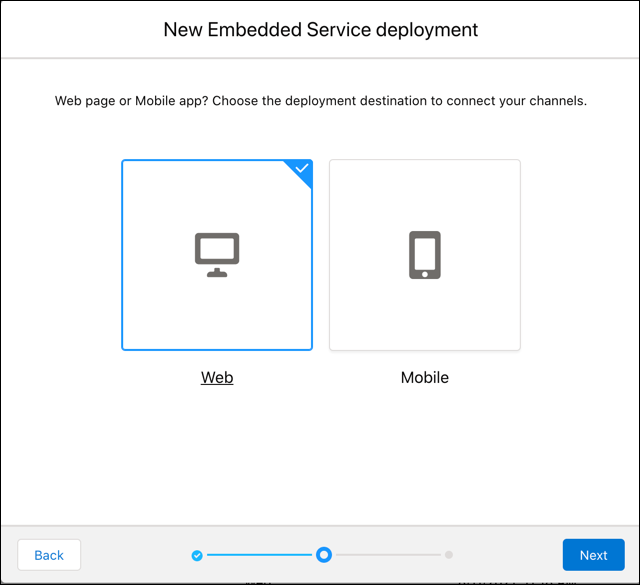
- After you select a deployment type, web or mobile, you can’t change the type later.
Instead, create another deployment. You can’t delete sites that are created with a deployment.
- After you add a messaging channel to your mobile or web deployment, you can’t change to a different channel later.
- To have a working pre-chat form, a user must have the Routing Type set as OmniFlow and a flow that uses the pre-chat dataset in the related messaging channel.
- All field values that are set in a pre-chat form are passed to an Omni-Channel flow as a string-type variable, including checkboxes and numbers.
- If you create a custom pre-chat field, go to the deployment settings to add a Custom Label, because no default option is available. To find the new field, in the Label Group, select Pre-Chat.
- Each custom label supports up to 1000 characters.
- If you enable Terms and Conditions but you disable the pre-chat form, Terms and Conditions are shown at the beginning of every conversation, not every session. To display Terms and Conditions more frequently, such as mid-conversation, enable the pre-chat form. If you don’t want customers to see the pre-chat form, consider adding a single hidden field.
- Alternate Header Color is configurable in Branding setup, but it’s not supported in a messaging window.
- In an Enhanced Web Chat deployment, a supported language is required for the web client to load. Salesforce offers three levels of language support. To use an end-user or platform-only language, enable the end-user or platform-only language and then add a valid code for your language setting in the code snippet.
- Enhanced In-App Chat Push Notifications supports the following messaging types: StaticContentLinks, StaticContentExternalAttachments, StaticContentMedia, StaticContentRichLink, StaticContentAttachments, and StaticContentText.
- Business hours rely on the time set by your device, such as a computer or smartphone.
Typically, your device automatically sets the time to align with your time zone.
If you edit your device’s clock to display an artificial time, your business
hours sometimes reflect the new artificial time.
- Modifications to a Business Hours record linked to a deployment may take up to two hours to take effect because of the caching properties associated with the Business Hours record.
- Replacing a Business Hours record with another in a deployment and then publishing may result in a delay of up to 10 minutes, due to the caching expiry of the deployment itself.
- The Test Messaging feature in the Embedded Service Deployment Settings page doesn't appear in a sandbox environment that’s a copy of your production environment. To enable it, add your Embedded Service Deployment to your VisualForce page.
Add Deployment to Site
- There's only one supported way to add Enhanced Chat to an Experience Site: Use drag and drop according to the setup steps in the help doc. Other methods aren't supported.
- It’s not possible to maintain an Embedded Service Chat, Channel Menu, and Enhanced Web Chat deployment on the same third party website or Experience site. Remove Embedded Service Chat and Channel Menu before adding Enhanced Web Chat. Alternatively, add Enhanced Web Chat to your Channel Menu.
- If you add Enhanced Chat to an app built with Mobile Publisher, you can’t allow customers to download an individual file that’s sent from a service rep or the entire transcript of their messaging conversation.
- Some malware software tools that block malicious downloads also prevent the HTML5 feature Server Sent Events (SSE) from working properly. As a result, messages aren’t shown to the customer in the conversation window. To resolve this issue, work with your IT team to allowlist the SSE connections.
- Subdomain session continuity can be blocked in these scenarios.
- If you block third-party cookies in the Chrome or Edge desktop experiences.
- If you prevent cross-site tracking in the Safari desktop and iOS experiences.
- To effectively use an iframe with your website and reduce JavaScript library conflicts, Enhanced Web Chat creates a unique site that appears in your All Sites list in Setup. Don’t reuse this generated site URL, which has reduced security, for other purposes. Don’t modify this URL through Experience Builder or Workspace links.
Service Rep Experience
- To end a conversation, service reps working in Service Console can click End Chat before closing the Messaging Session tab (MS-xxxxxxx). Closing the tab without clicking End Chat prevents future inbound messages from appearing in the Omni queue.
- If a service rep opens the messaging session in multiple console tabs (for example,
opening it directly and then opening it through the Messaging End User record), several
known issues occur:
- Normally, after a service rep transfers a messaging session, their AgentWork record closes and a new AgentWork record is opened for the receiving service rep. In a two-tab scenario, the AgentWork record for the service rep who transferred the session remains open in the second tab. As a result, that service rep’s stats aren’t accurate.
- The messaging inactivity timer fails for this messaging session.
- Service reps can send and receive these file-attachment types: .bmp, .csv, .doc, .docx, .gif, .jpg, .jpeg, .pdf, .png, .tiff, .txt, .xls, .xlsx, and .xml.
Customer Experience
- Enhanced Chat doesn’t set cookies.
- A user sees delivery and read receipts when chatting with a service rep. But if they reload a browser page, the sent, delivery, and read receipts are lost.
- If the estimated wait time is less than 1 minute, we round it up to 1 minute.
- Customers can resend a failed message after an outage within the browser tab where the message was originally sent. If a customer has multiple tabs open, each showing the same messaging conversation, the resend option appears only in the tab where the message failed.
- When a user opens and chats across multiple tabs or windows, the browser is limited by a maximum number of open connections. If the maximum is reached, some tabs can’t receive new conversation entries. Refer to a specific browser’s SSE connection limits.
- To prevent an end-user from sending multiple post-chat surveys for the same messaging session, we only send the survey to one tab, even if the end-user has the conversation open in multiple tabs.
- These browser settings block third-party web storage, preventing subdomain session continuity: Chrome’s incognito mode, Microsoft Edge’s balanced tracking prevention, and Firefox’s default setting to block cross-site tracking cookies.
- AppleWebKit, which is currently on all iOS browsers, partitions web storage by domain. This partitioning prevents subdomain session continuity on all iOS browsers.
- Previews for attached image files aren’t visible to your customers when they select the eye icon to view during a conversation.
- Customers can send and receive these file attachment types: .bmp, .csv, .doc, .docx, .gif, .jpg, .jpeg, .pdf, .png, .tiff, .txt, .xls, .xlsx, and .xml.
- While customers can see a file preview of .bmp, .gif, .jpg, .jpeg, .png, and .pdf files, the messaging conversation window can't preview any other supported file types.
- Enhanced Chat customers can send and receive attachments up to 5 MB.
- Enhanced Chat customers can send up to five file attachments, each up to 5 MB, in one conversation update.
- Enhanced Chat customers can preview a PDF by clicking its thumbnail in the messaging window. In Firefox, Enhanced Web Chat customers must first “unblock Third-party cookies” from their Firefox browser settings.
- If your Enhanced Chat deployment is hosted on an app built with Mobile Publisher, end users can’t download a file that was sent by a service rep.
- In the Enhanced Web Chat conversation window, emoji categories and emoji hover texts are always displayed in English.
Compliance and Security
- Enhanced Chat complies with these certifications: ISO 27001, ISO 27017, ISO 27018, SOC 1, SOC 2, SOC 3, HIPAA, NEN 7510, C5 (ISAE 3000), ASP/Saas, and ASIP Santé HDS.
- Salesforce is committed to our customers’ success, including supporting them on their GDPR compliance journeys. See https://www.salesforce.com/privacy/regions/.
Unsupported Features
- We don't support Sneak Peek functionality in Enhanced Chat. Sneak Peek is a feature in legacy chat that allows the service rep to view what the end user is typing before the end user sends the message.
- Due to the fact that an IP address is not a reliable way to uniquely identify a user, we won’t offer IP blocking out of the box.
- We don’t support adding custom CSS to Enhanced Chat deployments. If you have custom CSS in your embedded component, it’s your responsibility to test your chat window each release to make sure that it functions properly.
- We don’t support using change sets for deploying Enhanced Chat.
- Enhanced Chat isn’t supported on .mil sites.
- Invalid and unsupported HTML tags aren't displayed. Text between angle brackets in messages is treated as an invalid tag and isn't displayed. As a workaround, add a space between the angle brackets and the text. For example, <hello> isn't displayed, but < hello > is. For a list of supported tags and attributes, see Lightning Component Reference: Formatted Rich Text.
Did this article solve your issue?
Let us know so we can improve!
