
You are here:
Add a Route Work Action
Route work items to service reps with specific skills using an Omni-Channel flow.
| View supported editions. |
Before you can route work using skills-based routing, enable the Enable Skills-Based and Direct-to-Agent Routing option in Omni-Channel Settings under Setup.
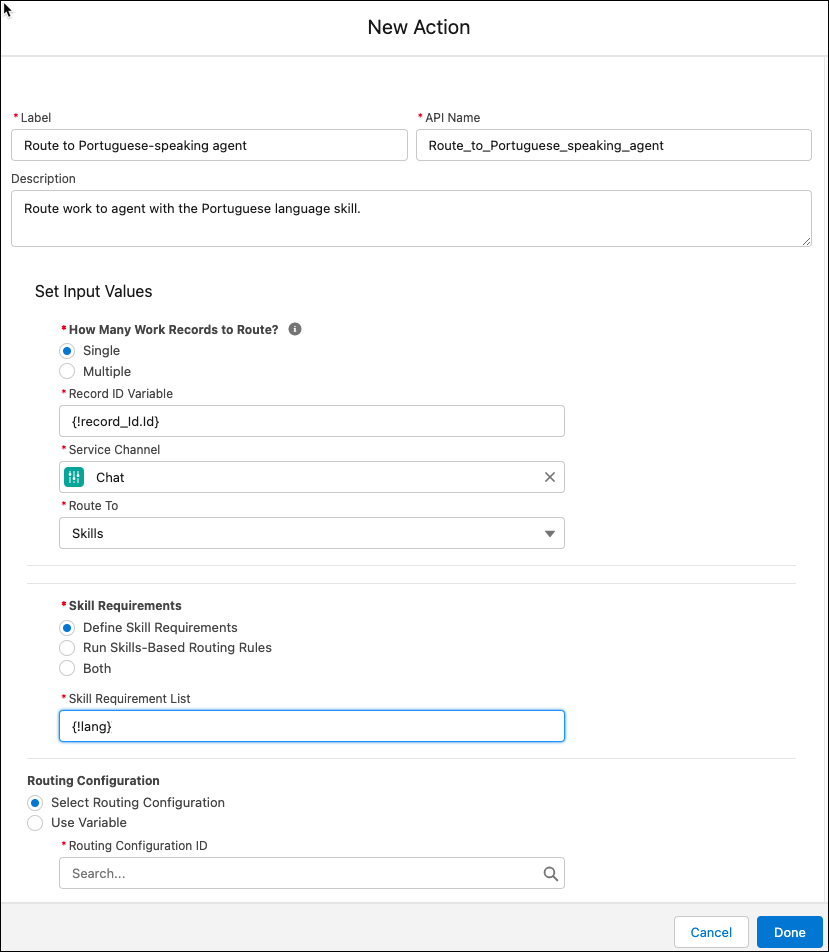
- Drag the Route Work action onto the canvas.
- Give the action a label and API name and optionally, a description.
-
Under Set Input Values, select how many items to route work for.
To route one item, select Single and select a flow variable of type Text that contains the record ID to route work for. To route work for up to 100 items, select Multiple and provide a flow variable that’s a collection variable of type Text with the list of record IDs to be routed.If you specify a collection of records and the flow can’t find one of them, it rolls back the changes and routes none of them.
- Under Service Channel, select the channel.
- Under Route To, select Skills.
-
Under Skill Requirements, select one of the following options:
- Define Skill Requirements
- Run Skills-Based Routing Rules
- Both
-
If you define skill requirements in an Add Skill Requirements action in the flow, specify
that action’s output as the skill requirements list in the Route Work action.
For example, if the API name of an Add Skill Requirements action is AddSkill, specify that action’s outputs, {!AddSkill.skillRequirements}. Or if you use the skillList variable to aggregate skills, specify it as output in the Add Skill Requirements action and in the skill requirements list in the RouteWork action.
-
Under Routing Configuration, select either of the following options:
- Select Routing Configuration—Specify a routing configuration where the Use with Skills-Based Routing Rules option is disabled.
-
Use Variable—Use a variable to find the appropriate skill list. For example, use a
variable to determine the language skill associated with the customer’s Contact record.
Debug logs are not created when the Route Work action is invoked.
Did this article solve your issue?
Let us know so we can improve!
