
You are here:
Add Screen Pops to Give Reps More Context about Conversations
By default, only the primary work record opens when a service rep accepts a work item. But, with more context, service reps can provide more personalized service for each customer. To automatically open records or screen flows on the service rep's screen when a voice call, message, or chat is routed to the rep, include an Add Screen Pop action in the Omni-Channel flow. You can open up to a total of three records or screen flows. For example, you can show the customer’s case and contact records and open the Channel-Object Linking screen flow as a subtab.
| View supported editions. |

Screen pops don’t work with apps that use standard navigation. Screen pops work only if a service rep is accepting work from an app using console navigation.
To set up screen pops for voice calls from a telephony partner that doesn’t support Omni-Channel flows, contact your telephony partner for instructions.
-
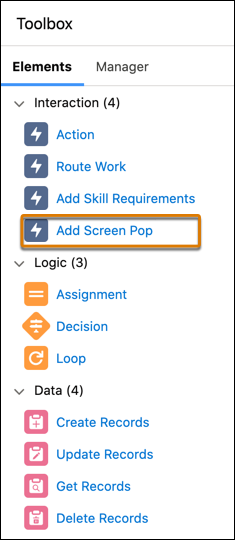
Under the Elements tab of Flow Builder, drag the Add Screen Pop
action onto the canvas.
-
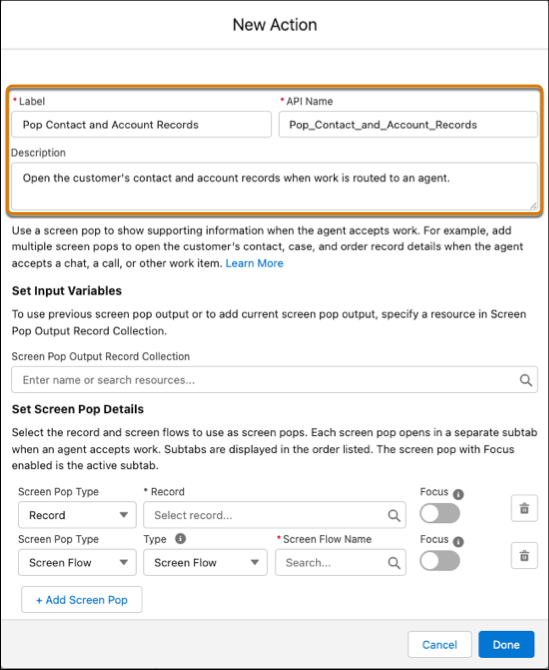
Give the action a label, API name, and, optionally, a description.
-
In the Set Collection Variable, optionally, select the output of the previous Add Screen
Pop action to combine those screen pop instructions with the ones created by this action.
For more information, see Using Multiple Add Screen Pop Actions in an Omni-Channel Flow.
-
In Screen Pop Type for Record, select the ID field of the record you want to open. Or,
enter the specific record ID value. If multiple records open on the service rep’s screen,
toggle Focus to put this record in focus for the service rep.
For example, to open the contact record, select the contact record variable (which contains output from the Get Contact element), and then select the contact ID field.
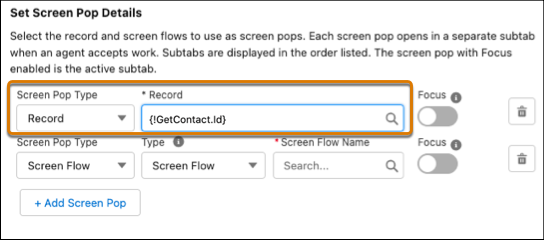 Note The order in which you define the records is the order in which they open on the service rep’s screen. If you don’t set the focus, all records open, but the service rep’s screen focuses on the primary work record.
 -
In Screen Pop Type for Screen Flow, select Screen Flow as the Type
to choose from a list of active screen flows. Or, select Resource as the
Type to choose your own flow variable.
- The list of active screen flows shows a maximum of five flows, but you can search for other flows by typing in the Screen Flow Name field.
- Resources appear only for valid and active screen flows and for fully qualified flow API names, including the name space prefix.
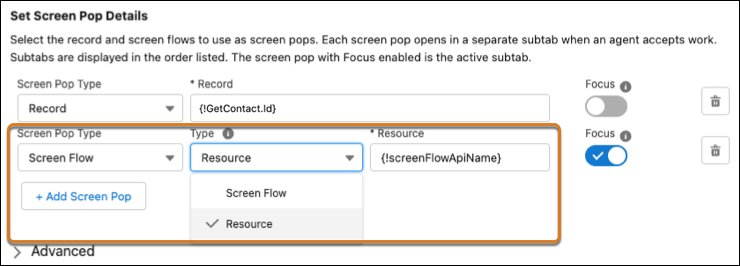
- To open another record or screen flow, click Add Screen Pop. You can open up to three records or screen flows.
- Click Done.
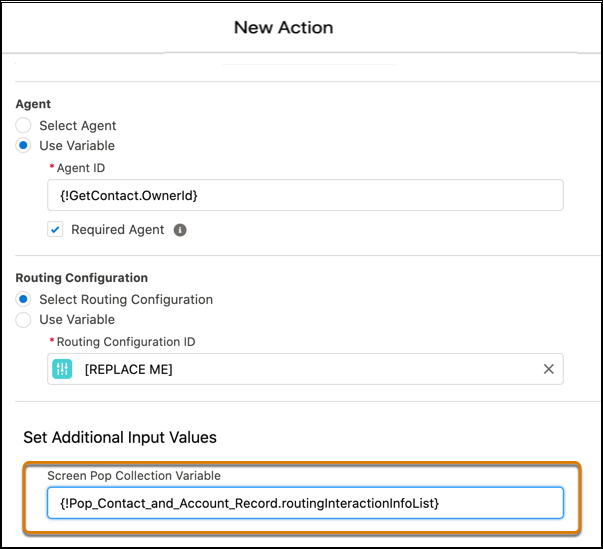
Don’t forget to pass the screen pop instructions (the output from this action) as input to the Route Work action. Only screen pop instructions passed to the Route Work action are used to open records when the work is routed to the service rep.
To add the screen pop instructions as input to a Route Work action, open the Route Work action. In the Screen Pop Collection Variable field, select the output from the Add Screen Pop action, and then select routingInteractionInfoList.

- Using Multiple Add Screen Pop Actions in an Omni-Channel Flow
You can chain multiple Add Screen Pop actions together in the same flow. For example, add one action to open records regardless of which queue or support rep the work is routed to. Then, add another action to open additional records based on who the work is routed to. - Store Screen Pop Instructions in a Variable
If you add multiple Add Screen Pop actions to a flow, define a collection variable to aggregate and store all screen pop instructions. By storing all instructions in a variable, you don’t have to worry about the order in which the Add Screen Pop actions are added to the flow.
