
Loading
Salesforce now sends email only from verified domains. Read More
Service
Table of Contents
Select Filters

          No results
          No results
          Here are some search tips

          Check the spelling of your keywords.
          Use more general search terms.
          Select fewer filters to broaden your search.

          Search all of Salesforce Help
          Reassign Work Manually

          Reassign Work Manually

          Similar to transferring Voice calls and Messaging sessions, you can reassign routable standard and custom objects to a new routing destination with Omni-Channel. For example, you can reassign a case or lead. Instead of changing the Owner field of the work record, you can reassign the work item to a different queue, service rep, skill, or Omni-Channel flow. When a work item is reassigned, Omni-Channel routes it to the new destination. To improve resolution times and meet SLA goals, Omni-Channel maintains reassigned work item’s priority in the queue. This feature is available with Enhanced Omni-Channel only.

          Required Editions

          View supported editions.

          Before you can reassign a work item, turn on Enable Enhanced Omni-Channel in the Omni-Channel settings. To reassign work to a rep, turn on Enable Skills-Based and Direct-to-Agent Routing as well.

          Note
          Note To reassign work directly to a rep, you must have View All Users permission.
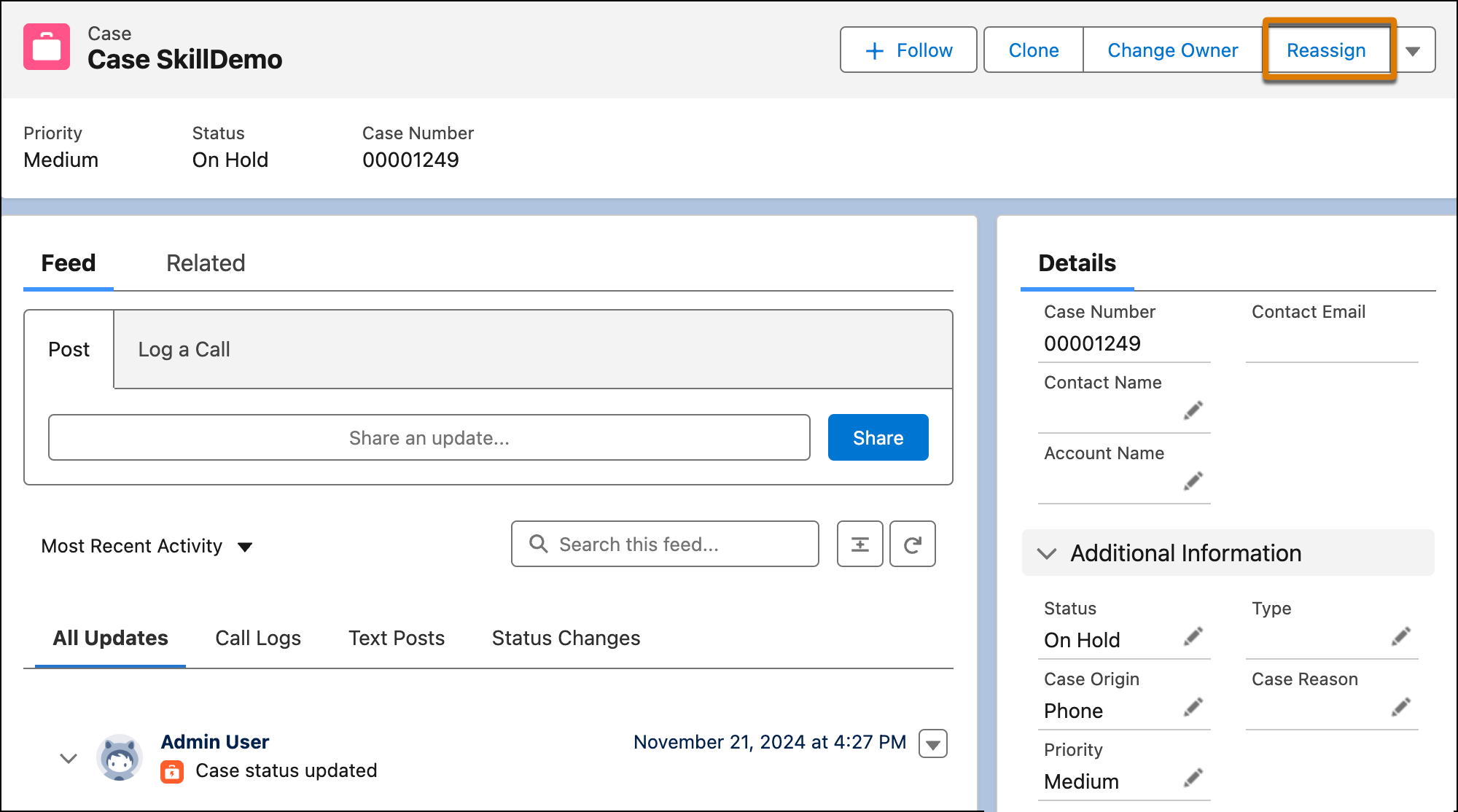
          1. To reassign a work item to a new routing destination, on the record page, click Reassign and select the new routing destination.
            If the Reassign button is missing, ask your admin to add it to the page.
            Reassign button in the Case details page
          2. To reassign the work item to a queue, select the queue.
            When you reassign work to a queue, the queue must have a routing configuration. If it doesn’t, it will not appear in the list of available queues to reassign work to.
          3. To reassign the work item to a service rep, select the service rep.
          4. To reassign the work item to a skill set, select the skill.
            You can select up to 10 skills. When you reassign work to a skill, the skill level is set to 0. To specify the skill level, reassign the work to a flow where you can define the skill level requirement.
          5. To reassign the work item to an Omni-Channel flow, select it.
          6. Click Reassign.

          What happens behind the scenes when work is reassigned? After you reassign a work item (known as an "AgentWork record" in the backend, a new AgentWork record is created. The status of the original work record varies depending on the routing destination and whether you use tab-based or status-based capacity. For tab-based capacity, work that isn’t canceled is closed when the tab closes.

          Scenario Status of Existing Work with Tab-Based Capacity Status of Existing Work with Status-Based Capacity
          Reassign existing work with Assigned status to a queue. Canceled Canceled
          Reassign existing work with Assigned status to a queue. Canceled Canceled
          Reassign existing work with Accepted status to a queue.

          Accepted

          Canceled
          Reassign existing work with Assigned status to a skill. Canceled Canceled
          Reassign existing work with Accepted status to a skill. Accepted Closed
          Reassign existing work with Assigned status to a rep. Canceled Canceled
          Reassign existing work with Accepted status to a rep. Accepted Close
           
          Loading
          Salesforce Help | Article