
You are here:
Map Work-Item Field Values to Skills
To use skills-based routing rules to route work to service reps with specific skills, define the mappings between work-item field values and skills. For example, to route product-return calls to the right service reps, map the case type field value, Product Return, to the Returns Processing skill.
Required Editions
| View supported editions. |
| User Permissions Needed | |
|---|---|
| To set up Omni-Channel: | Customize Application |
Create one skill mapping set for each object. In each mapping, associate an object’s picklist, boolean, and lookup field values with the skills needed to route a work item to the right service rep. You can map up to 10 fields and 100 field values. You can also specify the skill levels. To route a work item more quickly, specify whether a skill is additional and can be dropped if needed.
- From Setup, enter Skills-Based Routing Rules in the Quick Find box, then select Skills-Based Routing Rules.
- Click New Skill Mapping Set.
-
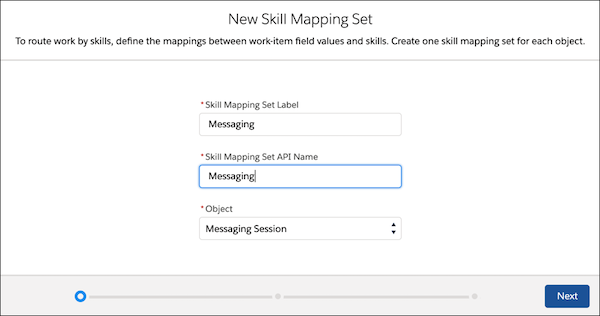
Provide a name and developer name for the mapping set and select the type of object to be
routed. Then click Next.
-
Select the fields for routing your cases. Then click Next.
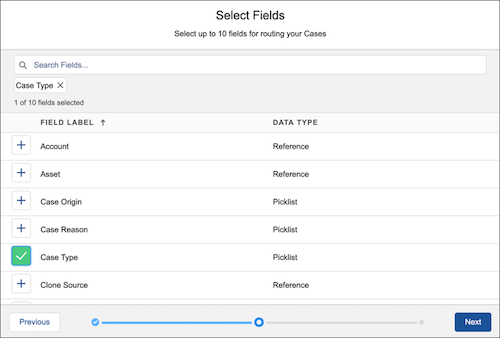 You can map standard and custom field values of type picklist, boolean, and lookup.
 Note You can use any method to set custom field values on objects. For example, pre-chat forms, triggers, and custom apex code.
 -
For each field, select the field value and corresponding skill. You can also specify a
skill level and set skills to additional. For additional skills, you can specify the order
in which skills are dropped if after the specified timeout no service rep with that skill
is available.
Initially, Omni-Channel tries to route work to a service rep with all the requested skills. If a service rep with all the skills isn't available and additional skills are configured to be dropped, Omni-Channel drops additional skills after a timeout. The router drops skills until a service rep who has the remaining skills is available. You can specify the order in which additional skills are dropped. Skills with a higher priority are dropped first. For example, a skill with priority 5 is dropped before a skill with priority 4. Skills with priority 0, or skills without a priority, are dropped last. The work item is then routed to the best-matched agent, even if the service rep doesn't have all the additional skills.
If a service rep declines work or goes offline, the required skills reset to what they were originally, and the timer resets. The router goes back to looking for service reps with all additional skills and begins the process of dropping additional skills over again.
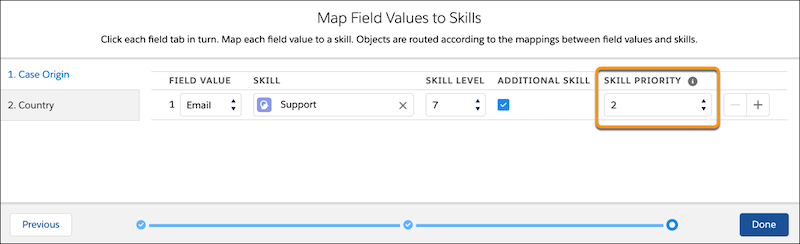
For example, you can set up the following required and additional skills:
- Language: English and French are required, not additional.
- Issue Type: Software and Hardware are additional skills of the highest priority, 0.
- Product: Speaker, Mouse, and Keyboard are additional skills of priority 1.
- Location: USA, England, Canada, and France are additional skills of priority 2.
In this example, Language skills aren’t additional, so they’re never dropped. Skills associated with the Issue Type field are the highest priority, so Omni-Channel drops them last. Skills associated with the Location field are dropped first.
Note Skills with the same priority value resulting from the skill-based routing rules setup method or Apex code belong to the same group and are dropped together. -
When you have mapped field values to skills for each field, click
Done.
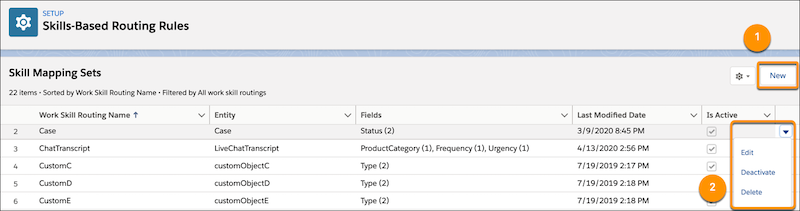
To create a mapping set, click New (1). To edit or delete a mapping set, use the dropdown menu (2). To stop routing for an object, click Deactivate. To start routing for an object, click Activate.
To test the routing setup, navigate to your app and bring the service rep with the right skill online. Create a work item with the field value that maps to the corresponding skill. Change the owner of the work item to a queue with the routing configuration that you set up for skills-based Routing rules. The work item appears in the Omni-Channel component. Routed work appears in the Queues Backlog and Skills Backlog in Command Center for Service.
Mapping only happens when the work is routed, not when a record’s values are updated.
