
You are here:
Create an Omni-Channel Flow
Create a flow from scratch. Or, get a headstart by creating one from an Omni-Channel flow template. The templates illustrate how to create flows that route chats, voice calls, and messages to service reps, queues, and skills. You can also use a template to create a case for each inbound call. You can customize flows built from templates to meet your business needs.
- In the Quick Find box under Setup, enter Flows, and then select Flows under Process Automation.
- Click New Flow.
- Click All + Templates.
-
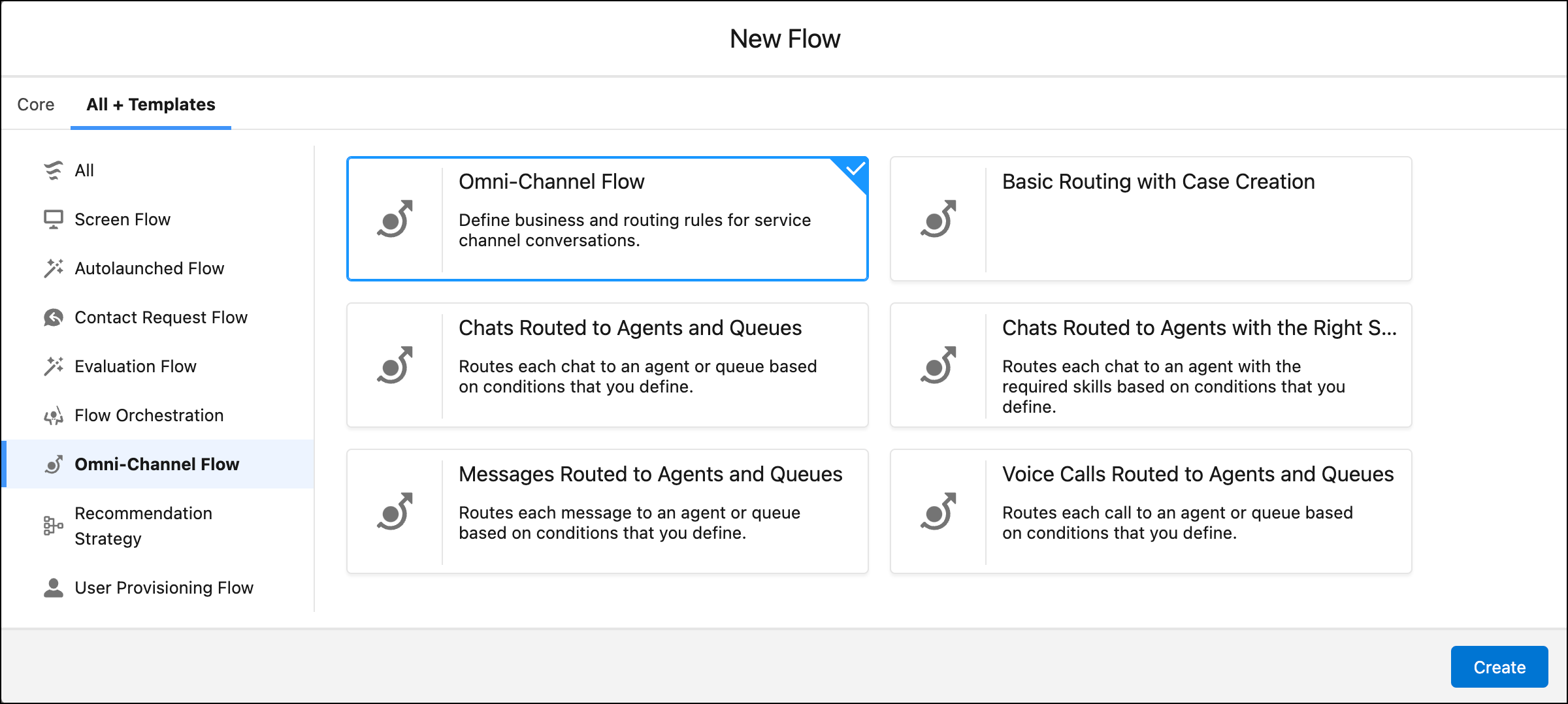
To filter the flow types to Omni-Channel flows, select Omni-Channel
Flow in the left pane of the New Flow screen.
-
To create a flow from a template, select one of the following templates.
Omni-Channel Flow Template Description Basic Routing with Case Creation Creates a case for each inbound call. Chats Routed to Agents and Queues Routes each chat to a service rep or queue based on conditions that you define. Chats Routed to Agents with the Right Skills Routes each chat to a service rep with the required skills based on conditions that you define. Voice Calls Routed to Agents and Queues Routes each call to a service rep or queue based on conditions that you define. Messages Routed to Agents and Queues Routes each message to a service rep or queue based on conditions that you define. - To create a flow from scratch, click Omni-Channel Flow.
- Click Next.
-
Create these variables to store values in your flow.
Variable Resource Type Description recordId Variable Stores the ID that uniquely identifies the work record being routed. For example, if the flow routes a voice call, it stores the voice call ID. input_record Record (Singles) Variable Stores the work record that’s being routed, including all fields and input values. For example, if the flow routes a chat, it stores the entire chat record from the Chat Transcript object. -
Add at least one Route Work action to route the work.
Route Work actions are the last objects in the flow.
- Click Save.
- About Flow Variables
Create the following variables to store values in your flow: recordId, skillList, prechat, and input_record. RecordId is required. SkillList, prechat, and input_record are optional based on your flow logic. - Add Screen Pops to Give Reps More Context about Conversations
By default, only the primary work record opens when a service rep accepts a work item. But, with more context, service reps can provide more personalized service for each customer. To automatically open records or screen flows on the service rep's screen when a voice call, message, or chat is routed to the rep, include an Add Screen Pop action in the Omni-Channel flow. You can open up to a total of three records or screen flows. For example, you can show the customer’s case and contact records and open the Channel-Object Linking screen flow as a subtab. - Make Smarter Routing Decisions by Checking Service Rep Availability
Optimize routing by using information collected about your organization’s capacity to handle new work requests. Add the Check Availability for Routing action to an Omni-Channel flow to determine service rep availability and estimated wait time. This action can return the number of online service reps and number of work items waiting to be picked up given the specified routing requirements, including routing type and parameters. It can also estimate how long the customer has to wait before they reach a service rep. You can then build routing logic based on the results. For example, if the service rep has more than five backlogged work items in their queue, you can route work to another queue instead. - Route Work Items to Queues
Automatically route work to a specific queue using variables. - Route Work Items to Skills
Automatically route work items to qualified support reps based on their specific skills. You can achieve this using skills-based routing rules, an Omni-Channel flow, or a combination of both. For instance, to conditionally assign specific skill requirements to work items using an Omni-Channel flow, add a Decision action to establish the conditions that determine which set of skills are applied to each work item and add a Skill Requirements action to define a set of skills. - Route Work Items Directly to a Specific Support Rep
Automatically route work items directly to a support rep using Direct-to-Agent routing. - Route Work Items to an Enhanced Bot
Automatically route conversations to an enhanced bot using enhanced Messaging channels, based on your business criteria.
Did this article solve your issue?
Let us know so we can improve!
