
You are here:
Create Cases for Inbound Calls with an Omni-Channel Flow Template
Save yourself time setting up this routing logic by using the Basic Routing with Case Creation template. This template identifies the caller, routes the call to a queue, creates a case for the call, and screen-pops the new case record when the service rep accepts the call. If needed, modify the Omni-Channel flow to change the default routing behavior, such as the queue.
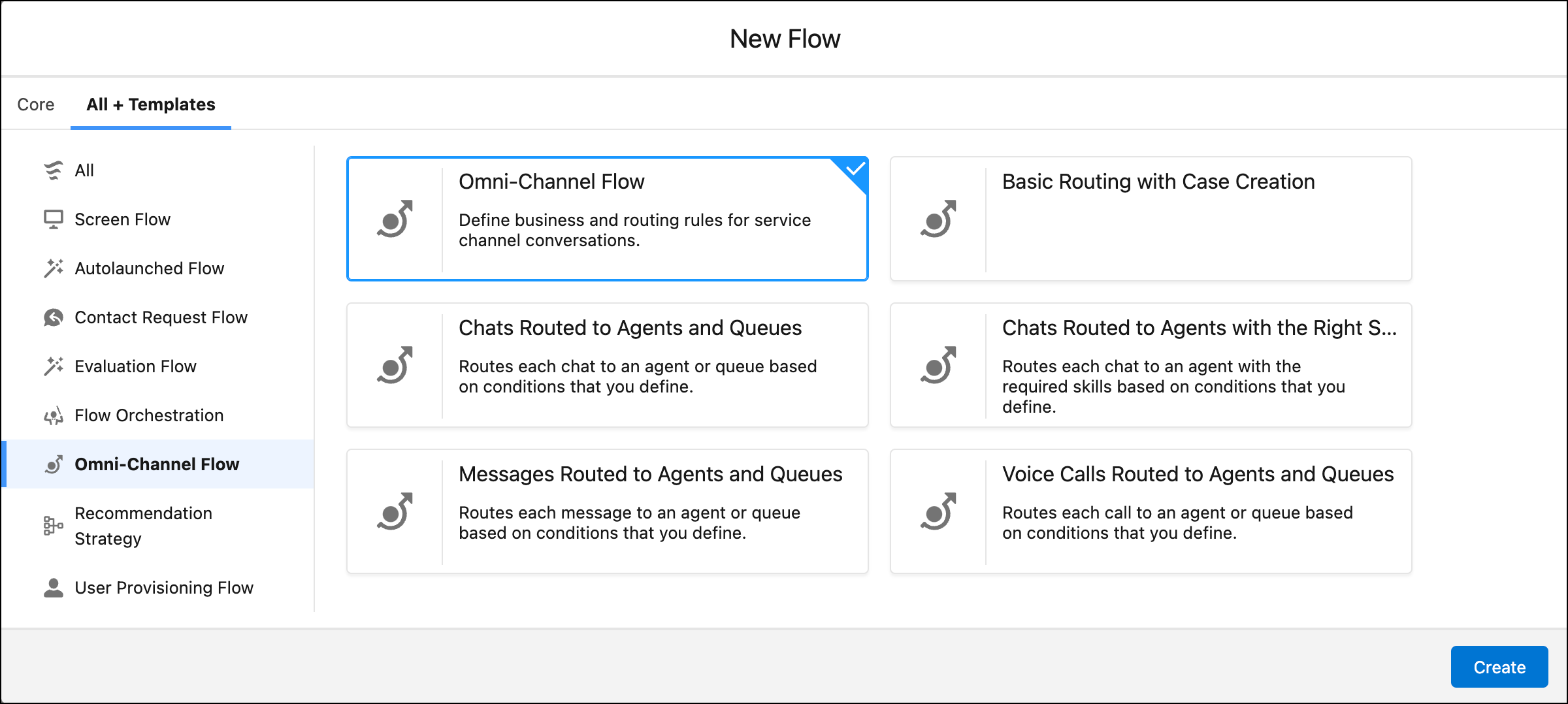
- In the Quick Find box under Setup, enter Flows, and then select Flows under Process Automation.
- Click New Flow.
- Click All + Templates.
-
To filter the flow types to Omni-Channel flows, select Omni-Channel
Flow in the left pane of the New Flow screen.
-
To create a flow from the Basic Routing with Case Creation template, select
Voice Calls Routed to Basic Queue with Case Creation, and then
click Create.
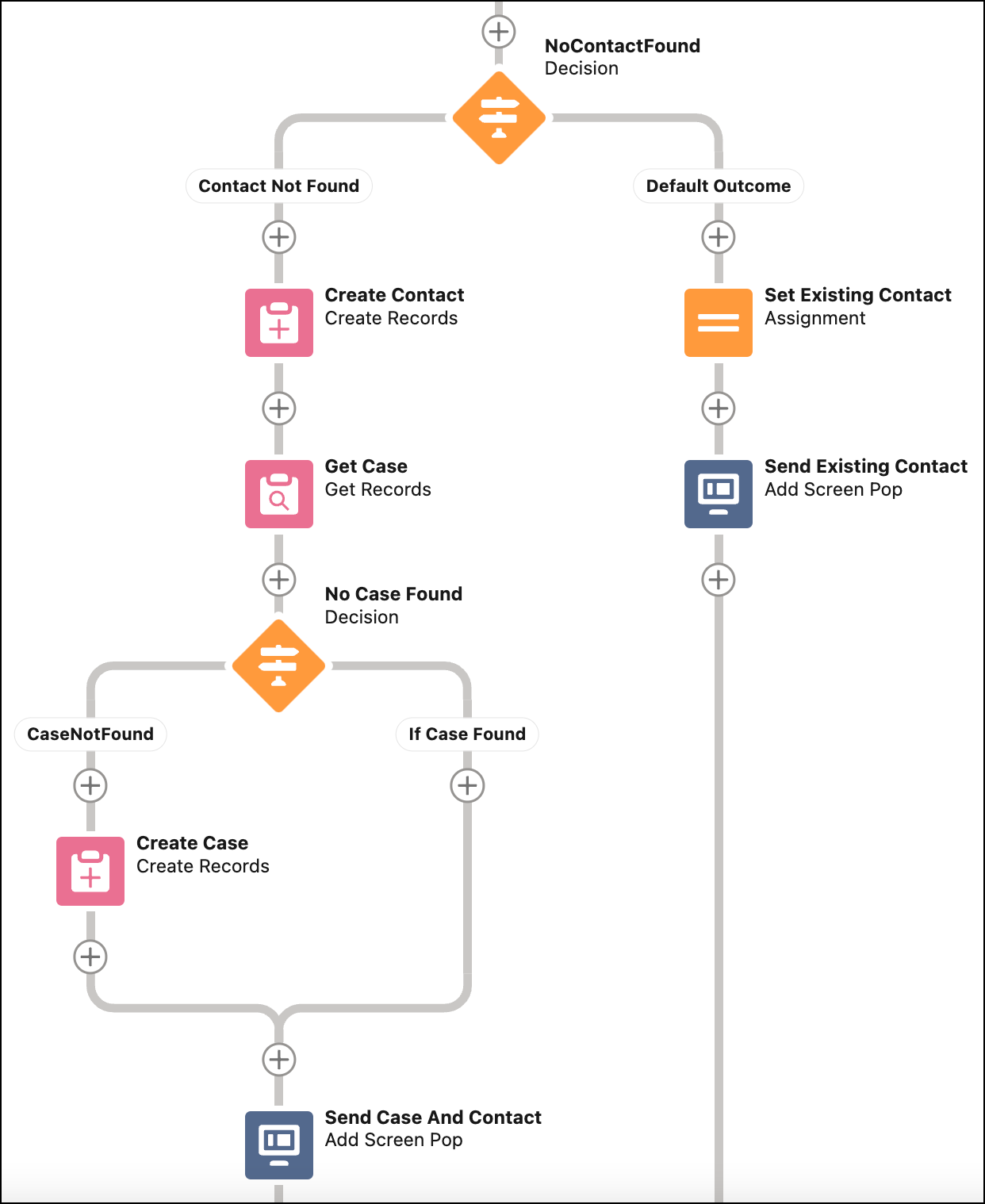
- Open the Route Work action.
- In the Service Channel field, remove Phone, and then search for and select Phone again.
- Click Done.
- Save the Omni-Channel flow.
- To activate the updates to the flow, click Activate.
- In Amazon Connect, open the associated Sample SCV Basic Routing with Case Creation contact flow.
-
Double-click the Invoke AWS Lambda function block, and add the
flowDevNameandfallbackQueueinput parameters. -
In
flowDevName, specify the developer name of the Voice Calls Routed to Basic Queue with Case Creation Omni-Channel flow that you created . -
In
fallbackQueue, specify the developer name or ID of the fallback queue. If needed, you can assign the SCV Basic Queue as the fallback queue.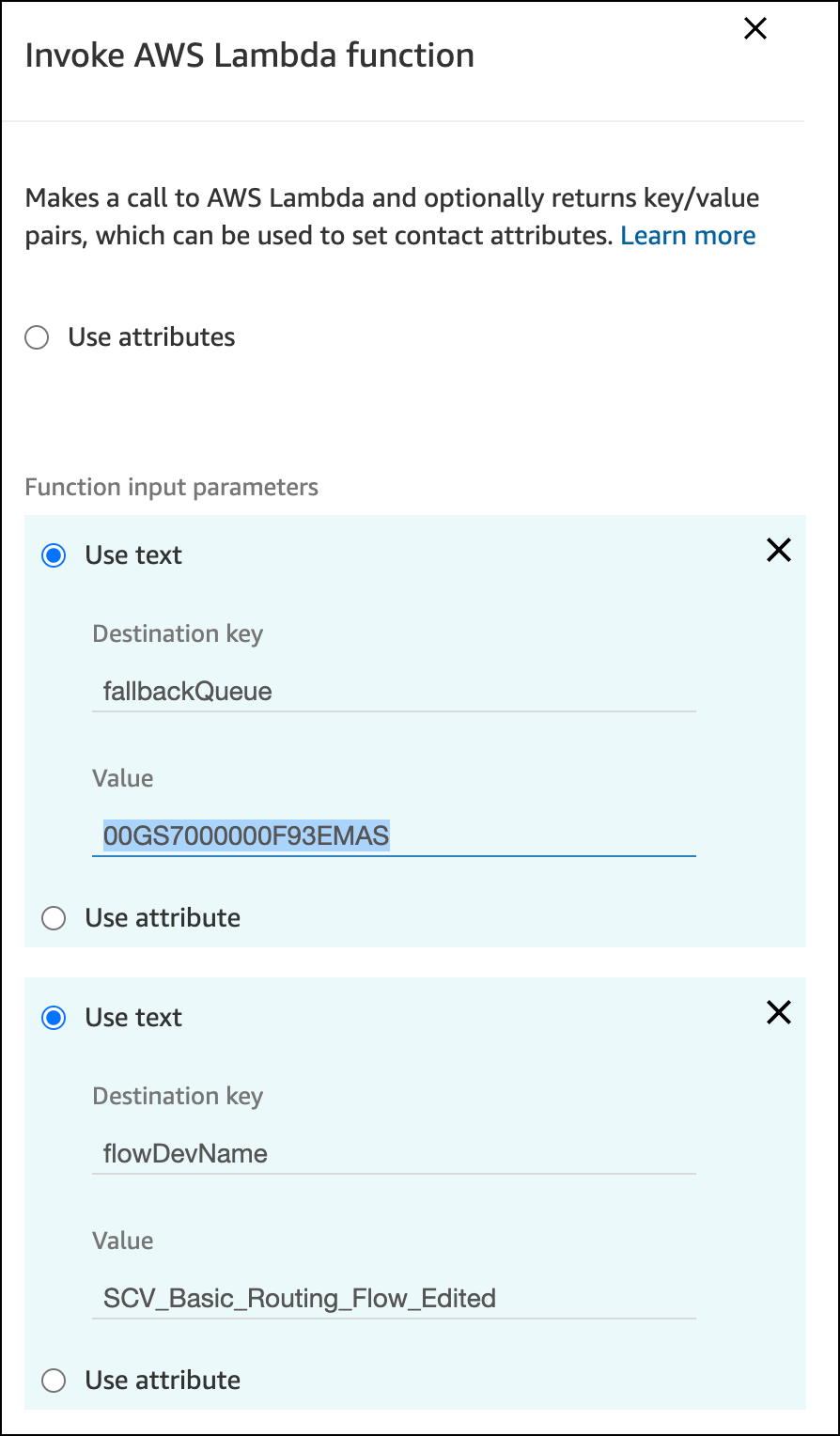
- Save the changes to the Lambda function.
- Save and publish the Sample SCV Basic Routing with Case Creation contact flow.
- Open the Sample SCV Inbound Flow.
- Open the Transfer to Flow block and select Sample SCV Basic Routing with Case Creation.
- Save the inbound contact flow and publish the changes.
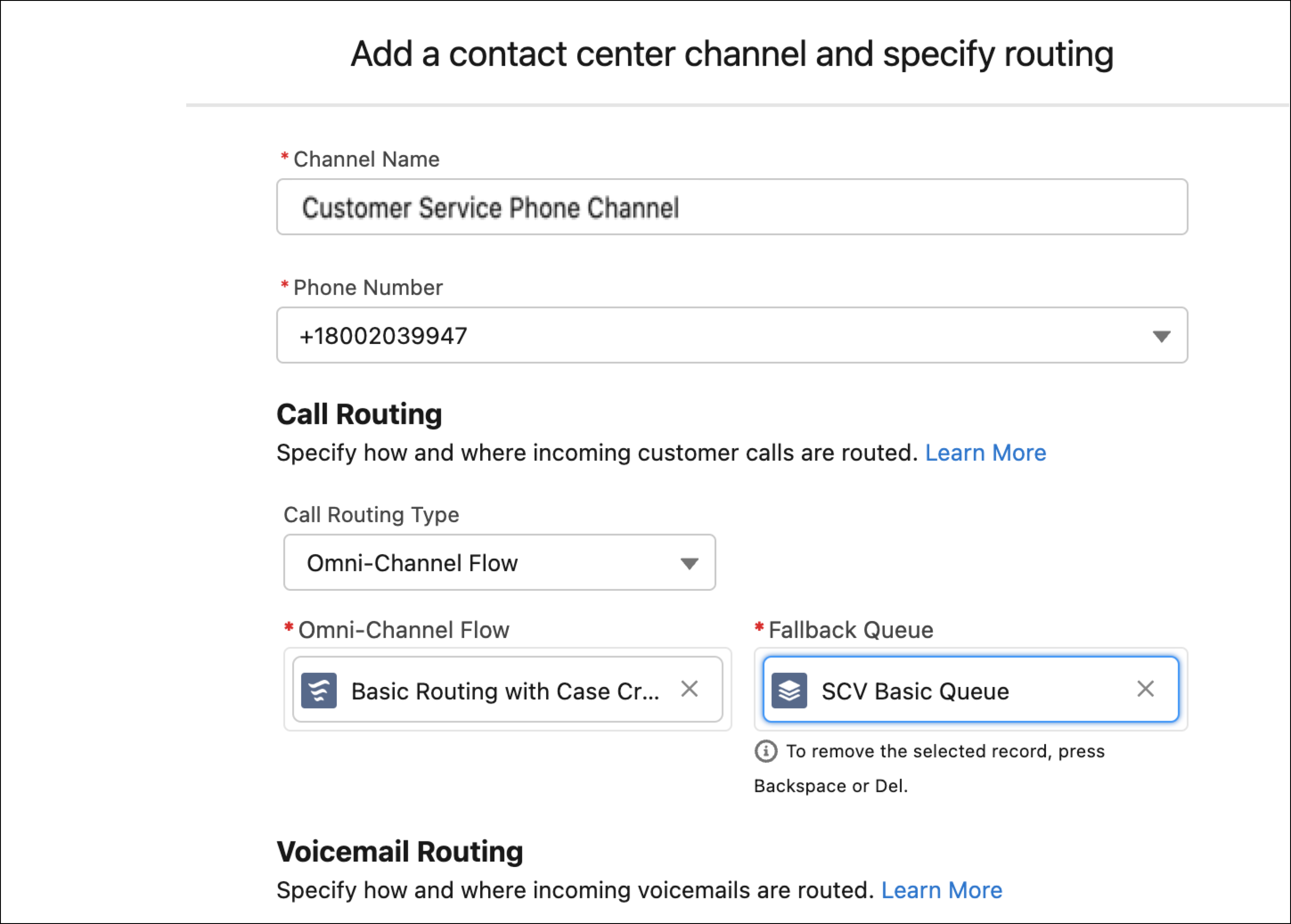
After you're done, to route calls made to a phone channel, assign the Sample SCV Basic Routing with Case Creation Omni-Channel flow to the phone channel.
Did this article solve your issue?
Let us know so we can improve!
