
You are here:
Assign an Omni-Channel Flow to a Chat Button
Route chats to the best service rep dynamically using the Omni-Channel routing type and Omni-Channel flows.
- From Setup in the Quick Find box, enter Chat Buttons & Invitations, and then select Chat Buttons & Invitations.
- Edit an existing button or create one.
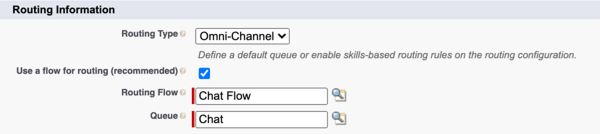
- In the Routing Information section, for Routing Type, select Omni-Channel.
- Select Use a flow for routing.
- For Routing Flow, specify the flow you created to route chats.
-
For Queue, select a queue for this chat button. If you aren’t using a routing flow, the
queue manages and prioritizes chats. If you’re using a routing flow, the queue determines
chat button availability. If the service reps assigned to the queue are online and have
capacity, the button is available. To manage button availability, consider setting up a
parent queue for the Chat button that includes a high-level grouping of service
reps.
Did this article solve your issue?
Let us know so we can improve!
