You are here:
Using Multiple Add Screen Pop Actions in an Omni-Channel Flow
You can chain multiple Add Screen Pop actions together in the same flow. For example, add one action to open records regardless of which queue or support rep the work is routed to. Then, add another action to open additional records based on who the work is routed to.
| View supported editions. |
To send screen pop instructions from all Add Screen Pop actions to the Route Work action, pass the instructions from each Add Screen Pop action to the next one in the flow. Then, pass the last Add Screen Pop action’s instructions to the Route Work action.
To understand how this process works, let’s look at an example. This sample flow accepts the customer order number as input from the IVR. The first Add Screen Pop action opens the contact and account records for the caller. If the caller provides an order number, the second Add Screen Pop action opens a third record, the order record associated with the order number.
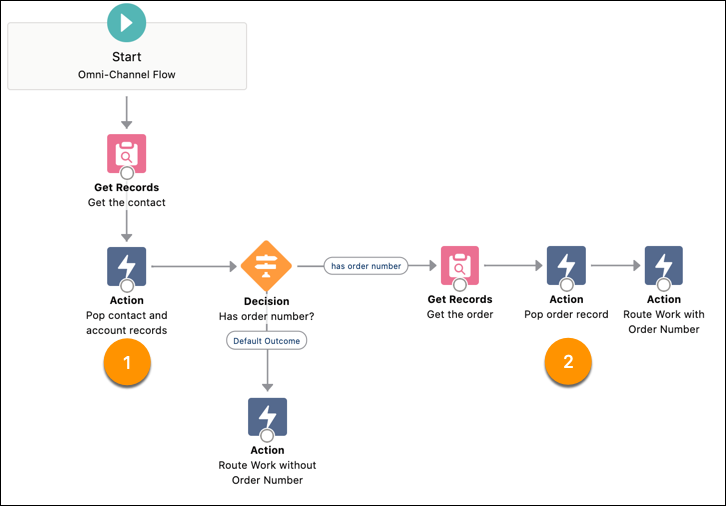
The screen pop instructions from first Add Screen Pop action (1) is passed to the second Add Screen Pop action (2). The second action passes the aggregated instructions from both Add Screen Pop actions to the Route Work action.
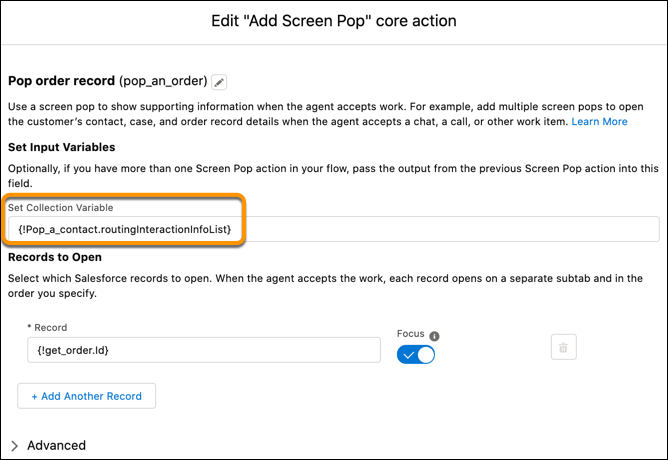
To pass the instructions from the first Add Screen Pop action to the next, in the Set Collection Variable field of the second Add Screen Pop action, select the output from the first Add Screen Pop action. In general, use this variable to append the output from the previous screen pop action and pass the results to the Route Work action.
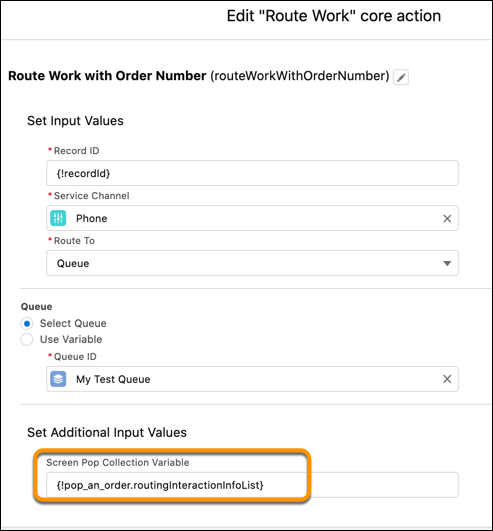
Next, pass these screen pop instructions from the second Add Screen Pop action to the Route Work action. Only the screen pop instructions passed to the Route Work action open records when the work is routed to the rep.