
You are here:
Store Screen Pop Instructions in a Variable
If you add multiple Add Screen Pop actions to a flow, define a collection variable to aggregate and store all screen pop instructions. By storing all instructions in a variable, you don’t have to worry about the order in which the Add Screen Pop actions are added to the flow.
To understand why order is important if you don’t use a variable, consider this scenario. You create a flow that passes the output of Screen Pop 1 to Screen Pop 2, and then passes the output of Screen Pop 2 to the Route Work action. If you reorder the Add Screen Pop actions, you must change the input screen pop instructions for each of them.
-
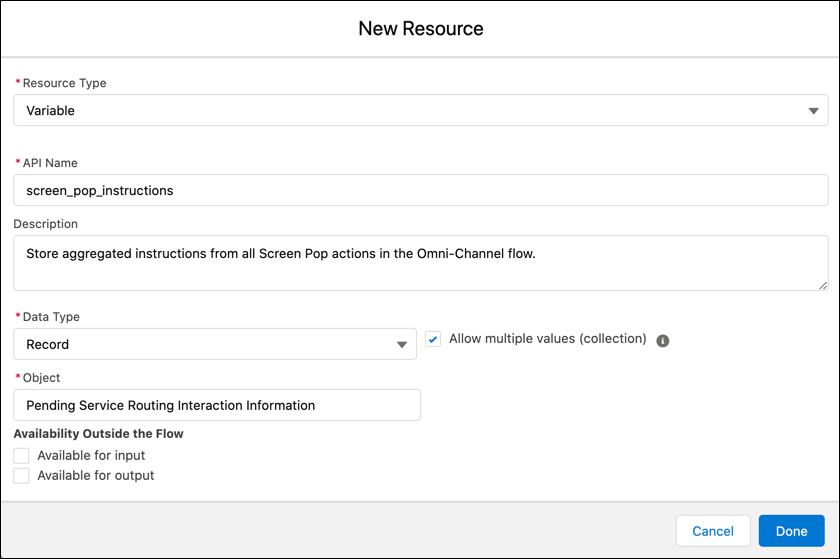
Define a variable to store the Add Screen Pop action’s instructions.
- In the Toolbox, select the Manager tab.
- Click New Resource.
- In Resource Type, select Variable.
- Enter the API name and, optionally, a description.
- In Data Type, select Record.
- Select the Allow multiple values (collection) checkbox.
-
In Object, select Pending Service Routing Interaction
Information.
-
Click Done.
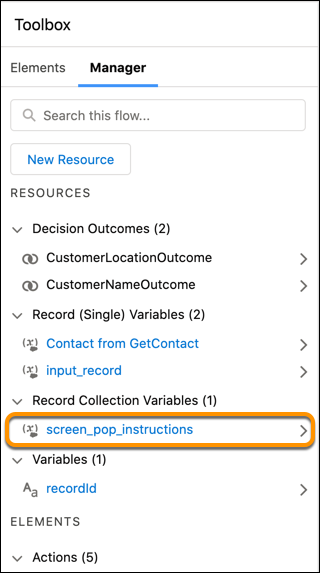
The variable appears under Record Collection Variables in the Manager tab of Toolbox.
-
Use the variable to store the first Add Screen Pop action’s output. Use the variable as
input and output for all subsequent Add Screen Pop actions in the flow.
- Edit the Add Screen Pop action.
-
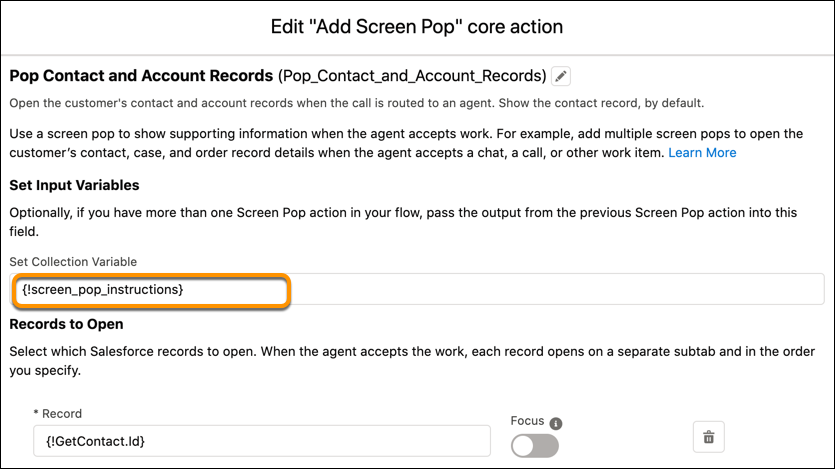
To provide the screen pop instructions stored in the variable as input, under Set
Input Variables, select this variable in the Set Collection Variable field.
-
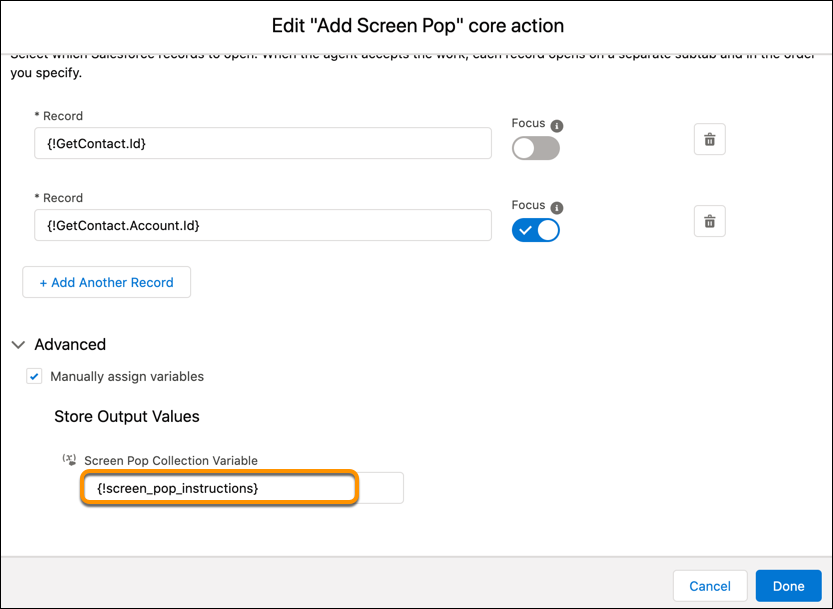
To write the results of the Add Screen Pop action as output to the variable, expand
Advanced, select Manually assign variables. Then select the
variable in the Screen Pop Collection Variable field.
-
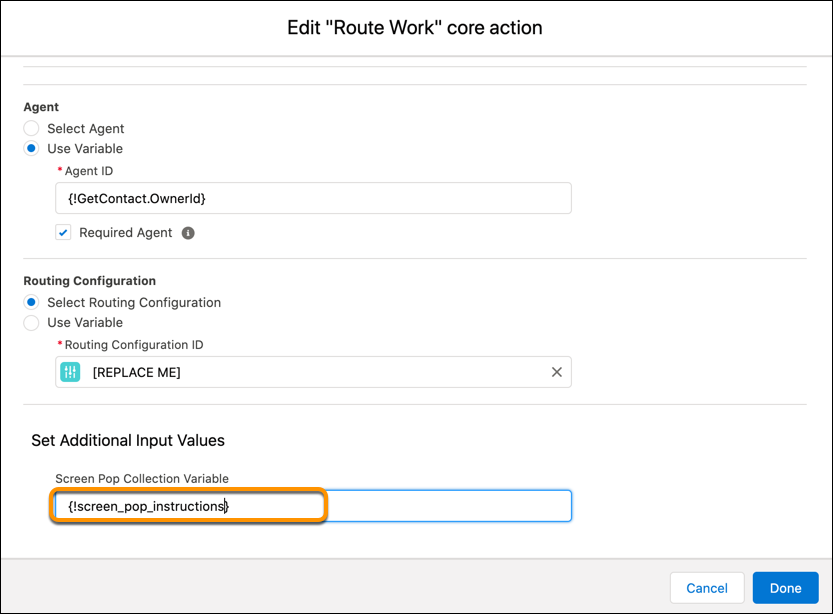
Pass the screen pop instructions from the variable to the Route Work action.
- Edit the Route Work action.
-
In the Set Additional Input Values, select the variable in the Screen Pop
Collection Variable field.
- Save the flow.
Did this article solve your issue?
Let us know so we can improve!
