Working in the Field Service Classic Dispatch Console Appointment List
Use the service appointment list on the left side of the Field Service Classic Dispatch Console to filter, sort, and search appointments within the list. You can also perform actions on selected appointments.
Required Editions
| Available in: both Salesforce Classic (not available in all orgs) and Lightning Experience |
| The Agentforce Field Service and Operations core features, managed package, and mobile app are available in Enterprise, Unlimited, and Developer Editions. |
 This is a Field Service managed package feature.
The service appointment list shows the appointments associated with the service territories you loaded to the Gantt or the appointments assigned to service resources within these service territories.
From within the appointment list, you can:
- View the scheduling policy that’s currently applied, and apply a new one
- Select the date fields that are considered when filtering appointments to show on the Gantt
- Customize the Gantt’s time frame by adjusting its horizon or opting to make the appointment list match the Gantt’s date range
- Schedule and dispatch service appointments
- Optimize your schedule
- Flag and unflag appointments
- Filter the appointment list based on a search query or appointment status
- Filter the appointment list by service territory
- Show icons and appointment details to communicate information quickly
- Customize the Classic Dispatch Console settings by clicking the gear icon in the top right-hand corner of the list
Search the Appointment List
To search within the appointment list, enter two or more characters in the search field. Separate multiple keywords with a comma, which applies an OR condition to the search.
When you enter a query, the list updates to show only service appointments with at least one matching property. If no appointments match your query, click Search All Records in the body of the list to search all appointments in your org. From the resulting list of appointments, you can force-add an appointment to the list that doesn’t match the Gantt loading criteria. The Search All Records action only supports search queries of a complete service appointment number or record ID.
These service appointment fields are scanned in searches:
- Service Appointment Number
- Gantt Label
- Account Name
- Assigned Resource Name
- Service Appointment ID
- Service Territory Name
- SA Status
- Fields in the Service Appointments List Columns field set that is of the following types: text, text area, lookup name, and picklist
Filter the Appointment List
Filters, similar to list views, control which service appointments appear in the appointment list. The list is also filtered based on the horizon, selected date fields, and search values.
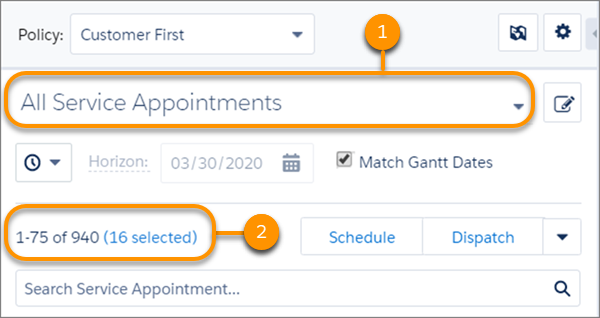
Apply a filter by selecting one from the filter dropdown menu in the appointment list (1). Select appointments using different filters. Click the link to see the selected list (2)

You can choose from the following filters in the Standard Filters section of the list. The custom permissions assigned to the user determine the visibility of each filter. When the filtering criteria are based on Status, the filters consider the status category, which maps all standard and custom status values to categories corresponding to the default status values. Conditions have an OR statement between them.
| Filter Name | Definition |
|---|---|
| All Service Appointments | All service appointments. |
| Canceled | Service appointments whose status category is Canceled. |
| Contractors | Service appointments that are scheduled to capacity-based resources. |
| Crews | Service appointments whose parent work order or work order line item has the Minimum Crew Size field set. |
| Exclude Bundle Members | Service appointments that represent a bundle or aren’t part of a bundle. |
| Flagged | Service appointments that the user marked as flagged. Flags aren’t saved when the Classic Dispatch Console is reloaded. |
| Gantt | Service appointments that are currently shown on the Gantt, which means they have one or more assigned resources and fall within the defined time frame. |
| In Jeopardy | Service appointments that are marked In Jeopardy and aren’t canceled. |
| Recently Used | Service appointments that were recently interacted with via scheduling, dragging, Chatter posts, status changes, the Get Candidates action, the Show on Gantt action, and the Open Details action. Recent service appointments aren’t saved when the Classic Dispatch Console is reloaded. |
| Rules Violating | Service appointments that have rule violations and aren’t canceled. |
| Scheduled | Service appointments with an assigned resource. |
| Selected | Service appointments that the user selected in the appointment list. Selections aren’t saved when the Classic Dispatch Console is reloaded. |
| To Do | Service appointments that are awaiting an action from the dispatcher. It includes appointments that match one of these criteria.
|
| Unscheduled | Service appointments that don’t have an assigned resource and aren’t canceled. |
- Create custom filters for the appointment list.
- To filter the appointment list by territory, click the gear icon in the appointment list and select Territory filtering.
Mass-Edit Appointments
To modify multiple appointments in the appointment list, select the desired appointments. Then, open the Actions menu and select an action:
| Action | Definition |
|---|---|
| Schedule | Execute an automatic scheduling process for the selected appointments. |
| Dispatch | Dispatch the selected appointments. |
| Flag / Unflag | Add or remove a flag for the selected appointments. You can use the flag for filtering later. |
| Check Rules | Initiate a rule validation check for the selected appointments. |
| Unschedule | Unschedule the selected appointments, or define the relevant time range and service territories of the appointments that must be unscheduled. |
| Optimize | Optimize the selected appointments. You’re given the option to select a scheduling policy and filter the selected appointments before running the optimization. |
To customize the list of actions, from the App Launcher, find, and open the Field Service Admin app. Click Field Service Settings > Dispatcher Console UI > Gantt Configurations, and scroll to the section where you can reorder, add, or remove actions.
If you create custom Classic Dispatch Console actions in the Service List category, those actions appear below the built-in actions in the action list.
Customize the Appointment List
Field sets control the fields and field order of the appointment list layout. For help, see Customize the Classic Dispatch Console with Field Sets.
To use background shading in the appointment list, click the gear icon in the top-right corner and select Dispatch Console Settings. In the Appointment List Color-Coding field, select an option:
| Color-Coding Setting | Definition |
|---|---|
| Default | Apply a white background to appointments in the list |
| Full Shading | Apply a flat background color |
| Horizontal Gradient | Apply a gradient background color |
- By default, an appointment’s color on the Gantt and appointment list is based on its status. However, Gantt palettes and the Gantt Color field on service appointments override the default color scheme.
- Regardless of the appointment list color-coding setting, appointments with rule violations are highlighted in the appointment list in yellow and in-jeopardy appointments are highlighted in red.
Highlight Filtered Appointments on the Gantt
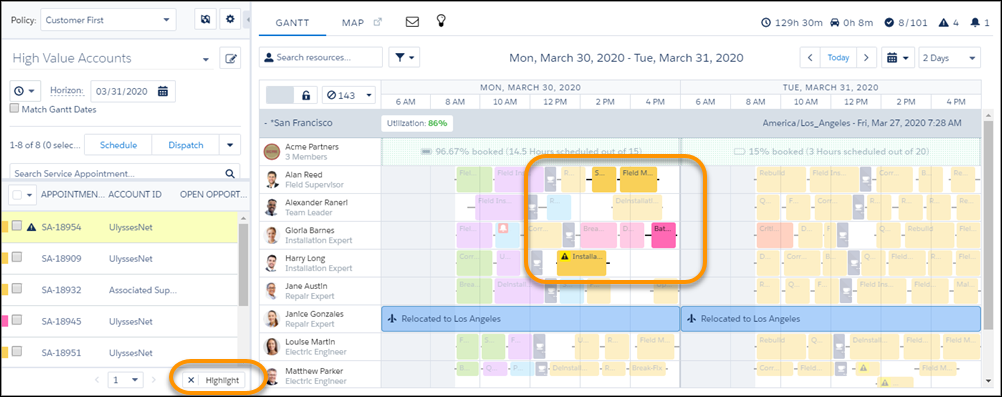
Quickly spot the appointments shown in the appointment list on the Gantt. Select an appointment list filter or enter a search term, and then click Highlight in the appointment list. All appointments and absences not shown in the list appear faded on the Gantt. Click the X icon to remove the highlighting.