
Schedule Appointments from the Record Feed
In Field Service, use the Book Appointment or Candidates Chatter actions to schedule and reschedule service appointments for work orders, work order line items, accounts, assets, leads, and opportunities, or from a service appointment itself. To reflect different visits, you can schedule one or more service appointments for a record.
Required Editions
| Available in: both Salesforce Classic (not available in all orgs) and Lightning Experience |
| The Agentforce Field Service and Operations core features, managed package, and mobile app are available in Enterprise, Unlimited, and Developer Editions. |
| User Permissions Needed | |
|---|---|
| To schedule an appointment using the Book Appointment or Candidates action: | Field Service Admin OR Field Service Call Center Rep OR Field Service Dispatcher |
| To view the Change Scheduling Policy field on the Book Appointment action: | Policy Picker In Appointment Booking custom permission AND Read permission on the Scheduling Policy object |
| To view the Change Scheduling Policy field on the Candidates action: | Policy Picker In Get Candidates custom permission AND Read permission on the Scheduling Policy object |
 This is a Field Service managed package feature.

| Action | Used By | Options Provided | ADDITIONAL INFORMATION |
|---|---|---|---|
| Book Appointment | Support agents or customers. For example:
To ensure that Experience Builder site users have sufficient access to the data required to perform appointment booking, we recommend using the Appointment Booking Communities Lightning component, and not the standard Visualforce component. |
Arrival windows, which are based on the default operating hours selected in your appointment booking settings. If you’ve added customer-specific operating hours to an entitlement on the related work order, the options provided are based on those hours. |
If you're using Enhanced Scheduling and Optimization, and your Salesforce admin has enabled Sliding and Reshuffling, you can schedule critical appointments even when the schedule seems to be full. If Schedule over lower priority appointment is enabled, higher priority appointments take priority over lower priority appointments, and a lower priority appointment can be dropped once you select a time slot. See Schedule Appointments by Using Priorities for more information and use cases. |
| Candidates | Typically, only call center reps. | Appointment time slots, organized by service resource. The time slots are based purely on empty space in mobile worker schedules, not arrival windows, making this action ideal for appointments where no coordination is needed with the customer. |
- Open the record that requires an appointment.
-
In the Chatter feed, select either Book Appointment or
Candidates based on your needs. If the action isn’t available,
select the page layout and
add the quick action.
For appointment booking, we recommend that you add the action; don’t add
the AppointmentBookingVf Visualforce page using Lightning App Builder.
Note
- Avoid putting the Book Appointment, Candidates, and Emergency chatter quick actions in Salesforce Classic Publisher and Salesforce Mobile and Lightning Experience as the first actions in your page layout to prevent triggering these actions every time a record is loaded.
- Adding global actions into flows using Lightning Web Components isn't supported.
-
If you’re creating an appointment for a work order or work order line item, leave the
work type as is. It’s defined on the parent record and can’t be updated from the Chatter
action window.
The work type serves as a template that provides skill requirements, duration, and other data used in scheduling the work.
-
Optionally, update the address and service territory, which are typically inherited
from the parent record.
Note When an appointment isn’t geocoded with a latitude and longitude, Book Appointment geocodes it and formats the address as follows.
Street number and Street name (the number is always first) City, State, Zipcode Country - To view time slots for yourself only, click Assign to Me. You see this option if you’re associated with a service resource record. If a Required Resources work rule isn’t included in your default scheduling policy, this checkbox is ignored and the system returns all the possible slots for all resources.
-
If you clicked Book Appointment:
- To change the earliest start permitted and due date, click Show more options.
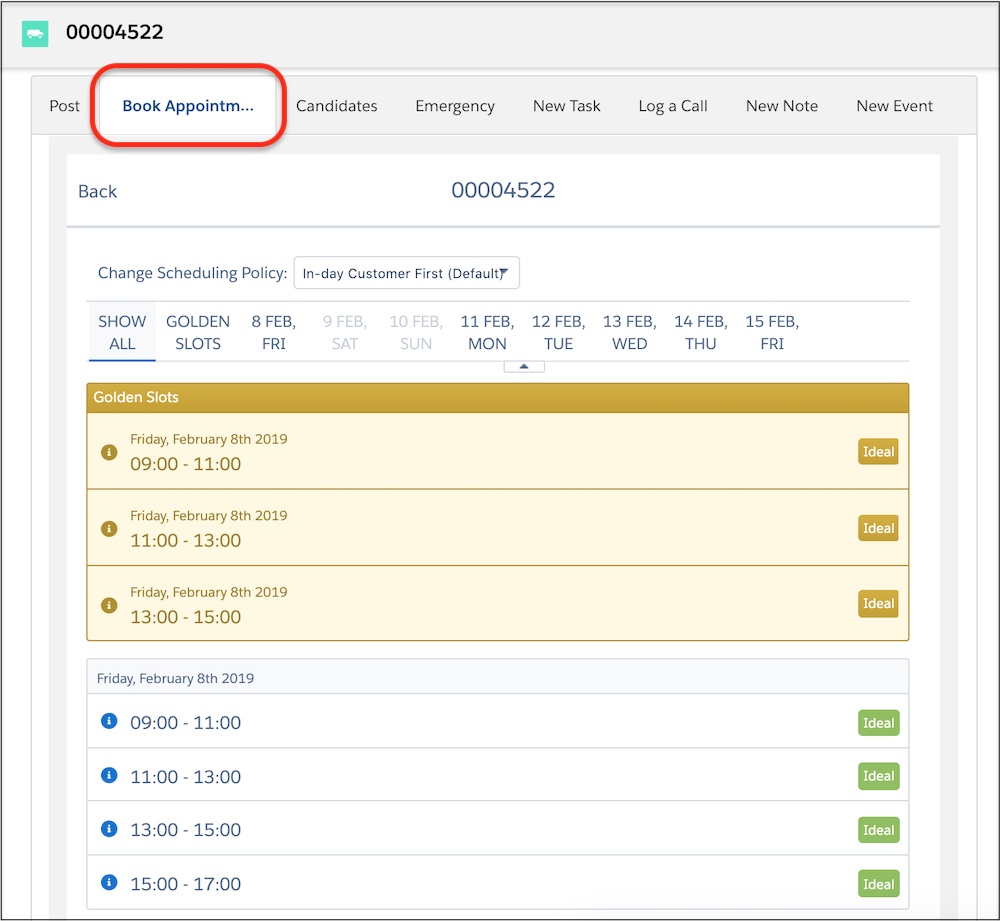
- To view a graded list of available arrival windows, click Get Appointments. The list considers all scheduling constraints, such as the current schedule and work rules, and is graded according to the service objectives. Depending on your appointment booking settings, arrival windows can be flagged as Ideal or Recommended or shown in yellow to indicate a prime window. To see how each window ranks against the scheduling policy’s service objectives, click its information icon.
- To view a wider range of service appointment dates, click Extend Dates.
- To create the service appointment, select an arrival window. You can then view its details.
-
If you clicked Candidates:
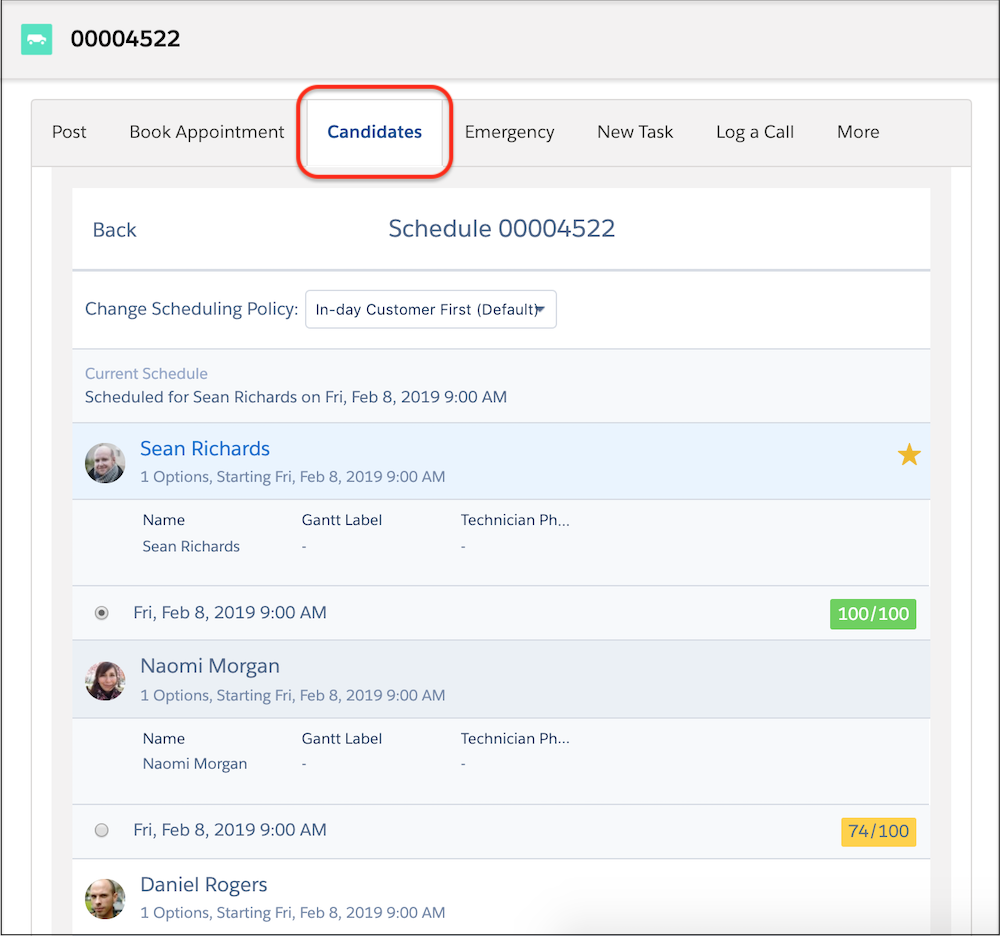
- Click Get Candidates to view a list of available service resources.
- Click a resource’s name to view their open time slots, which are scored 0–100 based on how well the slot matches the applied scheduling policy.
- To schedule the appointment, select a time slot in a resource’s list and click Schedule to [name]
- To rerun the search using a different scheduling policy than the default policy, select a policy in the Change Scheduling Policy field.
Book Appointment Window
Candidates Window
- If you use Book Appointment from objects other than work orders or work order line items, this action creates a work order, and the service appointment is created for that work order. For instance, the Book Appointment scheduling action from an asset record creates a related work order and service appointment.
- Pinned service appointments can't be rescheduled using the Book Appointment, and Get Candidates scheduling actions.
- Choosing the same or adjacent appointment slots at the same time can create overlaps on the dispatch console. Service appointment overlaps can occur if there are long-running customizations. We recommend such customizations be asynchronous. Travel or lunch break overlaps can also occur. Contact your Salesforce rep to change the custom setting that checks for appointment changes during the entire day, and prevents travel overlaps. In this case, false positive errors can occur if there’s no real overlap.
- Book Appointment ignores the arrival window defined on the service appointment so you can get different arrival window times. Get Candidates respects the arrival window on the service appointment if the scheduling policy includes a Match Time Rule for the arrival window fields (Scheduled Start and Scheduled End work rules).
- If you're using Enhanced Scheduling and Optimization, the Objective Calculation explanation is missing for Get Candidates and Appointment Booking.
- Book Appointment doesn’t suport multiday service appointments. This means you can't query available timeslots for a multiday service appointment.
