
You are here:
Create a Field Service Bundle Manually
Create a bundle manually in the Field Service Dispatcher Console.
Required Editions
| Available in: both Salesforce Classic (not available in all orgs) and Lightning Experience |
| The Field Service core features, managed package, and mobile app are available in Enterprise, Unlimited, and Developer Editions. |
| User Permissions Needed | |
|---|---|
| To manage bundles: | Field Service Dispatcher |
-
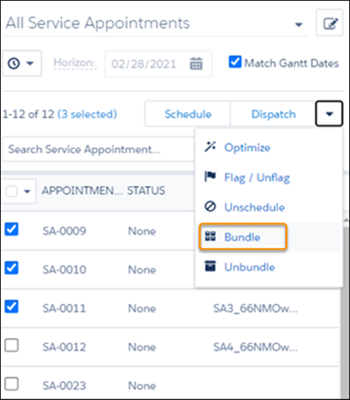
In the appointment list, select up to 200 service appointments that you want to bundle
together. Make sure to select only service appointments that aren’t already in a bundle.
The service appointments must be on the same day, can’t be part of a complex work chain, and can’t be pinned. See Appointment Bundling Limitations.
 Note To verify that you’re selecting only service appointments that aren’t in a bundle, apply the Exclude Bundle Members filter.
 -
From the global actions list, select Bundle.
-
In the Bundle Appointments window, select Create bundle and select a
bundle policy.
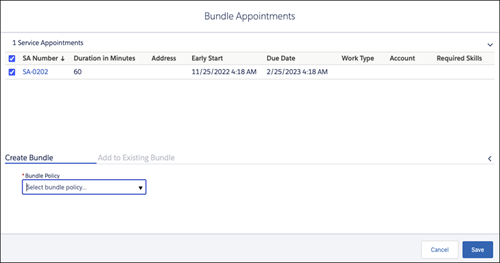
- Save the bundle. The bundle is created only if all the service appointments comply with the configuration settings. If you receive an error for any service appointment, remove it or change its details and try again.
- To make the bundle eligible for multiday scheduling, select IsMultiday in the bundle service appointment.
When a bundle is created:
- Appointment list—The new bundle service appointment appears in the appointment
list.
 Indicates that the appointment is a bundle service appointment. When the bundle
is scheduled, the icon also appears on the Gantt.
Indicates that the appointment is a bundle service appointment. When the bundle
is scheduled, the icon also appears on the Gantt. Indicates that the appointment is a bundle member service appointment.
 - Gantt—If all the service appointments in the bundle are scheduled, assigned to the same resource, and on the same day, the bundle is scheduled on the Gantt. If not, the bundle must be scheduled.
- Bundle tab of the bundle service appointment’s details window—If an Appointment Bundle Sort Policy is defined, the service appointments are sorted according to the policy. If an Appointment Bundle Sort Policy isn’t defined, the service appointments are sorted according to their due date in ascending order.
- Service Appointments tab—Shows the bundle information related to each bundle service
appointment and bundle member service appointment. This information can’t be edited.
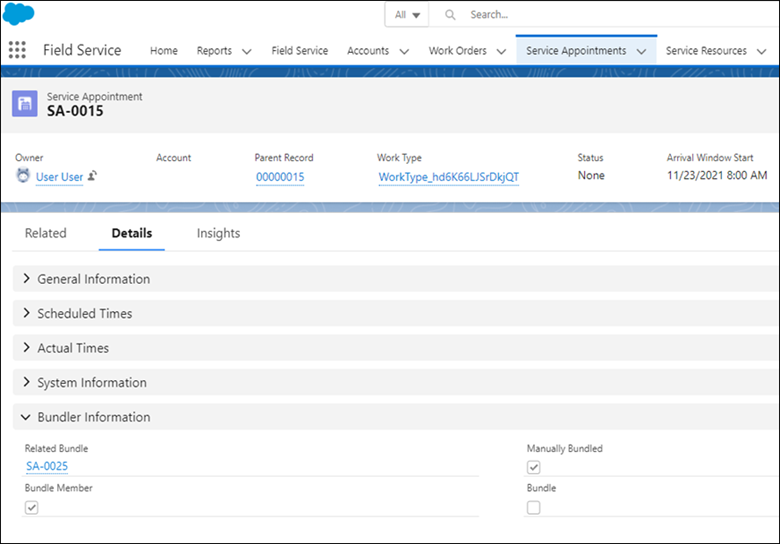
The Bundle Information fields can’t be selected to display in a list view. See Appointment Bundling Limitations.
Did this article solve your issue?
Let us know so we can improve!
