
You are here:
Create Complex Work
Model complicated realities with scheduling dependencies between appointments. Relate multiple service appointments so that scheduling and optimization can account for the dependencies. Each appointment’s parent record must be a work order.
Required Editions
| Available in: both Salesforce Classic (not available in all orgs) and Lightning Experience |
| The Field Service core features, managed package, and mobile app are available in Enterprise, Unlimited, and Developer Editions. |
| User Permissions Needed | |
|---|---|
| To create scheduling dependencies: | Edit on service appointments |
 This is a Field Service managed package feature.
- On a service appointment’s detail page, find the Scheduling Dependencies section.
- From the lookup filter, select an appointment that relates to the appointment that you’re viewing. Service appointments with a status that falls within one of the status categories—Canceled, Complete, or Incomplete—aren’t shown.
-
Select a dependency type:
Same Start The appointments must start at the same time. Start After Finish The appointment in the First Appointment field can’t start until the appointment in the Second Appointment field is complete. Start After Finish and Same Day The appointment in the First Appointment field can’t start until the appointment in the Second Appointment field is complete. Schedule both appointments for the same day. Immediately Follow Schedule the appointments back-to-back on the same day, and assign them to the same service resource.  Note For dependency types Start After Finish and Start After Finish and Same Day, you can also add a Same Resource dependency.
 - Click Create Dependency.
-
To add another appointment to the dependency group, select two related appointments, one of
which is in the dependency group. Select the dependency type and click Create
Dependency.
The service appointment is added to the dependency diagram and the list of appointments.

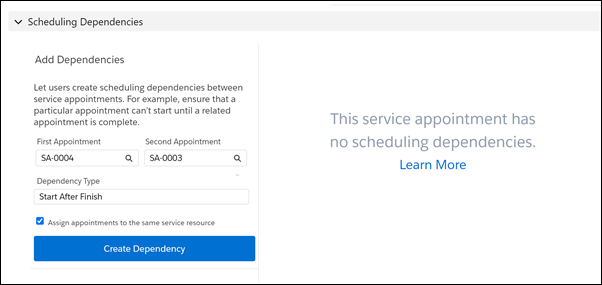
A customer reports a leaking skylight that has damaged a section of the ceiling. The call center rep creates a work order to address the problem and adds two service appointments: one to fix the skylight (SA-003), and one to repair the ceiling (SA-004). The skylight must be fixed before the ceiling is repaired, so the call center rep creates a Start After Finish dependency between SA-004 and SA-003. That way, scheduling processes can make sure the ceiling repair appointment starts after the skylight is repaired.
The call center rep wants the same person to do both assignments, so they select Assign appointments to the same service resource. After the call center rep adds the dependency, it’s visible in a diagram and listed in the Scheduling Dependencies section.
But the technician can’t fix the skylight alone. They need the right glass for the skylight. A second appointment, “Deliver skylight glass” (SA-005) must start at the same time as appointment SA-003 to fix the skylight. So the call center rep selects the two appointments and chooses the Same Start dependency type. After the call center rep adds the dependencies, all three appointments are visible in the diagram (1) and the two dependencies are listed in the Scheduling Dependencies section (2).

You can now schedule the appointments. Appointments with dependencies can be scheduled in the usual ways—scheduling quick actions, the dispatcher console, and optimization—or by clicking Schedule Appointments in the Scheduling Dependencies section.
