
Reserve Time Slots for Designated Types of Work
Create specific time slots in Field Service dedicated to service appointments that meet your criteria.
Required Editions
| Available in: both Salesforce Classic (not available in all orgs) and Lightning Experience |
| The Agentforce Field Service and Operations core features, managed package, and mobile app are available in Enterprise, Unlimited, and Developer Editions. |
 This is a Field Service managed package feature.
Service resources can perform any type of work during their available working hours according to the defined work rules in your scheduling policy. You can reserve certain time slots within those available working hours and designate them for specific types of work. For example, you can designate a time slot on an operating hours or shift record to support only service appointments whose Emergency field is selected.

Set Up Designated Work for Time Slots With Enhanced Scheduling and Optimization
Create specific time slots in Field Service dedicated to service appointments that meet your criteria when using Enhanced Scheduling and Optimization.
Required Editions
| User Permissions Needed | |
|---|---|
| To view, create, and update recordset filter criteria: | View, create, and edit on Service Appointments, Time Slots, Operating Hours, Recordset Filter Criteria, and Recordset Filter Criteria Rules AND Delete on Recordset Filter Criteria Rules |
-
Add the TimeSlot Designated Work work rule to one or more scheduling policies.
Note This rule can be applied only if the scheduling policy includes either the Working Territories work rule or the Match Territory work rule.When the policy is in use, the scheduling optimizer respects your designated time slot preferences during scheduling.
- Click the Scheduling Policies tab and select a policy.
- In the Scheduling Policy Work Rules related list, click New.
- In the Work Rule field, select New Work Rule.
- Select Field Service - TimeSlot Designated Work and click Next.
- Add a name and description.
- Save your changes.
-
Add recordset filter criteria columns to the lookup window.
- From the object management settings for recordset filter criteria, go to Search Layouts and click Edit on the System Administrator profile.
- Add Source Object, Filtered Object, and Active to the search layout.
- Click Save.
-
Create a recordset filter criteria for designated work.
- In the App Launcher, click Recordset Filter Criteria.
-
In the Recordset Filter Criteria list view, click
New.
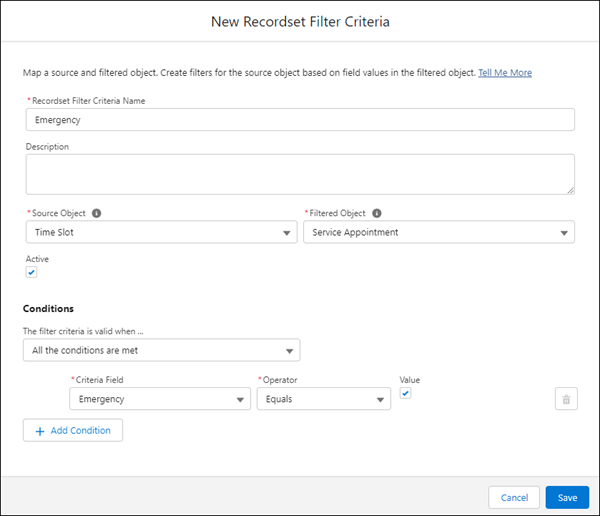
- Enter a name and description for the criteria.
- In the Source Object field, select Time Slot.
- In the Filtered Object field, select Service Appointment.
- Select Active.
- In the Conditions section, select the relevant condition for when the recordset filter criteria is valid.
- To add filter conditions, select the Criteria Field, the Operator, and the field Value to match on. The Value input changes depending on the field you select. For example, picklist fields show the list of available choices. Add another condition if you need to.
- Save the recordset filter criteria.
-
Designate a time slot for service appointments of a specified type.
- In the App Launcher, click Operating Hours.
- In the Operating Hours list view, select an operating hours record.
-
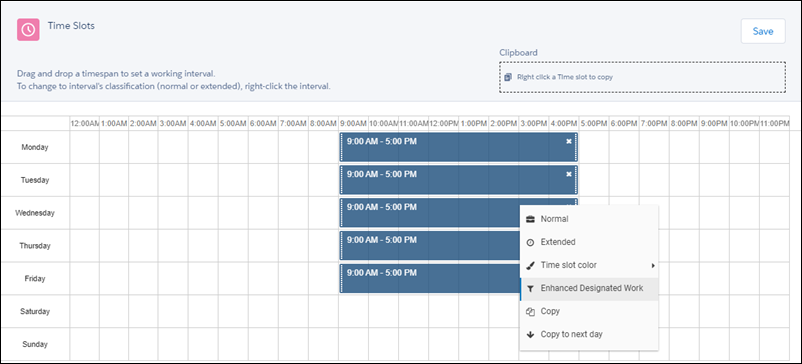
From the Details tab, in the calendar editor, right-click a time slot
and select Enhanced Designated Work.
-
From the lookup window, select a recordset filter criteria.
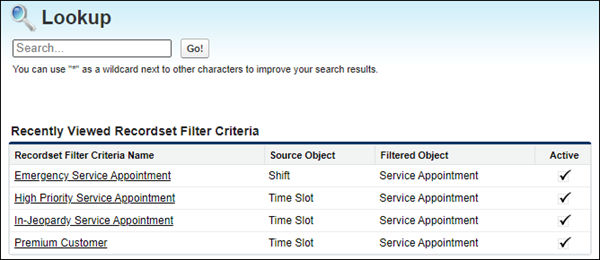 Note Select an active recordset filter criteria with the source object Time Slot and filtered object Service Appointment.
 - Click Save.
- From the calendar editor, you can change a designation by selecting a different recordset filter criteria from the lookup window.
- You can delete a designation only from the Related tab. In the time slots related list, click Edit on the action menu of the relevant time slot. Then clear your selection from the Recordset Filter Criteria field and click Save.
If an appointment doesn’t meet the criteria of your designated time slot, the scheduling optimizer won’t schedule it within the time slot.
Set Up Designated Work for Time Slots Without Enhanced Scheduling and Optimization
Create specific time slots in Field Service dedicated to service appointments that meet your criteria when not using Enhanced Scheduling and Optimization.
-
Decide which service appointment fields can be used to reserve time
slots.
- From the Object Manager, find the Service Appointment object and click Field Sets.
- Open the Designated Work Fields field set.
-
Drag any checkbox field into the field set.
Note You can customize a field by adding it to the service appointment object.
-
Add the TimeSlot Designated Work work rule to one or more scheduling policies.
When the policy is in use, the scheduling optimizer respects your designated
time slot preferences during scheduling.
- Click the Scheduling Policies tab and select a policy.
- In the Scheduling Policy Work Rules related list, click New.
- In the Work Rule field, select New Work Rule.
- Select Field Service - TimeSlot Designated Work and click Next.
- Add a name and description.
- Save your changes.
-
Reserve a time slot for service appointments of a specified type.
- From the operating hours tab, select an operating hours record.
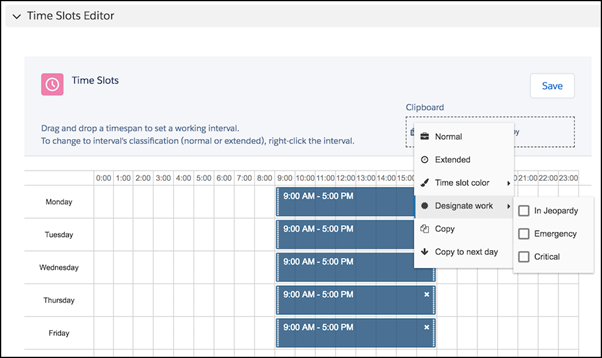
- From the detail view, right-click a time slot.
-
Hover over Designate Work and select a
checkbox.
If an appointment doesn’t meet the criteria of your designated time slot, the scheduling optimizer won’t schedule it within the time slot.
