
Limits and Limitations for Enhanced Scheduling and Optimization
Learn about the Enhanced Scheduling and Optimization limits and limitations.
Required Editions
| Available in: Available in Lightning Experience and Salesforce Classic in these editions where Field Service is enabled: Enterprise, Unlimited, and Developer Editions |
 This is a Field Service managed package feature.
Platform Limits Affecting Field Service
One of the main benefits of using Enhanced Scheduling and Optimization is fewer limitations, as seen when comparing engine limits side by side.
| Limit | Scheduling and Optimization | Enhanced Scheduling and Optimization |
|---|---|---|
| Maximum number of Apex classes scheduled concurrently (Scheduled Jobs) | 100 | 100, but you’re not likely to reach this limit because you can configure many optimization runs per scheduled job. Each job consumes one Apex scheduled job. See Manage Scheduled Jobs in Field Service.  Note If you set up a recurring schedule that runs every x minutes, multiple Apex
scheduled jobs are created accordingly. For example, if you set it up to recur every 15
minutes, this is counted as 4 Apex scheduled jobs. |
Number of synchronous concurrent transactions for long-running transactions that last longer than 5 seconds for each org.1 |
Based on the number of applicable licenses2 in an org, the limit is calculated as a ratio of 100 licenses to one concurrent long-running Apex transaction3.
|
Not applicable |
| Apex batch job executing in parallel | 5 | Not applicable |
| Maximum service appointments optimized per rolling 24 hours | 50,000 Only global, in-day, and resource schedule optimization requests count toward this limit. |
The limit is the greater of 50,000 or 500 per Field Service Scheduling license. If you're using the enhanced engine, you can check whether you’re operating within the limit. To do this, monitor the actual consumption in Optimization Requests, Last 24 Hours under Company Information in Setup. All types of scheduling actions count toward this limit, for example, Gantt scheduling, get candidates, appointment booking, and global, in-day, and resource scheduling optimization request types. Nonoptimization scheduling actions, for example, the Schedule action, contribute only one toward this count (the appointment that's being scheduled). |
| Maximum skills per service resource | 100 | 250 |
1 If more transactions are started while the default number of long-running transactions are still running, they’re denied. HTTP callout processing time isn’t included when calculating this limit.
2 The license types that count toward this limit include full Salesforce and Salesforce Platform user licenses, App Subscription user licenses, Chatter Only users, Identity users, and Company Communities users.
3 For example, if your org has 4,000 licenses, the concurrent long-running Apex requests limit is set at 40. If your org has 5,000 or more licenses, the concurrent long-running Apex requests limit is set at 50, which is the maximum capped limit. If your org has 1,000 or fewer licenses, the concurrent long-running Apex requests limit is set at 10, which is the minimum floor limit.
Limitations
Before using Enhanced Scheduling and Optimization, make sure you review some limitations.
Separate DML Transactions
Callouts aren’t permitted when an uncommitted transaction is pending. When you’re retrieving available time slots or scheduling an appointment, if a DML statement was executed before the service is called, an exception is raised. You must first commit or roll back before calling out.
This exception can be raised in two main scenarios.
Scenario 1: Explicit calls to the scheduling and optimization engine
When you call Enhanced Scheduling and Optimization explicitly through one of our documented Apex APIs, if any DML operations occurred in the same transaction before the Enhanced Scheduling and Optimization callout, you encounter an Uncommitted Work Pending error.
This exception is also raised if you’re not using Enhanced Scheduling and Optimization, specifically when a callout occurs to calculate travel time and either street-level routing or point-to-point predictive routing is enabled. In this scenario, the exception isn’t raised when Avoid aerial calculation upon callout DML exception is disabled in the Field Service Settings, because travel time reverts to aerial routing calculation. This setting isn't relevant if you're using Enhanced Scheduling and Optimization, because a callout is always performed.
You can avoid the exception.
- Perform any required DML operations in a separate transaction before calling Enhanced Scheduling and Optimization. Consider creating an Apex REST API endpoint that performs the DML operations, which can be called from Apex code.
- Utilize a flow, performing the DML operations in the steps before calling Enhanced Scheduling and Optimization as an invocable action. The action element has advanced settings that allow you to configure the action to be executed as part of a new transaction. These settings aren’t supported for autolaunched flows.
See Splitting transactions to enable the use of Enhanced Scheduling and Optimization.
Scenario 2: Inexplicit calls triggering travel time recalculation
This exception can also be raised when you're not explicitly calling Enhanced Scheduling and Optimization but a callout occurs automatically to recalculate travel time. This automatic recalculation happens when you change certain fields through any Salesforce API, which makes the system attempt to recalculate travel times.
- Service Appointment fields: Assigned Resource, Scheduled Start, or Scheduled End
- Absence fields: Resource, Start, or Finish
Because these changes automatically trigger travel time recalculations, you can't separate the DML (the field update) into two transactions. The system tries to perform the recalculation in a different transaction, which can lead to issues, during batch processes. Nonbatch processes always succeed regardless of which scheduling and optimization engine is used.
- When you’re not using Enhanced Scheduling and Optimization: If Street-Level Routing or Point-to-Point Predictive Routing is enabled, this scenario results in an Uncommitted Work Pending error during the automatic travel time calculation. To mitigate this, allow the system to use aerial routing. In the Field Service Admin app, click Field Service Settings | Scheduling and deselect Avoid aerial calculation upon callout DML exception. If this setting is disabled, the travel time calculation reverts to aerial routing and avoids the exception.
- When you’re using Enhanced Scheduling and Optimization: When these fields are updated in a batch process, Enhanced Scheduling and Optimization doesn’t recalculate the travel times automatically, but it also doesn’t result in an error.
Scheduling and Optimization
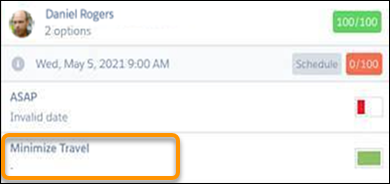
- The Objective Calculation explanation is missing for Get Candidates and Appointment
Booking.
- Scheduling a service appointment outside of a resource’s working hours using drag and drop results in a rule violation. Travel time to and from the service appointment isn’t calculated, and other rules aren’t validated.
- Travel time to and from a resource absence created outside of a resource’s working hours isn’t calculated.
- Scheduling a service appointment partially outside working hours can result in a Match Territory rule violation.
- When all the service appointments for a day are optimized and then unscheduled, utilization isn’t shown accurately on the Gantt. Utilization is updated again when appointments are scheduled.
- When Calculate Travel and Breaks in the Routing section of Field Service Settings is deselected, travel times and breaks aren’t updated on the Gantt if you manually make changes. However, when using drag and drop, the travel times and breaks are updated regardless of this setting.
- The Objects Scheduled field of the optimization request isn’t populated when you’re using Enhanced Scheduling and Optimization. However, the Scheduled Service Appointments data field is populated in the Scheduled Service Appointments section of the Optimization Hub.
- If you have an implementation that uses resource efficiencies, enhanced optimization can result in overlaps if service appointments are pinned, or unscheduling of appointments if unpinned (since there isn't enough space in the schedule). This is because Enhanced Scheduling and Optimization rounds up the service appointment duration.
- Enhanced Scheduling and Optimization can’t schedule a service appointment exactly at the start time of a lunch break (the time set in the Break Start field in the Resource Availability work rule). When you're using Appointment Booking, the scheduling engine doesn’t return this time slot, and when you manually schedule the service appointment on the Gantt, the appointment overlaps with the lunch break. We recommend that you schedule the service appointment for a minute before or after the break start. For Appointment Booking, set the time slot in the Appointment Booking operating hours to start a minute before or after the break.
- During optimization, trigger results are updated in a batch with a maximum CPU time of 60 seconds, because the transition is asynchronous. When using Enhanced Scheduling and Optimization, this CPU time is reduced to 10 seconds, because the transaction is synchronous. To improve the trigger performance, optimize the logic developed in Apex Triggers on the Service Appointment and Resource Absence object. Consider moving logic to run as part of an asynchronous process, for example, Queueable Apex. Contact Salesforce Customer Support to optimize the batch size that is used to write the results back to Salesforce.
- A scheduled path in a record-triggered flow doesn’t always work with optimization when Enhanced Scheduling and Optimization is enabled. In this case, the optimization updates are done by the platform integration user who has a session-based permission set that isn't active during the scheduled path’s execution. To grant this user the necessary permission, clone the Field Service Integration permission set, disable the Session Activation Required option, and then save. Then assign this permission set to the platform integration user. You can add more permission sets to this user if it’s necessary.
- Enhanced Scheduling and Optimization uses the Platform Integration User, which uses the Cloud Integration User license. Some of your customizations and product OOTB features can be impacted due to this limitation. You must add all the custom fields used in rules and objectives to the Field Service Integration permission set before you assign the rule or objective to a scheduling policy. We recommend you check that all your customizations and product OOTB features have the required access and are working as designed. Add permissions to the Platform Integration User as required. When using Calendar sync with Enhanced Scheduling and Optimization enabled, Dispatched service appointments must be in a pinned status.
- 24-hour operating hours coverage isn't supported for mobile workers.
- If you’re using Enhanced Scheduling and Optimization, when service resource efficiencies are used and applied to the duration of the service appointment assignment, the engine rounds up the Actual time to perform an appointment values to the nearest minute. If you’re not using Enhanced Scheduling and Optimization, the engine rounds down to the nearest minute.
- If you’re using Enhanced Scheduling and Optimization, when the status of a service appointment scheduled for a crew changes to Dispatched, the notification appears twice in the Chatter post.
- When you create or modify resource absences or modify scheduled service appointments, the horizon of the request is limited to 30 days. For example, if you create a resource absence in February and a resource absence in April in the same transaction, travel time and lunch breaks aren’t created or updated.
- If a dispatcher manually schedules a service appointment or resource absence during an overlapping time, and the remaining time isn’t long enough for the actual travel to or from home, no appointments can be scheduled for the resource for that day.
- If the engine schedules a lunch break after a service appointment, and you manually schedule another service appointment where the travel time overlaps with the lunch break, the lunch break moves to the earliest start time and overlaps with the travel time. The rule violation is shown on the service appointment that you manually scheduled causing the violation, and not on the service appointment that overlaps with the break.
- If you're not using Dynamic Scaling , the maximum number of service territories you can select for a group (per request) for enhanced scheduled jobs is 100. With dynamic scaling, the limit is 1,000.
- Enhanced Scheduling and Optimization doesn't properly handle multiday work that starts or ends during nonworking hours at a time when travel at the resource's expense is allowed. Such cases can result in incorrect overlapping violations and inaccurate travel times.
Service Appointments and Service Resources
- When two working shifts or time slots are defined for a resource on the same day, each shift or time slot is considered as if it's a different "day", such that it includes the resource traveling to and from the home base.
- Snapping (scheduling using ctrl/cmd + drag and drop) a service appointment to a resource absence isn’t supported and doesn’t change the schedule.
- When manually scheduling a multiday service appointment using drag and drop, the scheduled start time must be within a valid timeframe for the duration to be calculated correctly. For example, if the multiday service appointment is scheduled to start when the service resource isn't available (during a non-availability shift, resource absence, or lunch break), then the multiday service appointment duration isn't calculated accurately to account only for working hours.
- The combination of multiday scheduling and complex work isn’t supported. If a multiday service appointment is part of a scheduling dependency, its scheduled end date isn’t calculated when the appointment is scheduled.
- When using Enhanced Scheduling and Optimization, utilization on the Gantt doesn’t consider multiday service appointments.
