
Transition to Enhanced Scheduling and Optimization
Salesforce orgs created in Summer ’23 and later have Enhanced Scheduling and Optimization enabled by default for all service territories. If you're not using Enhanced Scheduling and Optimization, you can enable the enhanced engine for all or selected service territories. You can easily upgrade all service territories with guided steps comprising a readiness check and links to Salesforce Help. This transparency helps you adopt Enhanced Scheduling and Optimization and benefit from innovative features, more efficient services, and improved scalability, performance, and schedule quality.
Required Editions
| Available in: Available in Lightning Experience and Salesforce Classic in these editions where Field Service is enabled: Enterprise, Unlimited, and Developer Editions |
| User Permissions Needed | |
|---|---|
| To enable Field Service: | Customize Application |
| To install the Field Service managed package: | Customize Application |
| To assign a permission set license: | Manage Users |
| To create a permission set: | Manage Profiles and Permission Sets |
| To enable Enhanced Scheduling and Optimization: | Customize Application |
 This is a Field Service managed package feature.
To transition to Enhanced Scheduling and Optimization, make sure that you meet these requirements.
- Field Service is enabled.
- The latest version of the Salesforce Field Service managed package is installed.
Before using the enhanced engine, we recommend that you review the Considerations and Limits and Limitations for Enhanced Scheduling and Optimization.

Automatically Transition All Service Territories to Enhanced Scheduling and Optimization
Easily upgrade all service territories to use Enhanced Scheduling and Optimization with a guided flow (recommended) comprising readiness checks and links to Salesforce Help. Discover what configuration updates are required for your Salesforce org, get workarounds for unsupported features, and review the differences in behavior when using the enhanced engine.
- In the Field Service Admin app, go to Field Service Settings.
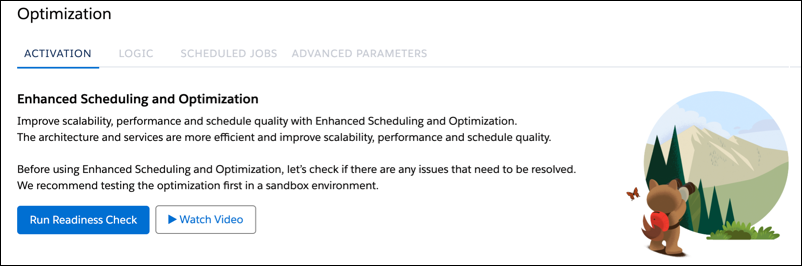
- Select Getting Started and then select the Home tab, or go directly to the Activation page under Optimization.
-
Click Run Readiness Check. To ensure accuracy, the readiness
check considers only feature usage and configurations from the last 3 months.
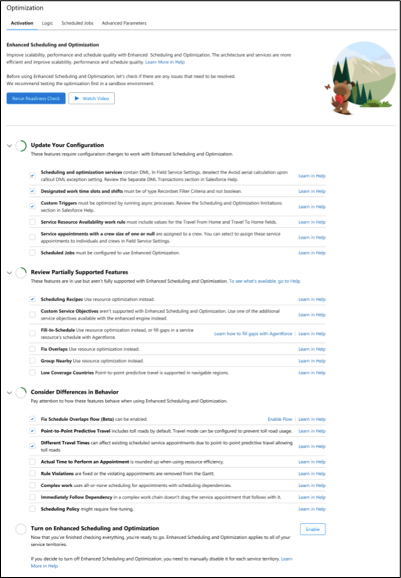
- Review the information and click to learn more in Salesforce Help. Only the steps relevant to your Salesforce org are shown.
-
Make the necessary configuration changes. Then, to see if you’re ready to transition,
click Rerun Readiness Check.
Note If you ran the readiness check in the past and you’re revisiting this page, your previous results are shown. You must rerun the readiness check.
-
After you’ve made the required configuration changes and you’re ready to transition to
the enhanced engine, enable Enhanced Scheduling and Optimization for all service
territories. All the required settings are automatically enabled.
Note If you decide to turn off Enhanced Scheduling and Optimization, you need to manually disable it for each service territory.
Manually Transition All or Selected Service Territories to Enhanced Scheduling and Optimization
Transition to Enhanced Scheduling and Optimization for all or selected territories. Configure your Salesforce org to transition smoothly to the enhanced engine.
- To discover what configuration updates are required for your Salesforce org, get workarounds for unsupported features, and review the differences in behavior when using the enhanced engine, run the Readiness Check from the Field Service Admin app under Field Service Settings |Optimization | Activation. Don’t enable Enhanced Scheduling and Optimization from here because this enables the enhanced engine for all service territories.
- To use the enhanced features, enable Enhanced Scheduling and Optimization and Field Service Integration in Setup under Field Service Settings.
- Create or update the required permission sets in the Field Service admin app under Field Service Settings.
- Check whether the Enhanced Scheduling and Optimization service is configured in Remote Sites Settings. This service is typically created automatically.
- Check that point-to-point predictive routing is enabled in Field Service Settings | Scheduling | Routing. Enhanced Scheduling and Optimization uses point-to-point predictive routing regardless of the travel time calculation preferences set in the Routing section of Field Service Settings.
- Configure Enhanced
Scheduling and Optimization per territory. To enable Enhanced Scheduling and
Optimization for a territory, select Use enhanced scheduling and
optimization in the service territory record. If the checkbox isn’t
available, add it to the Service Territory page layout. Review the limits and considerations
that apply when you're using Enhanced Optimization per Territory.Note Use of the Enhanced Scheduling and Optimization services is controlled by the service territory. Some territories can be enabled to use Enhanced Scheduling and Optimization while others aren’t, based on your rollout strategy. You can select to enable all service territories to use Enhanced Scheduling and Optimization in Field Service Settings | Scheduling | General Logic.
- Review the Considerations for Enhanced Scheduling and Optimization and Limits and Limitations for Enhanced Scheduling and Optimization that lists any differences in behavior with the old engine that require configuration, and limits to be aware of.
- Determine whether you have custom batch processes that update data in service territories. If these bulk actions use different engines, split these processes into different datasets so that service territories from the same engine are processed together. All service appointment territories and service resource territories within the same optimization request must use the same optimization engine. A notification is shown when you’re running bulk operations such as global optimization with different territory optimization settings, because it can’t be determined which optimization engine to use. See Limitations for Enhanced Optimization per Territory.
- Update the Field Service Integration permission set, assigned to the Platform Integration User, to have Read access for any custom fields that are referenced by the scheduling logic. Enhanced Scheduling and Optimization uses the Platform Integration User.
- (Optional) Enhanced Scheduling and Optimization provides innovative features that were previously unavailable. Explore and apply these features to your solution as needed.
- Fine-tune the scheduling policy.
- After testing Enhanced Scheduling and Optimization in a test environment, enable Enhanced Scheduling and Optimization for one or two service territories in production and evaluate the results. Use the Optimization Hub to collect scheduling KPI data and get feedback from business users. After you’ve verified that the pilot tests are successful, enable more service territories and make adjustments where required.
See Also
- Enable Field Service
- Install the Field Service Managed Package
- Assign Field Service Permissions
- Limits and Limitations for Enhanced Scheduling and Optimization
- Create Field Service Permission Sets
- Set Up Routing for Travel Time Calculations
- Adopt and Implement Enhanced Scheduling and Optimization
- What’s Available in Enhanced Scheduling and Optimization
