
You are here:
Filter the Gantt in Field Service
Customize the Gantt’s contents by filtering it based on service resource settings, skills, utilization, hours, and other features.
Required Editions
| Available in: both Salesforce Classic (not available in all orgs) and Lightning Experience |
| The Field Service core features, managed package, and mobile app are available in Enterprise, Unlimited, and Developer Editions. |
 This is a Field Service managed package feature.
To open your filter settings, click the filter icon in the top left-hand corner of the Gantt. By default, the Gantt is sorted by service resource name.
To search for resources within the resource list, enter two or more characters in the search field. Separate multiple keywords with a comma, which applies an OR condition to the search.
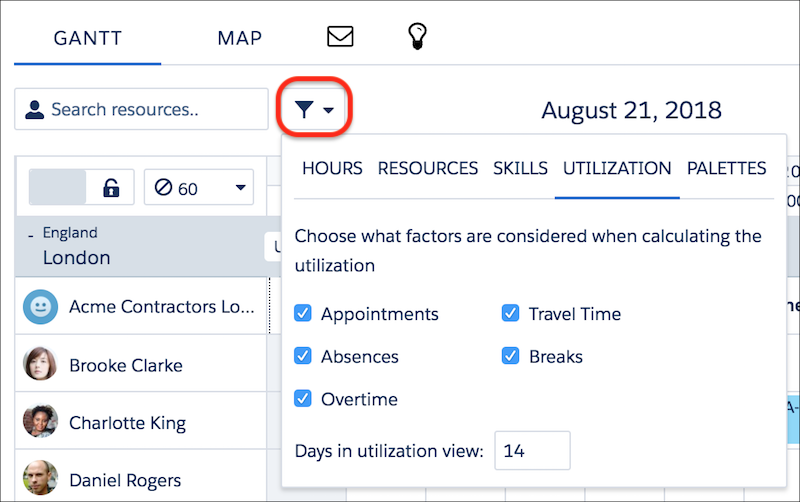
| Filter Tab | Description |
|---|---|
| Hours | Select a range of hours to show. The date resolution determines the Gantt time interval and how available hours appear. For example, when you select a date resolution of 3 Days, the Gantt shows resource availability across 4-hour intervals; it displays intervals with full or partial availability within filtered hours. For In-Day, the Gantt shows half-hour intervals and ignores the filter for which hours to show. In 3 Days, Weekly, and 2 Weeks date resolutions, you can turn on the option to show a horizontal scroll bar. Scrolling enables you to see all the relevant resource availability information also in lower date resolutions. You can turn on options to display or highlight weekends. For views that are less than weekly, the Gantt always shows weekend days. When you turn on the option to show weekends, the Gantt displays weekend days for date resolutions of weekly or longer. A setting In Field Service Settings | Dispatcher Console UI lets you configure Sunday or Monday as the start of the week. At the bottom of the tab, you can customize the Long-Term view:
(To reach the long-term view, select Long-Term in the top-right corner of the Gantt. You need the Longterm View custom permission to access it.) |
| Resources | Specify which service resources are shown and in what order. Select Show working resources only in the filter box to show only resources that are available to be assigned to appointments on the dates shown on the Gantt. Service resources with an absence during this availability period are still shown. To add more filterable fields to the Resources tab, update the Resource Gantt Filter field set. |
| Skills | Select skills that resources must possess to be shown on the Gantt. Change the Filter Logic to OR to display resources with one or more of the selected skills. When the Gantt’s resource skill filter runs, it preloads 50 skills and shows them as filter options based on the available skills of the currently loaded resources. You can search for more skills using the skills search bar and apply them as filter options. The last applied filter is saved until the next time you change it. |
| Utilization | Select the factors that are considered when calculating resource utilization, and control the days shown in the utilization view. (To reach the utilization view, select Utilization in the top-right corner of the Gantt.) |
| Palettes | Create, manage, and apply palettes to color-code service appointments on the Gantt and map. Click the icon in the top-right corner to open the palette editor. |
